Open a port on a virtual machine
Open a TCP or UDP port to everyone or to chosen addresses on one virtual machine, or apply a template such as web, from its Firewall tab.
Opening a port adds an inbound allow rule to the own policy of one virtual machine. A network adapter with a public address drops inbound traffic that no rule allows, apart from what its profile lets through, so a service such as a web server needs its port opened; see Default profiles. You need the privilege to manage policies on the virtual machine. While the firewall mode of the adapter is Off, the rule is stored and filters nothing until the mode changes; see Rollout to existing virtual machines.
In the console
In the inventory, select the virtual machine and open the tab Firewall. The tab Networks has a card Firewall with the same two buttons.
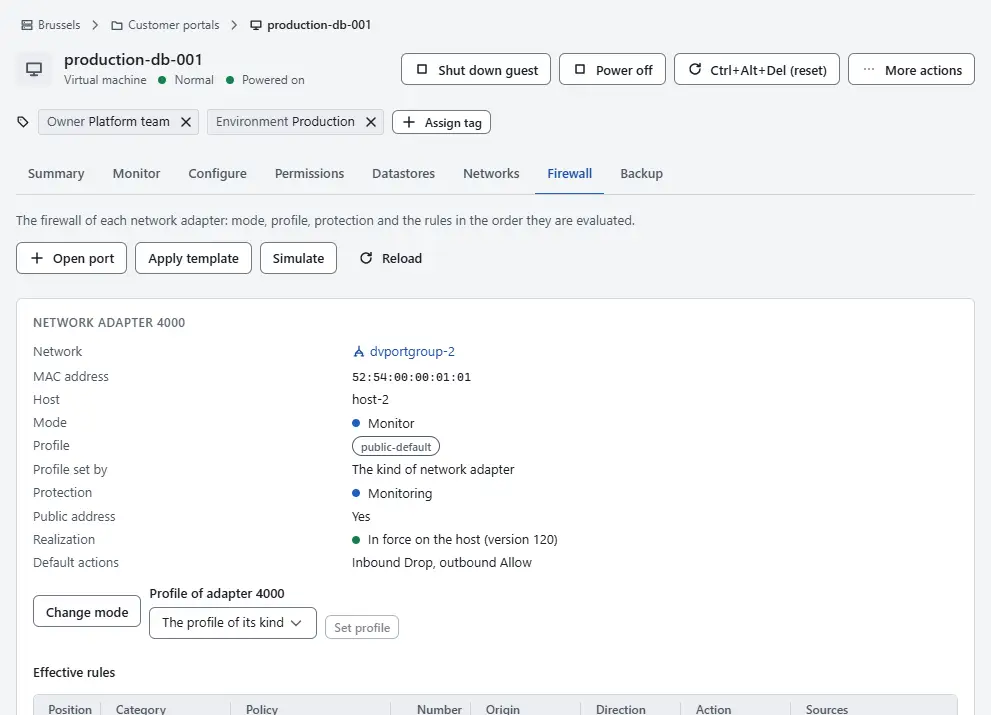
Select Open port.
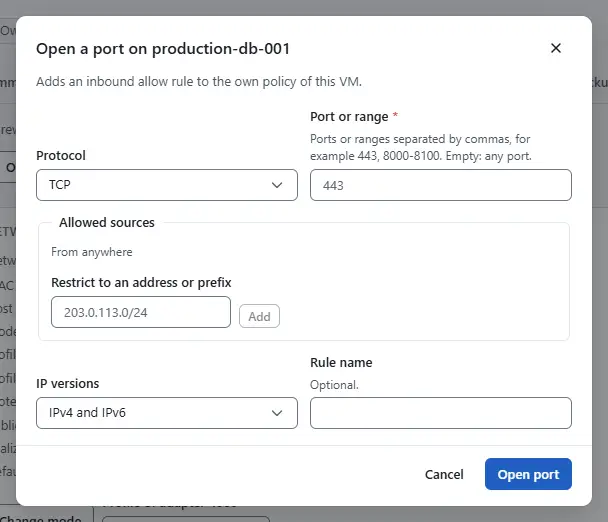
- Choose the Protocol: TCP or UDP.
- Enter the Port or range: one port such as 443, or a range such as 8000-8100. Ports run from 1 to 65535 and the start of a range is not after its end.
- Under Allowed sources, leave the list empty to allow traffic from anywhere, or restrict the rule: enter an IPv4 or IPv6 address or prefix such as 203.0.113.0/24 in the field Restrict to an address or prefix and select Add. Repeat for more sources. Select Remove next to a source to drop it again.
- Optionally set IP versions to IPv4 only or IPv6 only, and enter a Rule name. Without a name the rule is called after the protocol and the port.
- Select Open port. The console waits until the hosts have applied the rule. When a host has not applied it yet, a warning names the host; see Realization.


To open the ports of a known kind of server at once, apply a template instead:
On the tab Firewall, select Apply template.
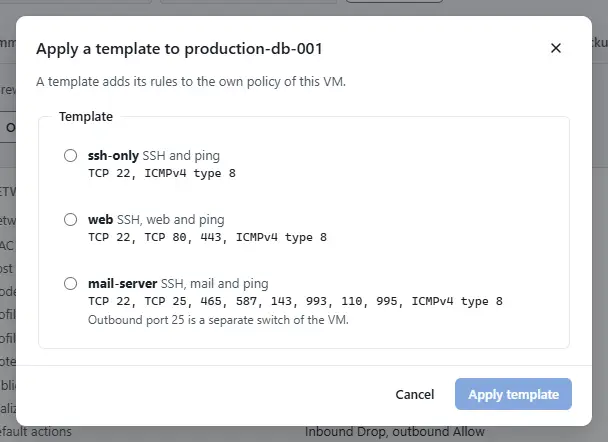
- Under Template, select a template. Each entry shows its description and the services it opens. The built-in templates are
ssh-only(SSH and ping),web(SSH, ports 80 and 443, ping) andmail-server(SSH, the mail ports and ping). The templatemail-serverdoes not open outbound port 25, which has its own switch; see Outbound mail. A provider administrator can add templates of their own. - Select Apply template. The change runs as a task that you follow in Tasks.

Result
The rule appears in the table Effective rules of the adapter with the action Allow and the direction Inbound. It sits in the own policy of the virtual machine, which Kyvernon creates on first use. Opening the same port again, or applying a template twice, adds the rule once. To check what a packet meets, use the simulation described in Effective rules.
Automation
With the CLI
kyvernon firewall open-port vm-7 --tcp 443 --from 203.0.113.0/24
kyvernon firewall templates list
kyvernon firewall templates apply web vm-7
With the API
POST /v1/vms/{id}/firewall/open-portwith{"protocol": "tcp", "ports": "443", "from": ["203.0.113.0/24"]};from,ipVersionandnameare optional.GET /v1/firewall/templateslists the templates.POST /v1/firewall/templates/{id}/applywith{"vm": "vm-7"}starts a task.
A virtual machine without a network adapter on a host-bridge network is refused with error.firewall.no_vnic.
Related
Version 0.1. Last changed: 2026-11-14