Roll out the firewall to existing virtual machines
Move existing virtual machines from firewall mode off to monitor and then enforce, with the monitor report, its proposal and a confirmation timer.
Existing virtual machines keep working as before: every network adapter starts in the mode Off and nothing is filtered until an administrator changes the mode. The safe order is to monitor first, read what the rules would have blocked, accept the proposed rules, and then enforce with a confirmation timer. Changing the mode needs the provider privilege to manage the firewall, reading the report needs the privilege to read logs, and accepting a proposal needs the privilege to manage policies.
In the console
On the home page, select Firewall and open the tab Rollout. The tab is there only for users who may change modes.
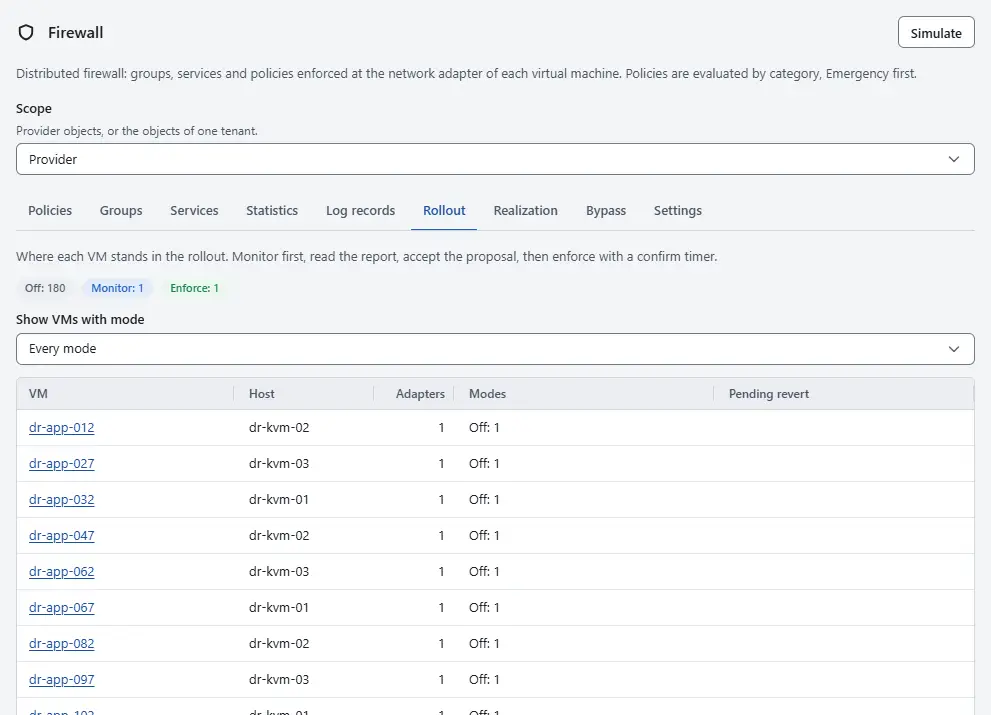
- Read the totals above the list: the number of network adapters in each mode. Use Show VMs with mode to show only the virtual machines that have an adapter in one mode. The list shows per virtual machine the Host, the number of Adapters, the Modes and any Pending revert.
- To start monitoring, select Change mode on the row of a virtual machine. Under New mode, choose Monitor, optionally enter a Reason, and select Switch mode. The rules now run: packets that they would drop are counted and reported, and every packet is still forwarded. An adapter that is Unprotected cannot leave the mode Off; see Firewall troubleshooting.
- Leave the virtual machine in Monitor long enough to see its normal traffic, such as the weekly job. The report covers the days set in Days a monitor report covers on the tab Settings.
To read the report, select Report on the row. The same report is on the tab Firewall of the virtual machine, in the card Monitor report.
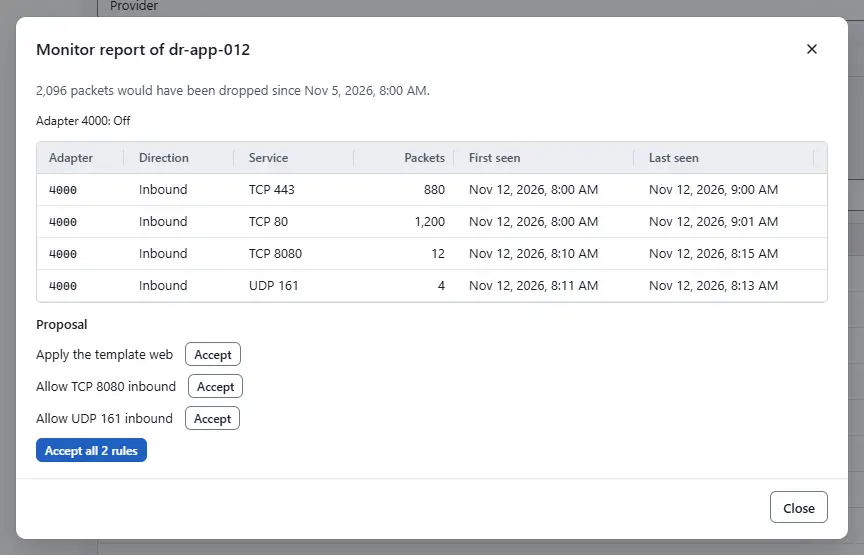
- Read the summary line with the number of packets that would have been dropped. In the table, each row is one service seen on an adapter: the Adapter, the Direction, the Service, the Packets, First seen and Last seen, and some Sample sources, at most 16 per service. When the table is empty, nothing would have been dropped, or the virtual machine is not in the mode Monitor yet.
- Read the Proposal. Kyvernon proposes a template when the inbound traffic that was seen matches one (
web, ormail-server), and otherwise one allow rule for each inbound TCP or UDP port that was seen. Outbound traffic and ICMP are listed in the report but not proposed. Select Accept next to an item to open that port or to apply that template, as in Open a port. When several rules are proposed, one more button accepts all of them. To enforce, select Change mode again. Under New mode, choose Enforce. Leave Confirm within on its proposal of 10 minutes, or choose a period from 1 minute to 4 hours, and select Switch mode. Without a timer, a mistake in the rules can lock you out of the virtual machine, and the dialog warns about it.
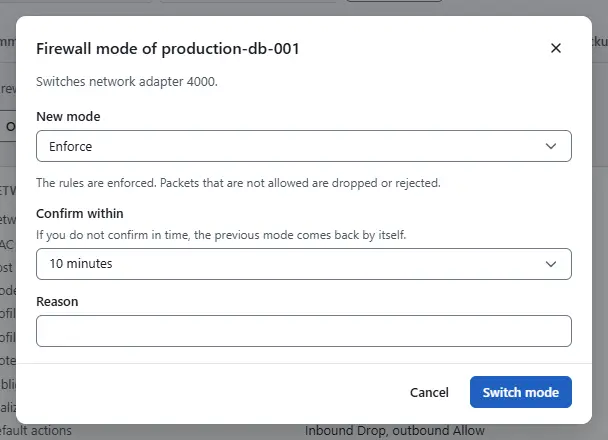
- While the timer runs, the page shows a notice with a countdown for each adapter that goes back unless you confirm. Check that you can still reach the virtual machine, for example with a new SSH session, and that its services answer from outside. Then select Confirm the new mode on the tab Firewall of the virtual machine, or Confirm on its row of the rollout list.
- To keep a virtual machine open for now, leave it in Monitor, or set its profile to
openon its tab Firewall: choose the profile under the adapter and select Set profile. A public adapter on that profile shows a warning on the tab.


Result
The row of the virtual machine shows Enforce for each confirmed adapter, and the notice about the countdown is gone. When the time is over without a confirmation, the previous mode comes back by itself and the console shows it after a moment. It goes back to the mode that the adapter had before the first switch that was not confirmed, so two quick switches still return to where you started. The event for a switch that went back has the severity warning.
Important
A switch straight from Off to Enforce drops the replies to connections that the virtual machine opened before the switch, until it sends again. Monitor first when you can.
New network adapters
Network adapters that are added from now on start in the mode Off, like the existing ones. The switch Enforce new network adapters on the tab Settings makes new adapters start in Enforce with the default profile of their kind. It does not change existing adapters. See Default profiles.
Automation
With the CLI
kyvernon firewall mode vm-7 monitor --reason "start of rollout"
kyvernon firewall monitor vm-7
kyvernon firewall open-port vm-7 --tcp 443
kyvernon firewall mode vm-7 enforce --confirm-within 10m
kyvernon firewall mode confirm vm-7
--nic limits a switch to one adapter. The timer accepts 30 seconds to 24 hours.
With the API
POST /v1/vms/{id}/firewall/modewith{"mode": "enforce", "confirmWithin": 600}starts a task.confirmWithinis in seconds, from 30 to 86,400;nicsandreasonare optional.POST /v1/vms/{id}/firewall/mode/confirmconfirms the switches of the virtual machine that wait.GET /v1/vms/{id}/firewall/monitorreturns the report and the proposal.
A confirmation with nothing to confirm fails with error.firewall.not_pending, and an adapter that cannot be firewalled with error.firewall.unprotected.
Related
- Firewall concepts
- Realization shows whether the hosts apply the mode.
- Effective rules
- Emergency bypass
- Firewall troubleshooting
Version 0.1. Last changed: 2026-11-14