Rules and policies
Create firewall policies and rules, set category, sequence and scope, order the rules, review validation issues and publish the changes.
A policy is an ordered list of rules in one category, and the console keeps your edits as pending changes until you publish them together. Tenants and administrators create policies in the categories Environment and Application with the privilege Kyvernon.Firewall.ManagePolicies; the categories Emergency and Infrastructure need Kyvernon.Firewall.ManageProvider.
In the console
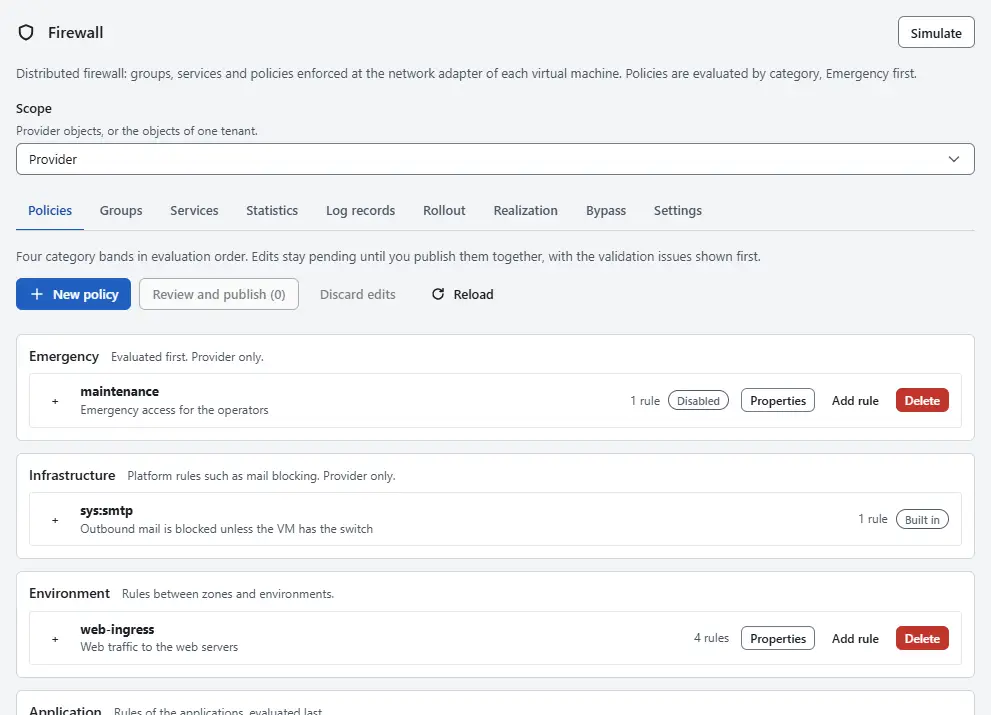
On the home page, select Firewall, then the tab Policies. A provider user can switch to a tenant with Scope. The tab shows four bands in the order of evaluation: Emergency, Infrastructure, Environment and Application. A band that you cannot change shows the badge Provider policies: read only.
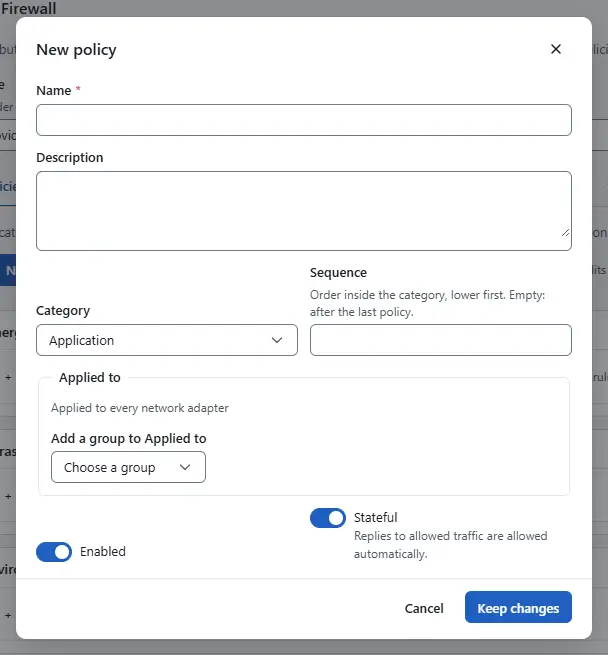
Select New policy. Enter a Name and a Description. Choose the Category; tenants can use Environment and Application only. In Sequence, enter the position of the policy inside its category, lowest first; empty puts it after the last policy. Under Applied to, choose the groups whose adapters the policy covers; empty means every network adapter in your scope. Switch Enabled and Stateful as needed, then select Keep changes. The category cannot be changed afterwards.
- Expand the policy with the plus button at its start and select Add rule.
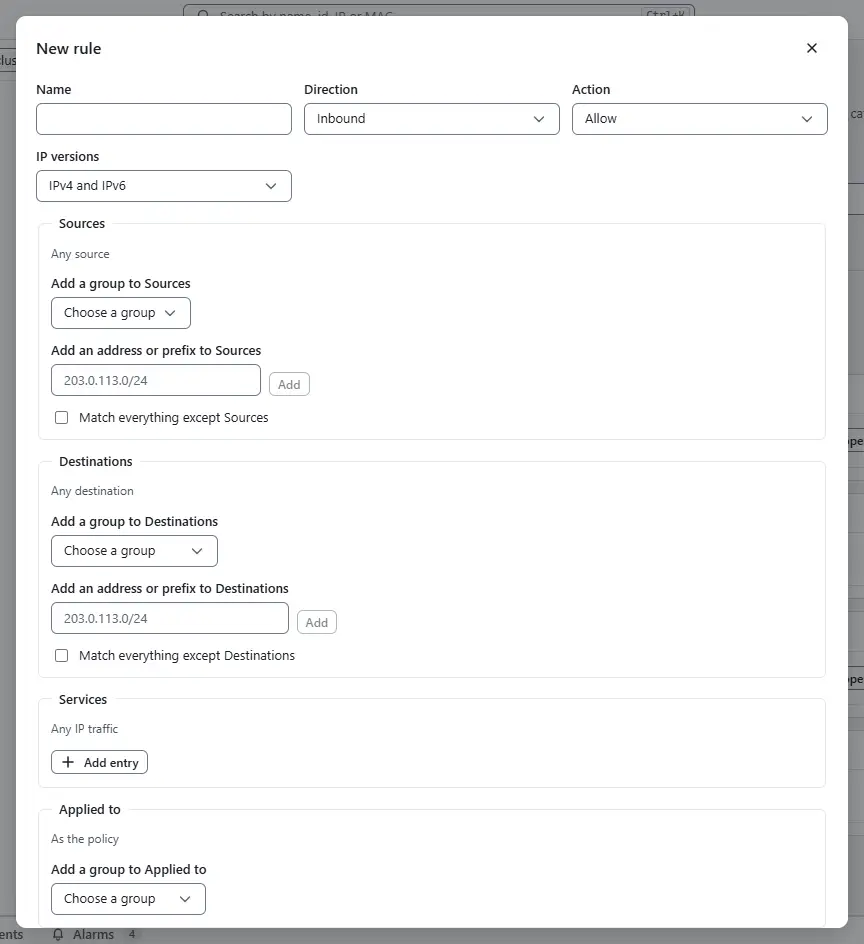
Fill in the rule. Name is optional. Direction is Inbound, Outbound or Both. Choose the Action: Allow, Drop, Reject, or Pass, which is not available in the category Application. IP versions limits the rule to IPv4, IPv6 or both. For Sources and Destinations, add groups or addresses and prefixes; the check box below a list matches everything except the list, and an empty list means any. For Services, add named services or entries with a protocol and ports; empty means any IP traffic. Applied to narrows the rule to some groups, and empty uses the groups of the policy. Switch Log matches on to write matching packets to the log records, and Enabled off to keep a rule without using it.
- To test the rule, use the section What does this match at the bottom of the dialog. Choose a virtual machine under VM, enter the Other end address, the protocol and the port, and select Check. The answer names the verdict and the rule that decides. It uses the published rules only, so your pending edits are not included.
- Select Keep rule. The rule is added at the end of the policy. Rules are evaluated from top to bottom and the first match decides, so drag a row to a new place, or use Up and Down. Edit reopens the rule and Remove takes it out. The switch in the column Enabled turns a rule on or off, and the column Hits counts the packets that matched it.
- Edits stay in your browser until you publish them and are lost when you reload or leave the page. A policy with edits carries the badge Not published, and a new one New. Discard edits throws all pending edits away.
- Select the review button of the toolbar, which shows the number of policies with edits. The dialog lists, per policy, which rules are added, changed, removed or moved, and the section Validation issues. An issue is an Error or a Note. The console checks before it publishes: empty names, a category that belongs to the provider, the action Pass in Application, port ranges outside 1 to 65535, an ICMP code without a type, a negated list that is empty, and services or groups that do not exist. While an error is open, Publish stays unavailable; select Back to editing and correct it.
- Select Publish. Publishing waits until the hosts have applied the change, and the policies are published one after the other. If one fails, the others stay pending and the dialog shows the reason. A warning names hosts that have not applied the change yet; the tab Realization shows them.
- If someone else changed the policy while you edited, the console says so. Select Reload and keep my edits to start your edits from the current version and review them again.
- To remove a policy, select Delete on its row and confirm with Delete policy. The policy and all its rules go at once, and traffic that its rules allowed may stop working. Select Properties to change the name, description, sequence, groups or switches of an existing policy; these edits are published like rule edits.


Result
Published policies apply on every host with an adapter in their scope. Built-in policies carry the badge Built in, have names that start with sys: and cannot be changed or deleted. A tenant has quotas for groups, policies and rules; a change over a quota fails with error.firewall.quota, and a tenant policy in another category fails with error.firewall.category_scope. When the server finds errors that the console did not, the change fails with error.firewall.validation and nothing is saved.
Automation
With the CLI
kyvernon firewall policies create --name web-ingress --category environment --sequence 200
kyvernon firewall rules add --policy fwpolicy-3 --name https --action allow --direction in \
  --service tcp:443 --source 203.0.113.0/24 --log true
kyvernon firewall rules move 2 --policy fwpolicy-3 --position 0
kyvernon firewall policies list
Every command changes the published policy at once; there are no pending edits. Add --wait to answer only when the hosts have applied the change, and --if-match to refuse a change of a version that moved on.
With the API
GET /v1/firewall/policies lists the policies with their rules in evaluation order, POST /v1/firewall/policies creates one, and GET, PUT and DELETE /v1/firewall/policies/{id} read, replace and delete one. A PUT carries the whole policy with its rules in order, as the console sends it. POST /v1/firewall/policies/{id}/rules, PUT and DELETE /v1/firewall/policies/{id}/rules/{rid} and POST /v1/firewall/policies/{id}/rules/{rid}/move change single rules. The header If-Match carries the version, and the query wait=realized waits for the hosts.
Related
- Groups and services defines what rules refer to.
- Effective rules and simulation shows the order that applies to one adapter.
- Firewall concepts explains categories and order.
- Tenant isolation lists what a tenant can and cannot change.
- Firewall reference lists the fields and limits of rules.
Version 0.1. Last changed: 2026-11-14