Host-bridge networks
Create, edit and delete a host-bridge network in the console: VLAN, hosts, DHCP, MTU, lease time, domain, uplink mode, port security and policy.
A host-bridge network connects the network adapters of virtual machines to a bridge that exists on each host. Build the bridge on every host first, for example the Open vSwitch bridge br-vm; Kyvernon plugs the adapters into it but does not create it. The bridge has the same name on every host that offers the network, and its uplink must carry the VLAN to the physical network. Decide whether the network answers DHCP: its range is for internal addresses and must not overlap an IP pool. Networking concepts explains the parts.
In the console
Create a network
Select the datacenter in the inventory, then New network. The same button is in the area Networks of the tab Configure of the datacenter, and on the page of a host, where it fills Hosts with that host.
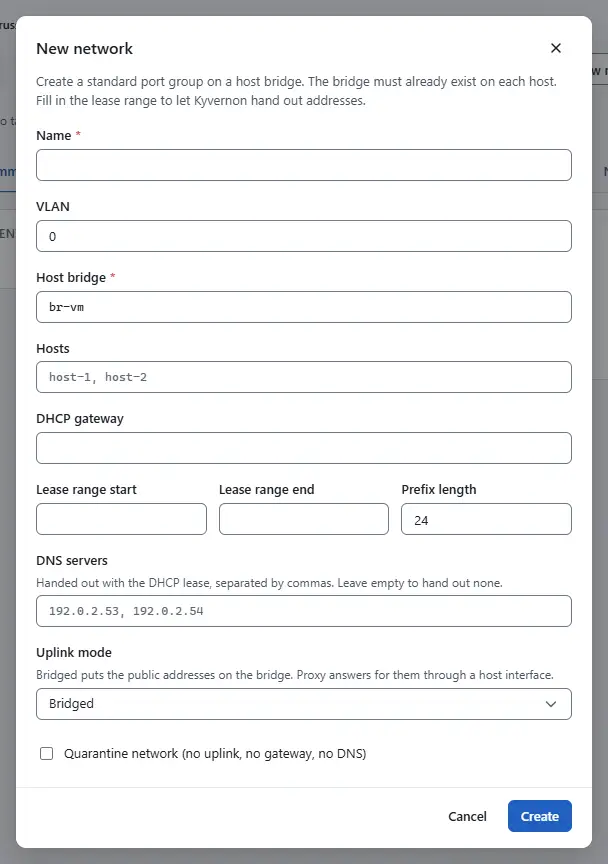
- Enter the Name (1 to 80 characters), the VLAN (0 for untagged, at most 4094) and the Host bridge, for example
br-vm. - Leave Hosts empty to offer the network on every host of the datacenter, or enter host ids separated by commas.
- To let the network answer DHCP, fill DHCP gateway, Lease range start and Lease range end together, and check Prefix length (24 by default). Without a gateway and a range the network hands out no addresses.
- Enter the DNS servers, separated by commas, or leave the field empty to hand out none.
- With a DHCP range, the fields MTU (576 to 9216), Lease time in seconds (at least 60, one day when empty) and Domain name are handed out with every lease; leave a field empty to hand out nothing.
- Choose the Uplink mode. Bridged puts the public addresses of IP pools on the bridge. Proxy makes the host answer for them through the host interface that you enter in Uplink interface, for example
eno1; it needs an Open vSwitch bridge, and the console asks for the interface before it sends the request. - Check Quarantine network (no uplink, no gateway, no DNS) only for a network without uplink, gateway and DNS. On such a network, enter the address of the DHCP server in the field DHCP gateway; the fields DNS servers and Domain name and the uplink are disabled.
- Select Create.

The console creates an Open vSwitch network with port security on. The network appears in the inventory under the datacenter.
Edit a network
Select the network in the inventory, then Edit network. The same button is in the area General of the tab Configure.
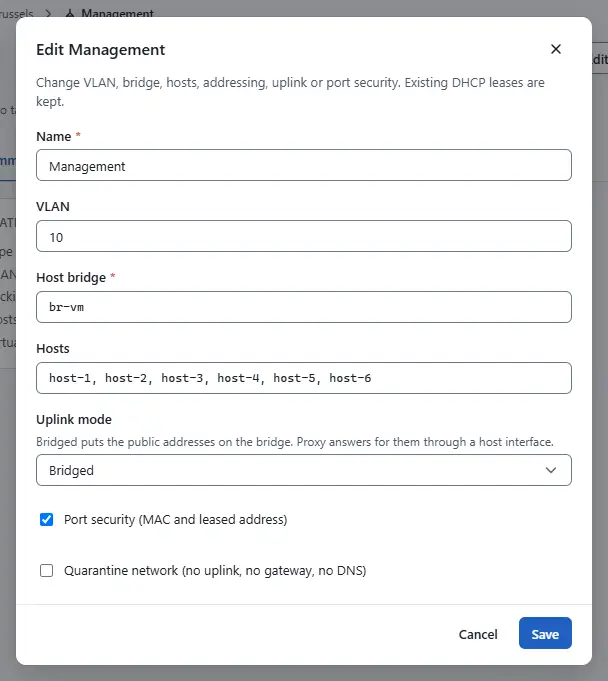
- Change the Name, the VLAN, the Host bridge, the Hosts, the Port security (MAC and leased address) or Quarantine network (no uplink, no gateway, no DNS). The fields DNS servers, MTU, Lease time in seconds and Domain name appear when the network has a DHCP range. The Uplink mode is always there; proxy mode is offered on Open vSwitch bridges only. The area Addressing of the tab Configure shows the current values.
- Select Save. Existing DHCP leases and the addresses allocated from IP pools are kept.

The console creates and edits Open vSwitch networks; a Linux bridge is set only through Automation.
Edit the port-group policy
Select the network, then Edit policy. The area Policies of the tab Configure shows the current values and has the same button.
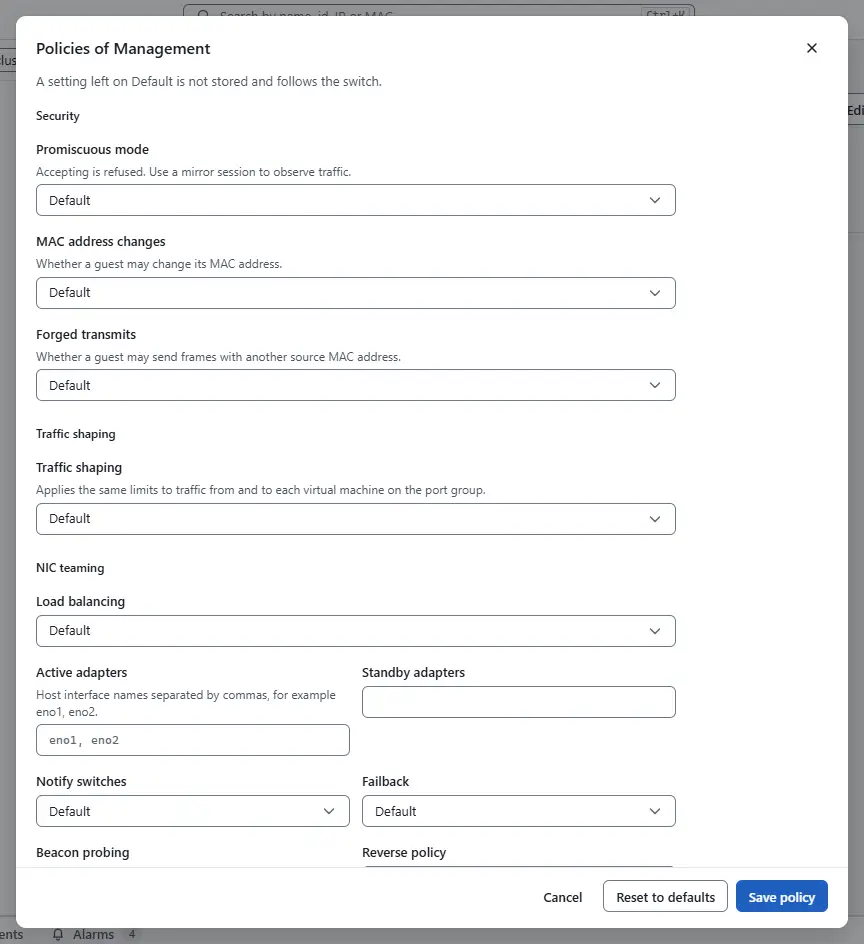
- Under Security, choose for MAC address changes and Forged transmits whether a guest may change its MAC address or send frames with another source MAC address. Promiscuous mode cannot be accepted; use a mirror session to observe traffic.
- Under Traffic shaping, switch Traffic shaping on to limit the traffic of each virtual machine on the network. Enter the Average bandwidth in Mbit/s, the peak bandwidth that follows it in Mbit/s, and the Burst size in KiB. The peak must not be below the average.
- Under NIC teaming, choose the Load balancing and enter the host interface names in Active adapters and Standby adapters, separated by commas. An adapter cannot be both, and explicit failover needs at least one active adapter. With two or more adapters the hosts build an uplink bond. Beacon probing is stored but not applied by the hosts yet.
- Select Save policy. A setting left on Default is not stored and follows the switch; Reset to defaults sets every setting back to it.

The host agent applies the average and burst bandwidth as traffic limits on the virtual machine ports.
Delete a network
- Disconnect the virtual machines from the network first; a network with a connected adapter cannot be deleted.
Select the network, then More actions and Delete network.
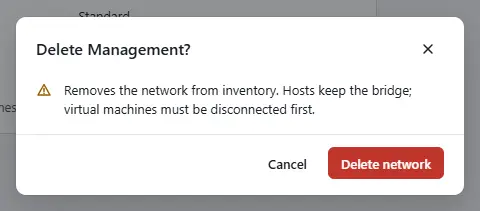
- Confirm with Delete network. The network leaves the inventory and the hosts keep the bridge.

The buttons are disabled when your role lacks the privilege for the action.
Result

The network page shows the type, the VLAN, the backing bridge and the number of hosts and virtual machines. Virtual machines connect to it in the wizard New virtual machine and in their hardware settings.
Automation
With the CLI
The CLI sends a JSON body. Create a file network.json:
{
  "name": "prod-net",
  "datacenterId": "datacenter-1",
  "vlanId": 120,
  "hosts": ["host-1", "host-2"],
  "backing": {
    "bridge": "br-vm",
    "bridgeKind": "ovs",
    "portSecurity": true,
    "ipv4": {
      "prefixLen": 24,
      "gateway": "192.0.2.1",
      "rangeStart": "192.0.2.100",
      "rangeEnd": "192.0.2.200",
      "dnsServers": ["192.0.2.2"],
      "domainName": "corp.example.com",
      "mtu": 1500,
      "leaseTimeS": 86400
    }
  }
}
Create the network, read it, change it and delete it:
kyvernon network create --body-file network.json
kyvernon inventory network <id>
kyvernon network update <id> --body '{"expectedVersion": 3, "vlanId": 130}'
kyvernon network delete <id>
expectedVersion is the version that kyvernon inventory network returns; the update fails with error.conflict when the network has changed in the meantime. Fields that you leave out keep their value. These backing fields go in the body; the console sets all of them except bridgeKind:
| Field | Meaning |
|---|---|
bridgeKind | ovs (default) or linux. A Linux bridge has no VLAN, port security or DHCP. |
ipv4.domainName, ipv4.mtu, ipv4.leaseTimeS | Domain name, MTU and lease time (86,400 seconds by default) handed out by DHCP. |
uplink | {"mode": "bridged"} (default) or {"mode": "proxy", "interface": "eno1"}. |
Proxy mode needs an Open vSwitch bridge and the name of the uplink interface, which must differ from the bridge; otherwise the request fails with error.network.proxy_uplink. In proxy mode the host routes and answers for the public addresses of IP pools. To check that the bridge and the VLAN exist on a host as the network expects, run the following; the result lists per bridge the VLAN status and the MTU status:
kyvernon host network-health <host>With the API
| Task | Request | Privilege |
|---|---|---|
| Create | POST /v1/networks | Network.Config on the datacenter |
| Change | PUT /v1/networks/{id} | Network.Config on the network |
| Delete | DELETE /v1/networks/{id} | Network.Delete on the network |
| Read | GET /v1/inventory/networks/{id} | System.View |
GET /v1/hosts/{id}/network-health checks the bridge and the VLAN of the networks on a host. The bodies are the schemas CreateNetworkRequest and UpdateNetworkRequest. Only host-bridge networks are created and deleted through these routes.
Related
- Networking concepts explains VLANs, port security and quarantine networks.
- IP pools adds public addresses to a network.
- Networking troubleshooting covers adapters on a network without a bridge.
Version 0.1. Last changed: 2026-11-14