Default profiles
Read and change the default profiles that decide what a network adapter allows when no firewall rule matches, per kind of adapter.
A default profile sets what a network adapter allows in each direction when no rule matches, and can add a baseline policy that is evaluated after every other rule. Changing profiles is for provider administrators; anyone with read access to the firewall sees them.
In the console
- On the home page, select Firewall. Leave the scope Scope on Provider.
Select the tab Settings. The card Default profiles lists the profiles.
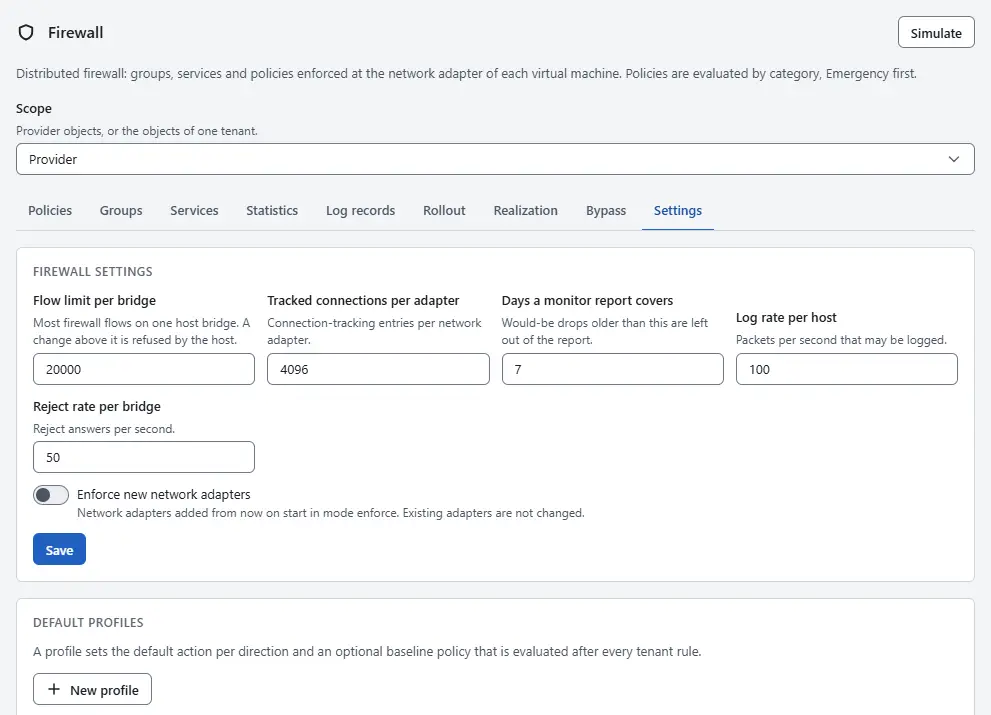
- Read the table. Each row shows the Name, the Inbound default and Outbound default action, the Baseline policy and whether tenants may choose it (Tenants may choose it). Profiles that ship with the platform carry the badge Built in. The built-in profiles are:
public-default: inbound Drop, outbound Allow, with a baseline policy that allows SSH and ping. An adapter with an address from an IP pool uses it.private-default: inbound and outbound Allow, without a baseline. An adapter on a private host-bridge network uses it.closed: inbound Drop, outbound Allow, without a baseline, for adapters that must expose nothing.open: both directions Allow, for machines that must stay open. A public adapter on this profile shows a warning on its tab Firewall.
To change a profile, select Edit on its row. Set Inbound default and Outbound default to Allow, Drop or Reject. Under Baseline policy, choose an Application policy of the provider or None. Switch Tenants may choose it on to let tenants pick the profile for their own adapters. Select Save. The name of a built-in profile cannot be changed.
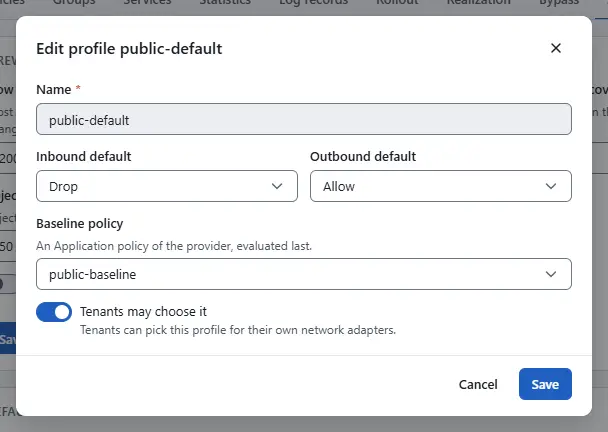
- To add a profile, select New profile, fill in the same fields and enter a Name. Names that start with
sys:are reserved. - To remove a profile, select Delete on its row and confirm. A profile that adapters still use cannot be deleted. On a built-in profile that you replaced, the button Restore removes your replacement and brings back the profile as shipped.
- To give one adapter another profile, open the virtual machine, select the tab Firewall, choose a profile under the adapter and select Set profile. The choice The profile of its kind goes back to the profile of the kind of adapter. A tenant can choose only profiles that are selectable.
- Below the profiles, the card Firewall settings holds the limits of the firewall and the switch Enforce new network adapters. With the switch on, a network adapter added from then on starts in the mode Enforce; existing adapters keep their mode. The card Tag categories marks which tag categories belong to the provider, which matters for groups.


Result
The change is saved when the hosts that are concerned have applied it. A host that has not applied it in time is named in a warning, and the tab Realization shows the state per host. A profile changes only what happens when no rule matches, so rules of any category still decide first.
Automation
With the CLI
kyvernon firewall profiles list
kyvernon firewall profiles set public-default --inbound drop --outbound allow --selectable true
kyvernon firewall vnic-profile vm-42 4000 --profile closed
kyvernon firewall settings set --enforce-new true
With the API
GET /v1/firewall/profiles lists the profiles, POST /v1/firewall/profiles creates one, and PUT or DELETE /v1/firewall/profiles/{id} changes or removes one; a PUT on a built-in profile replaces it and a DELETE restores it. The body holds name, inbound, outbound, baseline and selectable. PUT /v1/vms/{id}/nics/{key}/firewall sets the profile of one adapter, and GET and PUT /v1/firewall/settings read and change the settings. A profile that is in use fails with error.firewall.in_use, and a tenant who picks a profile that is not selectable fails with error.firewall.profile_not_selectable.
Related
- Firewall concepts explains profiles and modes.
- Rollout to existing virtual machines moves adapters to the mode enforce.
- Firewall reference lists the profiles and the limits.
Version 0.1. Last changed: 2026-11-14