Edit hardware
Change the CPUs, memory, disks, network adapters and CD/DVD drives of a virtual machine, and set firmware and virtual TPM, in the console.
The hardware of a virtual machine is its configuration. A running machine can grow. Shrinking, changing the firmware and adding or removing disks, adapters and CD/DVD drives need the machine to be powered off. Virtual machine concepts lists the limits.
In the console
In the inventory, select the virtual machine and select Edit settings. For a running machine it is under More actions. The edit dialog opens, and a note at the top says what a running machine accepts.
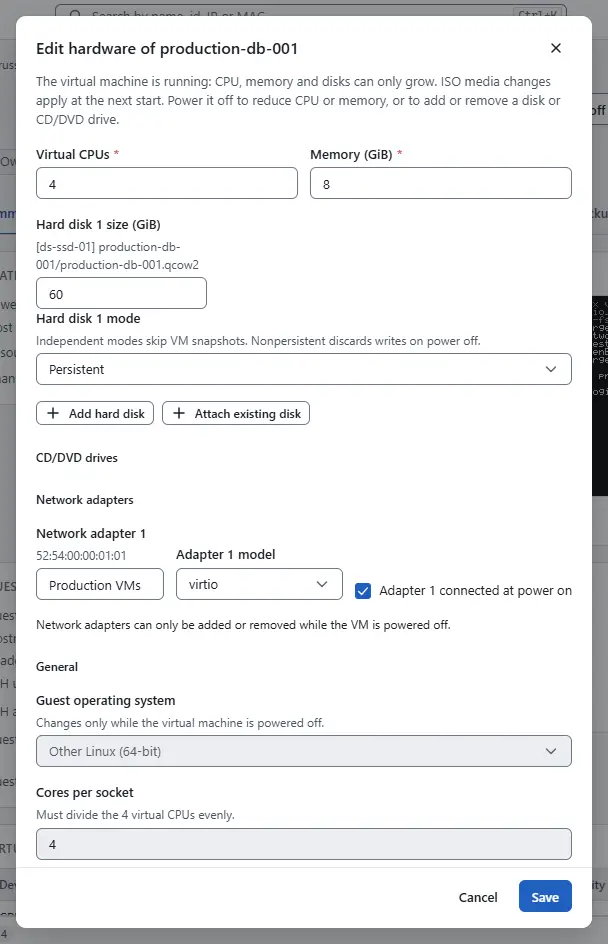
- Change the Virtual CPUs and the Memory (GiB). A running machine accepts higher values only.
- For every disk, enter a larger Hard disk N size (GiB), in GiB. A disk grows and never shrinks. Hard disk N mode offers Persistent, Independent persistent, which keeps the disk out of snapshots, and Independent nonpersistent, which also discards the writes at power-off.
To add a disk, select Add hard disk, enter its New hard disk N size (GiB) and choose its Datastore of new hard disk N. The disk is thin provisioned.
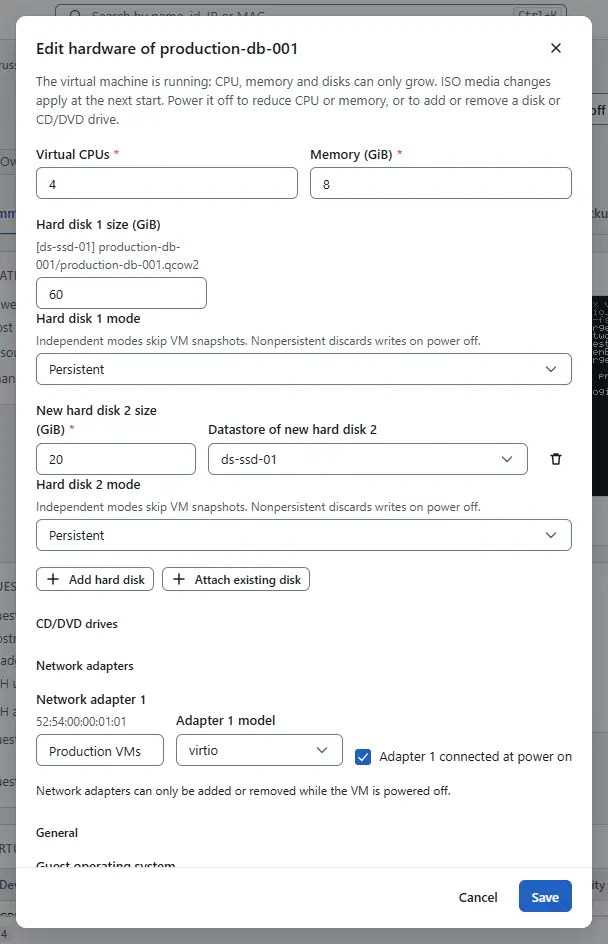
- To detach a disk, select Remove hard disk N, powered off only. The file stays on the datastore, unless you select Delete the disk files from the datastore under Removed disks, which deletes it.
Under CD/DVD drives, select Add CD/DVD drive to add a drive. For each drive choose the Datastore of CD/DVD drive N, the folder and the ISO image of drive N from the list, or take an item From content library, or type the ISO path of drive N, which ends in
.iso. Eject ISO from drive N empties a drive and Remove CD/DVD drive N removes it. On a running machine you can change the image, but not add or remove a drive, and the change applies at the next start.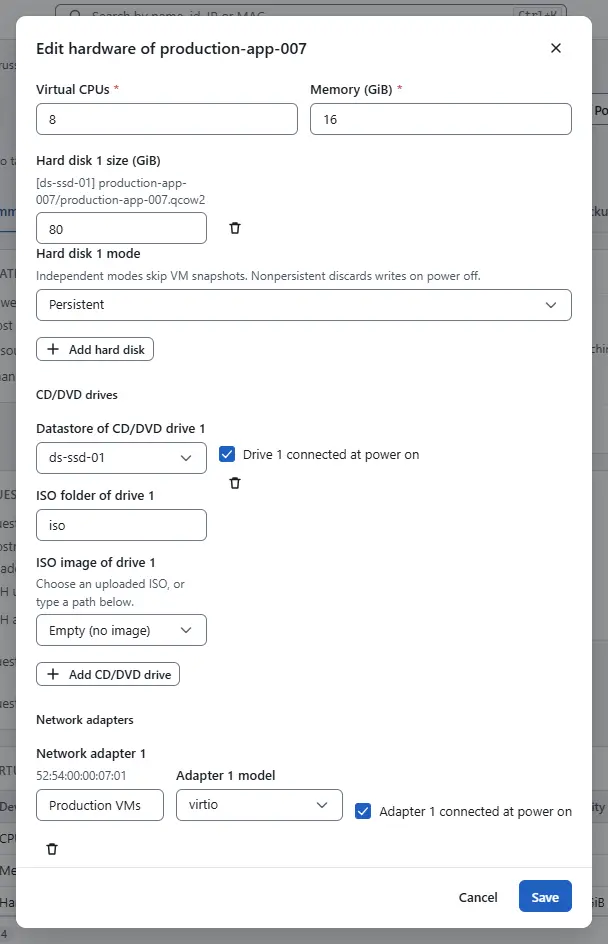
- Under Network adapters, Add network adapter and Remove network adapter N change the adapters, powered off only. Choose the network and the Adapter N model of an adapter, and whether it is connected at power on. Assign a public IP address gives a new adapter an address from the IP pool of its network, see Public addresses. Configure the new adapter in the guest: DHCP for IPv4 and a static IPv6 block.
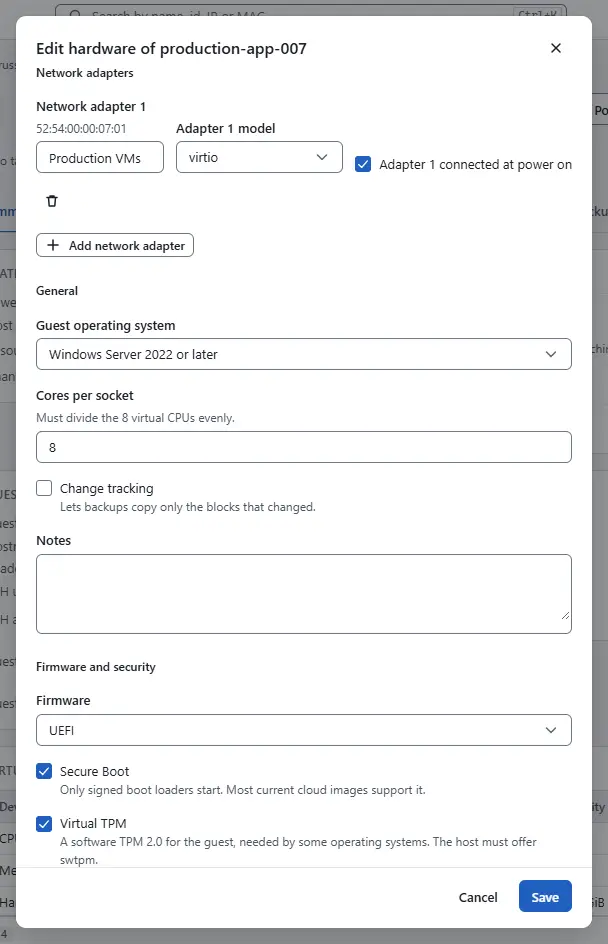
- Under General, set the Guest operating system, the Cores per socket and Change tracking, which lets backups copy only the changed blocks, and add Notes. The guest operating system and change tracking change only while the machine is powered off.
Under Firmware and security, choose the Firmware (UEFI or BIOS) and turn Secure Boot and the Virtual TPM on or off. These change only while the machine is powered off. Secure Boot and the virtual TPM need UEFI, and the console warns when the host does not offer the capability.
- Advanced options takes one
key=valuepair per line for extra configuration. It is available when your role allows changing advanced settings. - Select Save.


Rename, under More actions, changes the name only.
Result
The task ends and the summary shows the new hardware under Virtual hardware. A disk that grew is larger for the guest at once on a running machine when the runtime can do it, otherwise after the next start. The guest grows its file system on its own only where it is set up to, for example in cloud images at boot.
Automation
With the CLI
Read the configuration, change it and send it back. The file holds the config object of the virtual machine:
kyvernon inventory vm <id> --json
kyvernon vm reconfigure <id> --config config.json --wait
Copy data.config of the first answer into config.json and edit it. Keep change_version as you read it: Kyvernon merges your change with changes made from the same version, and refuses one that started from a version it no longer knows with error.vm.concurrent_modification. Examples of what to change in the file:
- vCPUs and memory:
"num_cpus": 4,"memory_mib": 8192. A larger first disk: set
capacity_bytesof the disk and name the disk to grow:Shell kyvernon vm reconfigure <id> --config config.json --wait \ --grow-disk '{"datastore":"datastore-1","path":"web-01/web-01.qcow2","sizeBytes":42949672960}'- A new disk: add an entry to
diskswith the next freekey, thedatastore, apathandcapacity_bytes, and create its file with--create-disk. To detach a disk, remove its entry; pass the disk with--delete-diskto delete the file as well. - A network adapter: an entry in
nicswith a newkey,network, a new lower-casemac_address,"model": "virtio"and"connected": true. - A CD/DVD drive: an entry in
cdromswithdatastore,iso_pathandconnected. An emptyiso_pathis an empty drive. - Firmware and security:
"firmware": "uefi"or"bios","secure_boot": trueand"vtpm": true.--firmware biosor--firmware efisets the firmware without editing the file; with BIOS, setsecure_bootandvtpmtofalse. - Change tracking:
"change_tracking": true.
--name <name> renames the machine in the same call.
With the API
POST /v1/vms/{id}/reconfigure takes the configuration and the disk files:
{
  "config": {"num_cpus": 4, "memory_mib": 8192},
  "growDisks": [{"datastore": "datastore-1", "path": "web-01/web-01.qcow2", "sizeBytes": 42949672960}]
}
config is the whole configuration as read from GET /v1/vms/{id}, with your changes made in it; the example is abbreviated. createDisks and deleteDisks carry the files to create and to delete. A disk removed from config.disks and not listed in deleteDisks is detached and its file stays. name renames the machine. The answer is a task.
Related
Version 0.1. Last changed: 2026-11-14