Disks
Create, grow and detach the disks of a virtual machine in the console, attach an existing disk file and find disk images that nothing uses.
A disk of a virtual machine is an image file on a datastore. Creating, growing and detaching a disk change the configuration of the machine, see Edit hardware for the rules that apply while it runs. You need free space on the datastore for a new or a grown disk.
In the console
In the inventory, select the virtual machine, and select Edit settings. For a running machine it is under More actions. The disks are listed under the CPUs and the memory, with the file of each.
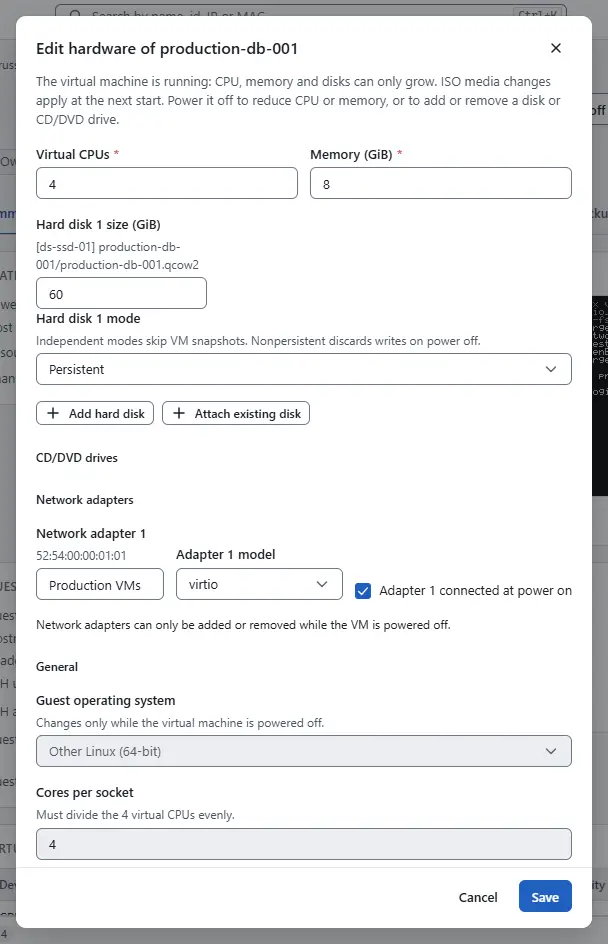
To add a disk, select Add hard disk, enter the size in New hard disk N size (GiB) and choose the datastore in Datastore of new hard disk N. The console creates the disk as a thin disk: it uses space as the guest writes.
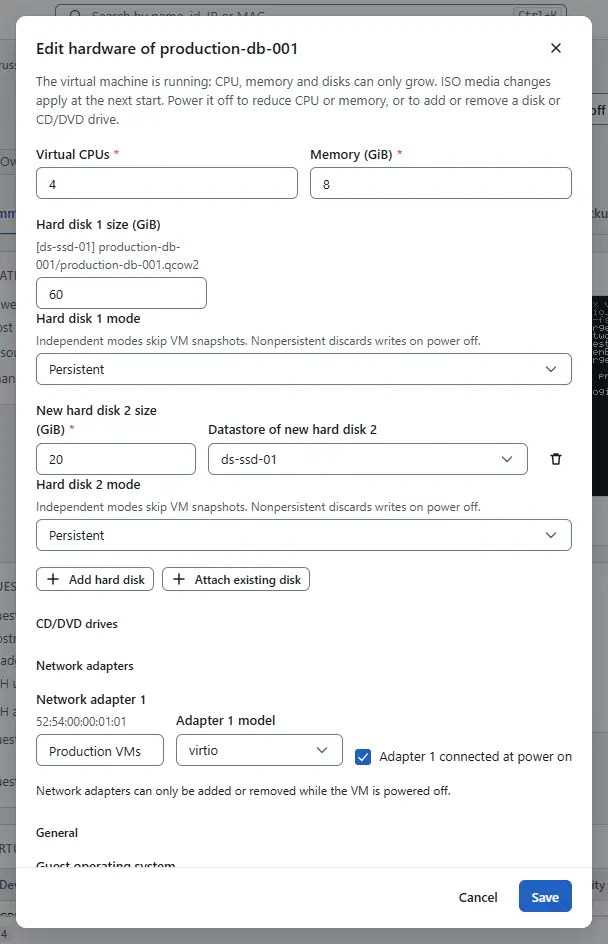
- To grow a disk, enter a larger value in Hard disk N size (GiB). The size is in GiB and cannot be smaller than it is, and the disk has to fit on its datastore. A running machine can grow a disk.
- To detach a disk, select Remove hard disk N. This needs the machine to be powered off. The file stays on the datastore, unless you also select Delete the disk files from the datastore, which deletes it.
- To attach a disk file that is on a datastore already, select Attach existing disk. Choose the datastore; the list Existing disk file N offers the disk images that nothing uses, with their capacity, and the choice Other path lets you type another path below the datastore. Check the Capacity of existing disk N in GiB, which is filled in from the list when the file is there, and choose the disk mode. The console sends the disk without creating a file. You need the privilege
VirtualMachine.Config.AddExistingDiskon the machine andDatastore.FileManagementon the datastore; a file that is the disk of another machine also needsVirtualMachine.Provisioning.DiskRandomAccesson that machine, and is otherwise refused witherror.disk_owned_by_other_vm. - Select Save.


Find disk images that nothing uses
Disk images that no virtual machine, template, snapshot or content library names take space. To list them, open the datastore in the inventory, select More actions and Find unused disk images. The dialog shows each file with its format, size, capacity, base image and last change, and the totals. Files changed in the last minutes are left out because a task may be making them; choose another time under Leave out files changed within to see them. The report changes nothing. Remove deletes one file after you type its name; check first, because images that were uploaded to make disks from are listed too. You need the privilege Datastore.Browse to read the report and Datastore.FileManagement to remove a file.
:::screen datastore-orphans
Result
The machine shows its disks under Virtual hardware, with their sizes and datastores. The guest has to grow its partition and file system into a larger disk, except in cloud images that do it at boot.
Automation
With the CLI
Read the configuration, edit the disks list and apply it, as described in Edit hardware:
kyvernon inventory vm <id> --json
kyvernon vm reconfigure <id> --config config.json --wait \
  --create-disk '{"datastore":"datastore-1","path":"web-01/data.qcow2","sizeBytes":10737418240}'
A disk entry in config.json has key, datastore, path, capacity_bytes and optionally thin, independent and nonpersistent. Use a free key.
- Create a disk: add its entry and pass
--create-diskwith the file to make. AddsourcePath(andsourceDatastore) to start it from an image, and"linked": truefor a linked clone of the image on the same datastore. - Grow a disk: set the new
capacity_bytesand pass--grow-diskwith the same file path and the newsizeBytes. On a running machine the disk grows at once where the runtime can, otherwise at the next start. - Attach an existing file: add an entry whose
pathis that file and pass no--create-disk. You need the privilegeDatastore.FileManagementon its datastore. A file that is the disk of another machine needsVirtualMachine.Provisioning.DiskRandomAccesson that machine. - Detach a disk: remove its entry. Pass the disk with
--delete-diskto delete the file as well.
With the API
POST /v1/vms/{id}/reconfigure carries the same data: the whole config with the changed disks, and the lists createDisks, growDisks and deleteDisks. Each list entry has datastore, path and sizeBytes; createDisks entries also take sourceDatastore, sourcePath and linked. Sizes are in bytes. The task checks the space, refuses a shrink with error.disk.shrink_not_supported, and refuses a disk that belongs to another machine with error.disk_owned_by_other_vm.
Find unused disk images
Disk images that no virtual machine, template or snapshot uses take space. The orphan report lists them and changes nothing:
kyvernon datastore orphans <datastore> --min-age-seconds 3600The report lists images that are not the disk of any machine, template or snapshot, not an overlay or the base image of a referenced disk, and not a file of a content library. It also lists change-tracking files whose image is gone. Files changed within the last --min-age-seconds are left out; the default is 300. Each entry has its path, format, size and capacity. Images that you uploaded to make disks from are listed as well. Check each file before you delete it, see Files on a datastore. GET /v1/datastores/{id}/orphan-disks returns the same report, with truncated set when the datastore has more files than one scan returns.
Related
Version 0.1. Last changed: 2026-11-14