Power operations
Power on, power off, reset, suspend and shut down the guest of a virtual machine in the console, and delete, unregister or register one.
Which operation is possible depends on the power state, see Virtual machine concepts. To run a power operation at a set time, see Scheduled tasks. A template cannot be powered on.
In the console
In the inventory, select the virtual machine. The power state shows under its name, and the actions that fit the state are at the top of the page.
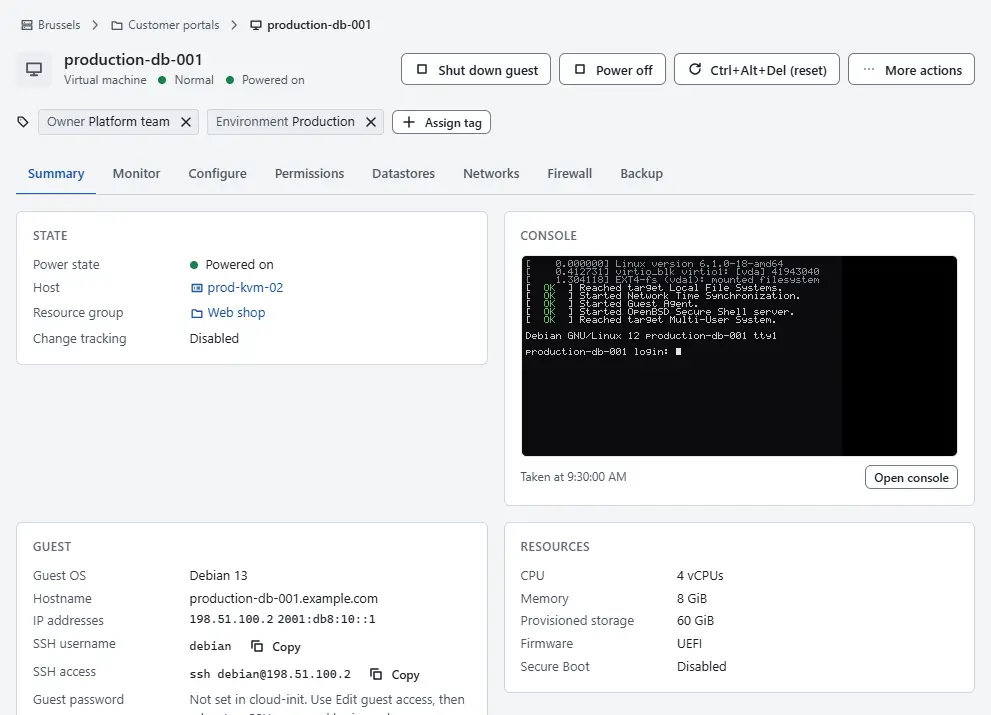
Choose the action:
- Power on starts a powered-off or a suspended machine.
- Shut down guest asks the guest to shut down. The guest agent does this when it runs, otherwise the power button of the machine.
- Power off stops the machine at once without asking the guest. Use it when the guest does not respond. For a suspended machine it is under More actions.
- Ctrl+Alt+Del (reset) restarts the machine without shutting the guest down.
- Suspend, under More actions, saves the state and stops the machine.
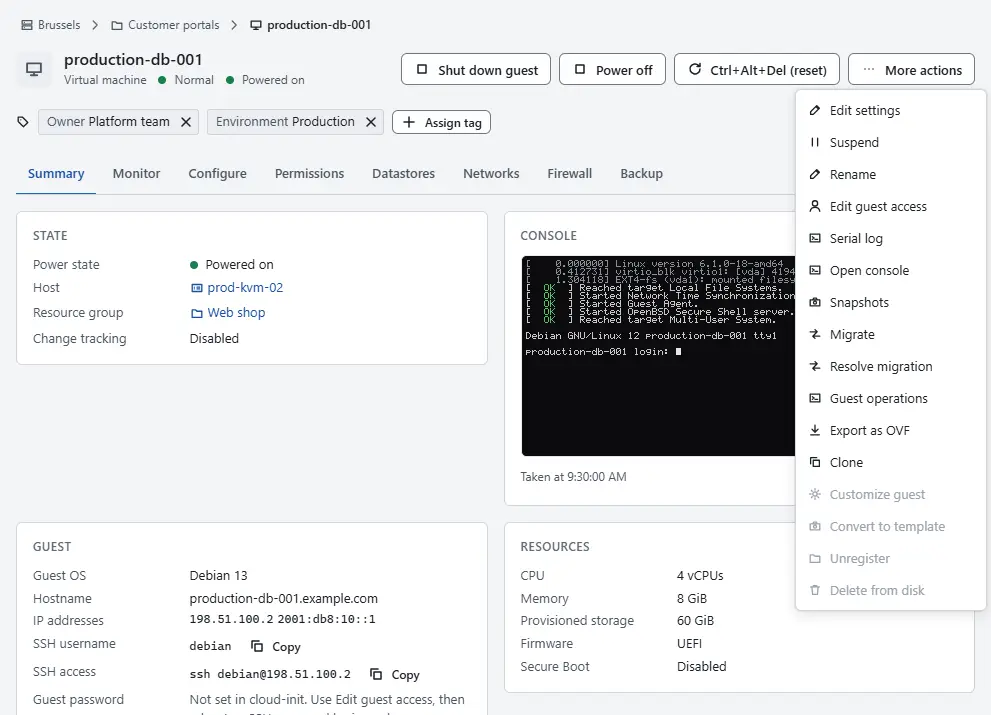
- The progress shows in the tasks pane at the bottom, and the power state changes when the task ends.


An action that does not apply is dimmed and gives the reason, for example that the machine is powered off, that it is a template or that your role does not allow it.
To remove a machine that is powered off, open More actions:
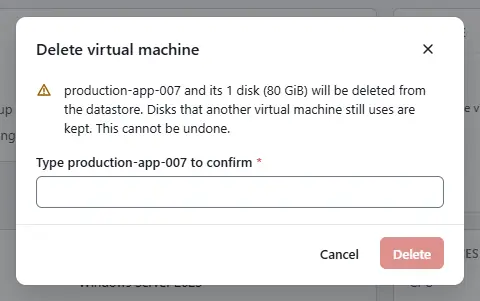
Select Delete from disk to delete the machine and its disks. The dialog states how many disks and how much space are deleted, and asks you to type the name of the machine. Disks that another machine still uses are kept. This cannot be undone.
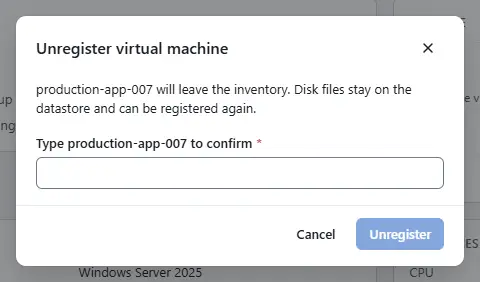
Select Unregister to take the machine out of the inventory and keep its disk files on the datastore. The dialog asks for the name as well.
To bring such a machine back, open the folder that should hold it in the inventory, select More actions and Register virtual machine. Choose the Datastore, enter the File of the machine, for example
web-01/.kyvernon-vm.json, optionally a Name, and choose the Resource pool. Switch on Register as a template to register a template, which needs no resource pool. Select Register. The task restores the configuration from the file; the disks are not recreated. You need the privilegeVirtualMachine.Inventory.Registeron the folder.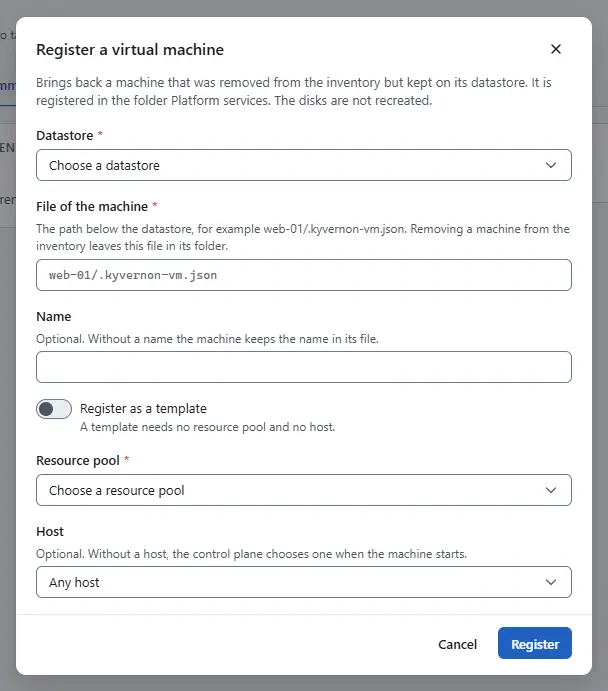


Result
The power state in the summary changes when the task ends. Power-on is refused when the host has too little memory free, when the licence allows no further running virtual machine, or when the machine has no host to run on. Troubleshooting lists the remedies.
Automation
With the CLI
kyvernon vm power-on <id> --wait
kyvernon vm shutdown <id> --timeout 120 --wait
kyvernon vm power-off <id> --wait
kyvernon vm reset <id> --wait
kyvernon vm suspend <id> --wait
--timeout is the number of seconds the guest gets to shut down before the machine is powered off hard, 90 by default. Delete a powered-off machine and its disks, or unregister it and keep the files, and register it again from the datastore path:
kyvernon vm delete <id> --wait
kyvernon vm unregister <id>
kyvernon vm register --folder <folder> --resource-pool <pool> \
  --path "[<datastore>] web-01/.kyvernon-vm.json" --wait
Unregistering writes the file .kyvernon-vm.json next to the disks. --as-template registers the machine as a template, which needs no resource group, and --name gives it another name.
With the API
Each operation is a POST that answers 202 with a task:
| Operation | Request |
|---|---|
| Power on | POST /v1/vms/{id}/power-on |
| Power off | POST /v1/vms/{id}/power-off |
| Shut down | POST /v1/vms/{id}/shutdown, optional body {"timeoutSeconds": 120} (1 to 3,600) |
| Reset | POST /v1/vms/{id}/reset |
| Suspend | POST /v1/vms/{id}/suspend |
| Delete | DELETE /v1/vms/{id} |
| Unregister | POST /v1/vms/{id}/unregister |
| Register | POST /v1/vms/register |
Follow the task with GET /v1/tasks/{id}/wait.
Related
Version 0.1. Last changed: 2026-11-14