Console
Open the screen of a virtual machine in the browser, send keys and text, read the serial log and get a ticket for tools.
The console of a virtual machine shows its screen and takes keyboard and mouse input. It needs nothing installed in the guest: the firmware setup, a boot loader menu, an installer and a login prompt all work. A console opens for a machine that is powered on and placed on a host. Your role needs the privilege to interact with the console.
In the console
In the inventory, select the virtual machine. On the summary, the card Console shows a picture of the screen, refreshed every ten seconds.
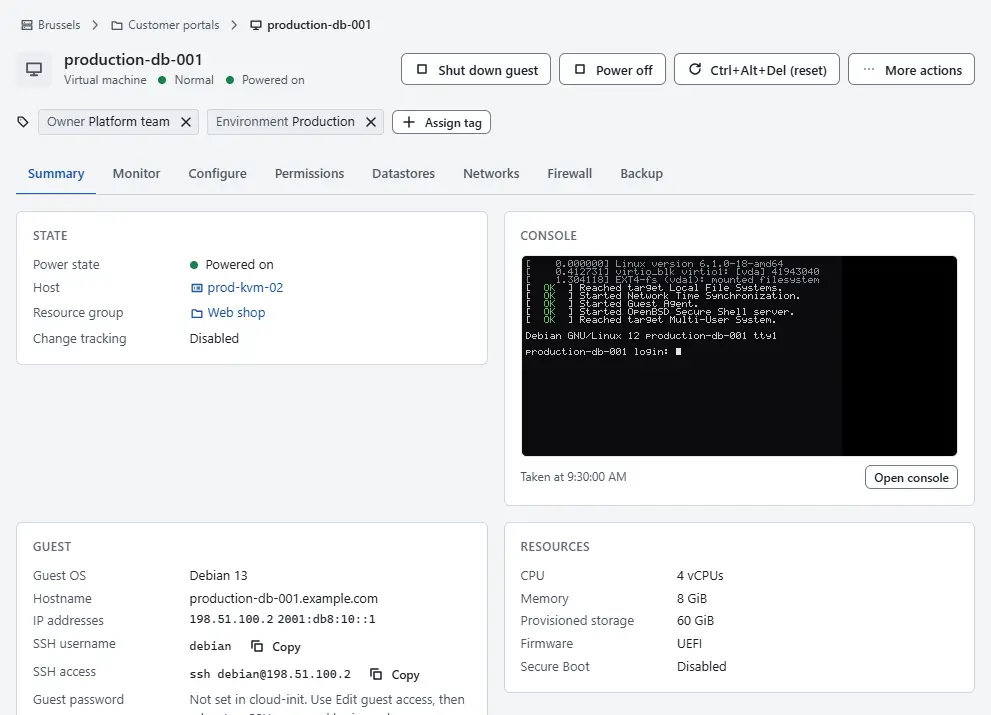
- Select Open console, on the card or under More actions. The console opens in a dialog and connects. When the machine is powered off or has no host, the dialog says so instead.
Click the screen to type into the guest. While the window is connected the guest has the keyboard: Escape, Tab and every other key go to the guest. Select Close to leave.
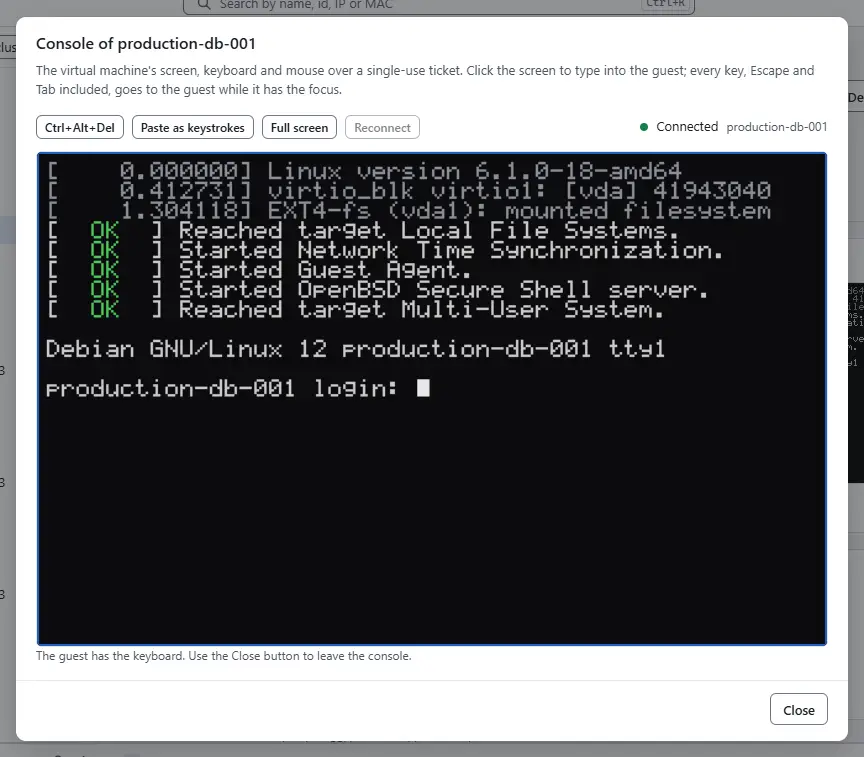


The toolbar has four controls:
- Ctrl+Alt+Del sends that key combination to the guest. It does not reset the machine from outside.
- Paste as keystrokes types the text of your clipboard into the guest, one key at a time. Only plain ASCII text can be typed, at most 4,096 characters; other characters are skipped and counted. The guest has no shared clipboard. The browser asks once whether the page may read the clipboard.
- Full screen shows the screen alone, and Exit full screen brings the window back.
- Reconnect opens a new session after the connection was lost.
The mouse is a relative pointer: the cursor of the guest and yours can drift apart until the guest moves its own. Use the keyboard in installers where that matters.
To keep the boot messages, or for a machine without a graphical console, select Serial log under More actions. The dialog shows the output of the first serial port. It is output only: you cannot type there. Refresh reads the log again and Download saves it. When the log is long, the dialog shows its end and says so. Send Ctrl+Alt+Del (reset) restarts the guest in place.

For the console of a self-service server, see Servers.
Result
The screen of the guest is shown and takes input. Closing the window ends the session, and a new session starts with a new single-use ticket.
Automation
With the CLI
kyvernon vm console screenshot <id> --to screen.png
kyvernon vm console ticket <id>
kyvernon vm serial-log <id> --max-bytes 65536
screenshot saves the current picture as a PNG; --max-width scales it. ticket prints a single-use ticket for tools that open the WebSocket themselves. serial-log prints the end of the serial log.
With the API
POST /v1/vms/{id}/console/ticket answers with a ticket, its expiry and the path websocketPath. The ticket works once, for 30 seconds, for the session that asked for it and for that virtual machine. Open the WebSocket at that path on the same origin: the binary frames carry the RFB (VNC) protocol, which a VNC client for the browser speaks directly. A session can ask for at most 20 tickets per minute.
GET /v1/vms/{id}/console/screenshot returns the picture as PNG and GET /v1/vms/{id}/serial-log the tail of the serial log. Tools of the vSphere API get the same console through AcquireTicket. With govc, govc vm.console -wss <name> prints the WebSocket address.
Related
Version 0.1. Last changed: 2026-11-14