Relocate
Move a virtual machine to another host, resource group, folder or datastore, and migrate a running one between hosts, with the console wizard.
Relocating changes where a virtual machine lives: its host, resource group, folder, the datastore of its disks or the network of its adapters. What is possible depends on the power state. The destination host has to be connected and not in maintenance mode, and a new datastore has to be mounted on the host the machine is on. Moving disks between datastores of different hosts is not offered.
A live migration of a running machine needs more: the licence includes the feature live_migration (Features), both hosts offer live migration, and every datastore of the machine is mounted on the destination host as well. Migration with disks that are not shared is not offered.
In the console
- In the inventory, select the virtual machine and select Migrate under More actions. The migrate wizard opens. The action is dimmed for a template, for a suspended machine and when your role lacks the privilege.
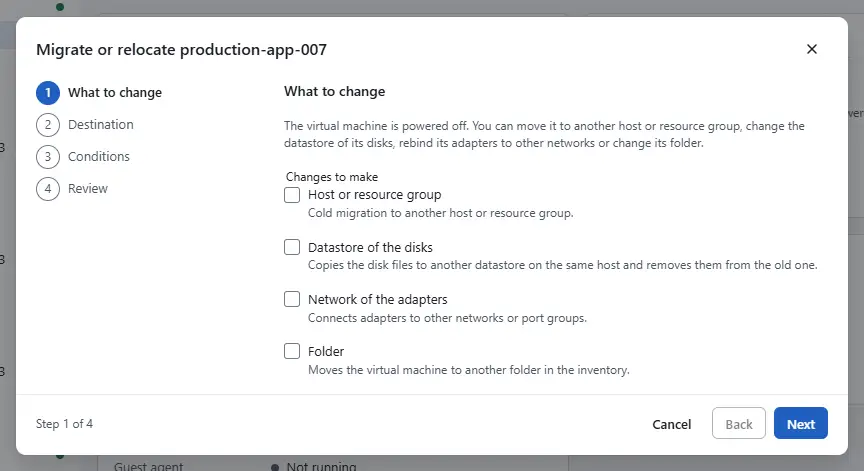
In the step What to change, select what to change under Changes to make: Host or resource group (a live migration when the machine runs, Host (live migration)), Datastore of the disks, Network of the adapters or Folder. Datastores and networks can only change while the machine is powered off.
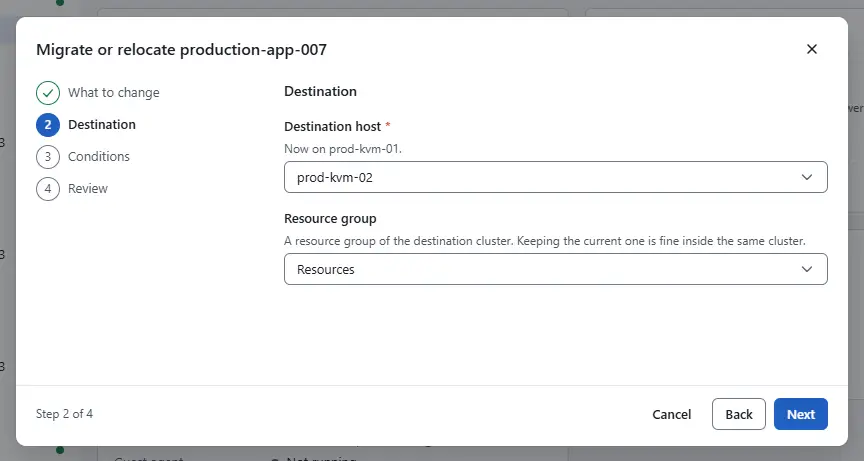
In the step Destination, choose the Destination host and the resource group, the Datastore for all disks for all disks or one datastore per disk, the network of each adapter, or the folder. Keep the current one leaves a choice as it is. Hosts that are not connected, are in maintenance mode or offer no live migration are marked in the list.
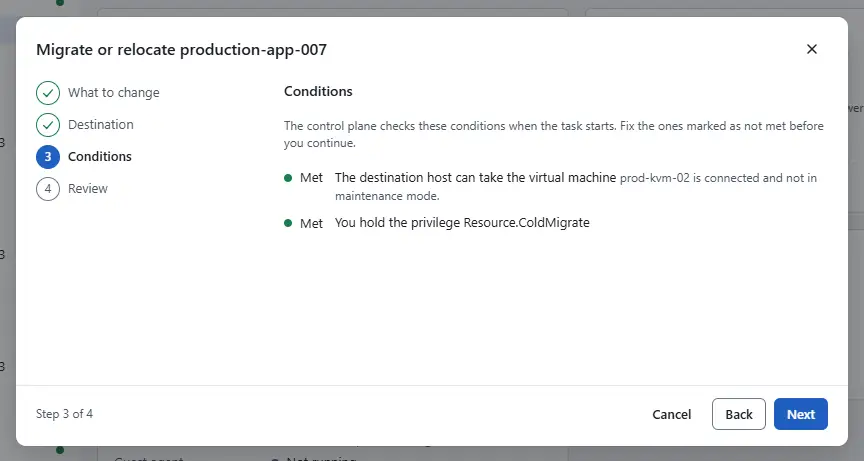
In the step Conditions, read the conditions that the control plane checks: the licence feature, host support for live migration, datastores that the destination host also mounts, the state of the destination host, a machine that is powered off for a storage move, no snapshots, free space, and your privileges. Each one shows Met, Check or Not met. Go back and change the destination for every condition that is not met.
- In the step Review, check the kind of move, Live migration, no downtime or Cold relocation, and select Start live migration or Start relocation.


The move runs as a task, which you can follow and cancel in the tasks pane.
| Change | Powered off | Powered on |
|---|---|---|
| Folder | yes | yes |
| Host or resource group | yes | live migration |
| Datastore of the disks | yes, without snapshots, not for templates | no |
| Network of an adapter | yes | no |
After a live migration whose outcome the source could not establish, Kyvernon pauses the machine on the source and keeps it fenced until an administrator decides who keeps the guest. You decide in the console. Check on the destination host whether the guest runs there, then select the machine, More actions and Resolve migration. Under Who keeps the guest choose The source keeps the guest, when the guest does not run on the destination, or The destination keeps the guest, and then the Destination host. Select Next, type the name of the machine to confirm and select Resolve migration. Choosing the source while the guest also runs on the destination puts two copies on the same disks, and choosing the destination removes the instance on the source; neither can be undone. You need the privilege Resource.ColdMigrate.
:::screen vm-resolve-migration
Result
The task ends and the summary shows the new host, resource group or datastore. A disk move copies the files to the target datastore and removes them from the old one.
Automation
With the CLI
kyvernon vm relocate <id> --host <host> --wait
kyvernon vm relocate <id> --resource-pool <pool> --folder <folder> --wait
kyvernon vm relocate <id> --datastore <datastore> --wait
kyvernon vm relocate <id> --disk 2000=<datastore> --nic 4000=<network> --wait--host,--resource-pooland--foldername the destination. A resource group in the same cluster keeps the machine where it runs. On a running machine--hoststarts a live migration.--datastoremoves every disk.--disk KEY=datastoremoves one disk and overrides--datastore;KEYis the device key of the disk, 2000 for the first.--nic KEY=networkrebinds an adapter to another network.
To move machines to another folder in bulk, use kyvernon inventory move-into <folder> --entity <vm>. To resolve a migration that was left fenced, check the destination first, then decide:
kyvernon vm resolve-migration <id> source-keeps
kyvernon vm resolve-migration <id> destination-keeps --host <host>
destination-keeps needs the destination host. Both need the privilege Resource.ColdMigrate.
With the API
POST /v1/vms/{id}/relocate takes host, resourcePool, folderId, datastore, disks (a list of diskKey and datastore) and nics (nicKey and network). The answer is a task. POST /v1/vms/{id}/resolve-migration takes resolution (source-keeps or destination-keeps) and host.
Related
Version 0.1. Last changed: 2026-11-14