Guest customization
Set up SSH keys, password and cloud-init data at creation, change guest access later, and create and apply customization profiles in the console.
Kyvernon customizes a guest in two ways. For images with cloud-init, the SSH keys, the guest password, the host name and your own user data are written into the virtual machine and applied at boot. A customization profile, called a specification in the console, is a named set of settings that you apply to a powered-off machine.
In the console
At creation, the step Guest customisation of the wizard sets up the guest:
- Keep Customise the guest with cloud-init selected for an image with cloud-init, such as Ubuntu, Debian, Rocky Linux or AlmaLinux images. A guest without cloud-init is not customized from here: sign in through the console and set up access in the guest.
- Enter the SSH public keys, one public key per line. They go to the default user of the image, for example
debianorubuntu. - Enter a Guest password, 8 to 256 characters, and repeat it in Confirm guest password. Generate proposes one. Your browser hashes the password as a SHA-512 crypt hash before it is sent, so Kyvernon never holds it in clear, and the console cannot show it again.
Optionally enter cloud-init user-data. It starts with
#cloud-configor#!. When it already sets keys or a password, the console tells you to keep them in one place.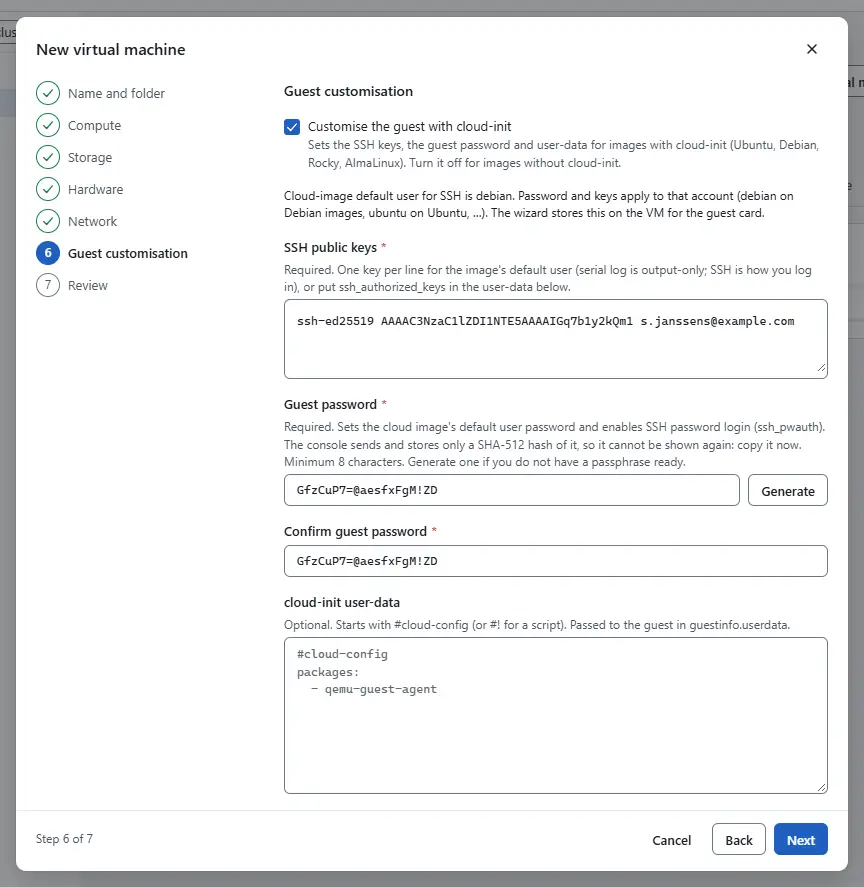

The name of the virtual machine becomes the host name of the guest.
To change access later:
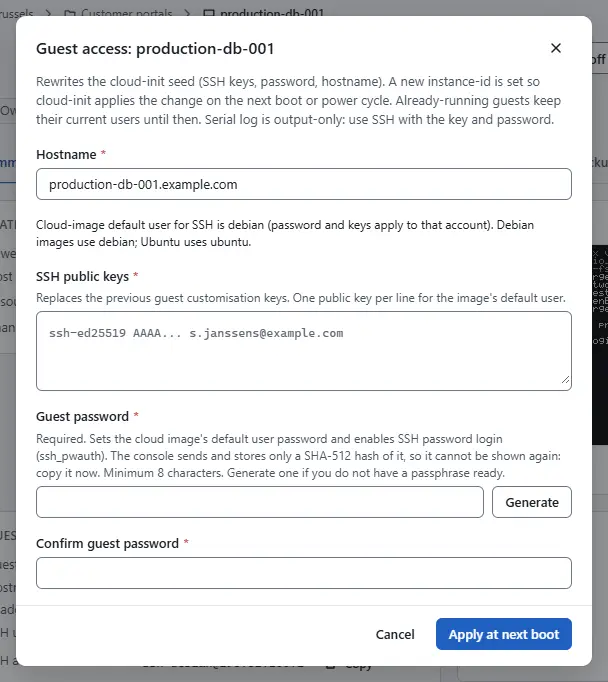
- Select Edit guest access under More actions. The dialog shows the Hostname, the SSH public keys and the Guest password.
Change them and select Apply at next boot. The console rewrites the cloud-init data and sets a new instance identifier, so cloud-init applies the change at the next boot or power cycle. A running guest keeps its users until then.

To prepare a customization profile:
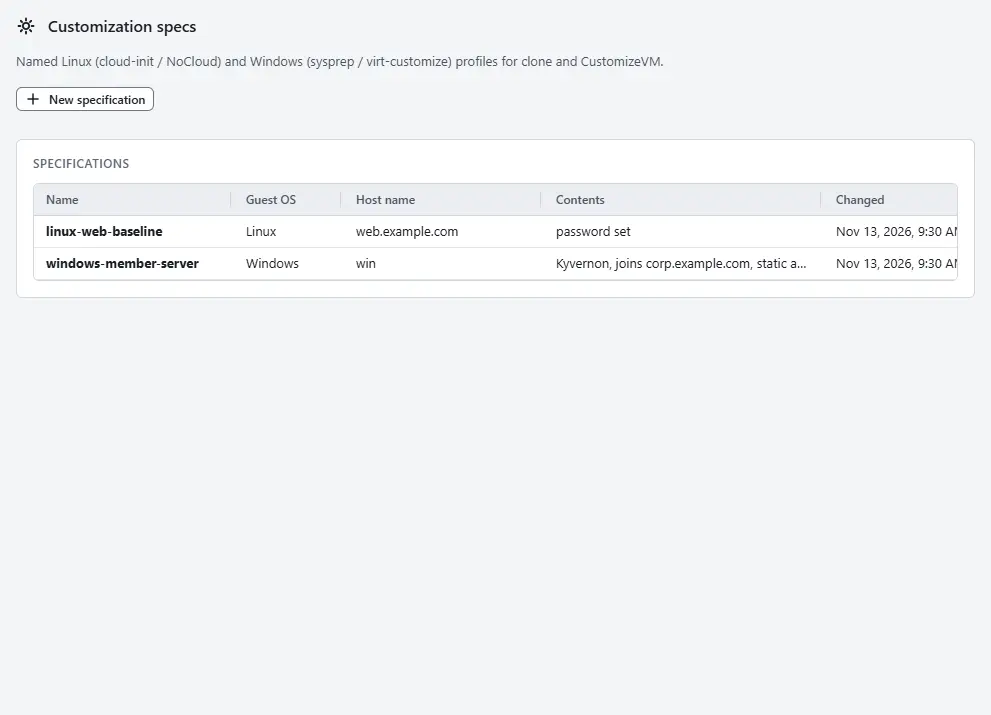
On the home page, select Customization specs. The list shows each specification with its guest operating system, host name and contents.
- Select New specification.
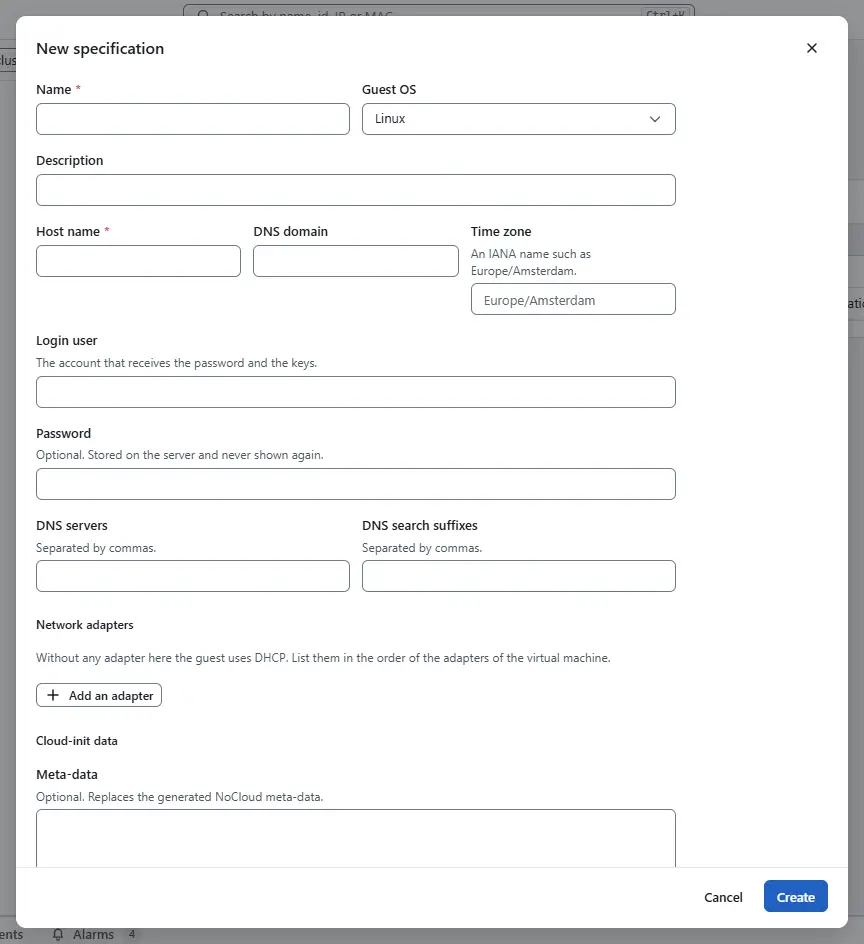
- Enter a Name and choose the Guest OS, Linux or Windows. The name cannot change afterwards. Enter the Host name and optionally the Time zone, an IANA name such as
Europe/Brussels. - For Linux, set the Login user, the account that receives the password and the keys, and optionally your own User-data and Meta-data under Cloud-init data. For Windows, set the DNS domain, the Owner name, the Organisation and optionally an Unattend answer file.
- Optionally set the Password, the DNS servers and, under Network adapters, a static address with its mask and gateway for each adapter, in the order of the adapters of the machine. Without an adapter in the list the guest uses DHCP. For Windows, Domain or workgroup takes a Join domain with Domain admin and Domain admin password, or a Workgroup.
Select Create.
Passwords and the answer file are stored on the server and never shown again; the list only says that they are set. Edit and Delete change and remove a specification. Machines that were customized with a deleted specification keep their settings.


To apply a specification:
- Power the virtual machine off.
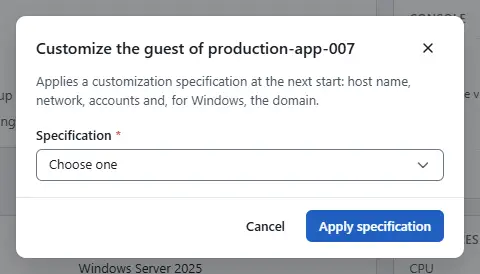
Select Customize guest under More actions, choose the Specification and select Apply specification. The settings apply at the next start.

Result
At the next boot the guest has its host name, keys and users. The summary shows the host name and the addresses under Guest once the guest agent reports them.
Automation
With the CLI
kyvernon customization create --body-file profile.json
kyvernon customization list
kyvernon customization get <name>
kyvernon customization overwrite <name> --body-file profile.json
kyvernon customization delete <name>
kyvernon vm customize <id> --spec <name> --wait
profile.json holds the settings:
{
  "name": "web-linux",
  "type": "Linux",
  "hostname": "web-01",
  "domain": "corp.example.com",
  "timezone": "Europe/Brussels",
  "nics": [{"ip": "192.0.2.10", "subnetMask": "255.255.255.0", "gateway": "192.0.2.1"}]
}
A profile can also carry password, sshUser, dnsServers, dnsSuffixes, raw userdata and metadata for Linux, and fullName, orgName, joinDomain, joinWorkgroup, domainAdmin, domainAdminPassword, domainOu and a raw unattend document for Windows. To offer the guest agent when a virtual machine is made from a template, ask first with kyvernon vm guest-agent-offer <template-id>. The answer says whether the image lacks the agent and gives the cloud-init snippet that installs it. guestAgent: true on the create request merges that snippet for you.
With the API
| Operation | Request |
|---|---|
| List, read | GET /v1/customization/specs, GET /v1/customization/specs/{name} |
| Create | POST /v1/customization/specs |
| Overwrite | PUT /v1/customization/specs/{name} |
| Delete | DELETE /v1/customization/specs/{name} |
| Apply | POST /v1/vms/{id}/customize with {"spec": "<name>"}, on a powered-off virtual machine |
| Agent offer | POST /v1/guest-agent/offer |
At creation, the cloud-init data travels in the extra_config of the virtual machine as guestinfo.userdata and related keys, see Create a virtual machine.
Related
Version 0.1. Last changed: 2026-11-14