Servers
Operate tenant servers in the console: power, console and snapshots, and order, resize, reinstall or rescue them; the CLI and API follow.
A server is a virtual machine made from a plan and a catalogue image. In the console, a user of a tenant sees the virtual machines of the tenant's servers and nothing else, and works on them within the role the user has: tenant administrators manage all servers and the accounts of the tenant, tenant users operate servers, and read-only users look. The provider orders a server and runs the lifecycle operations that depend on plans, resize, reinstall and rescue, for a tenant on the page Tenants, as described below; a tenant does the same through the portal of the provider, the CLI or the API, see Automation.
In the console
Sign in with the account of the tenant. The inventory tree shows the folder of the tenant and the servers inside it, and no other object. Select a server.
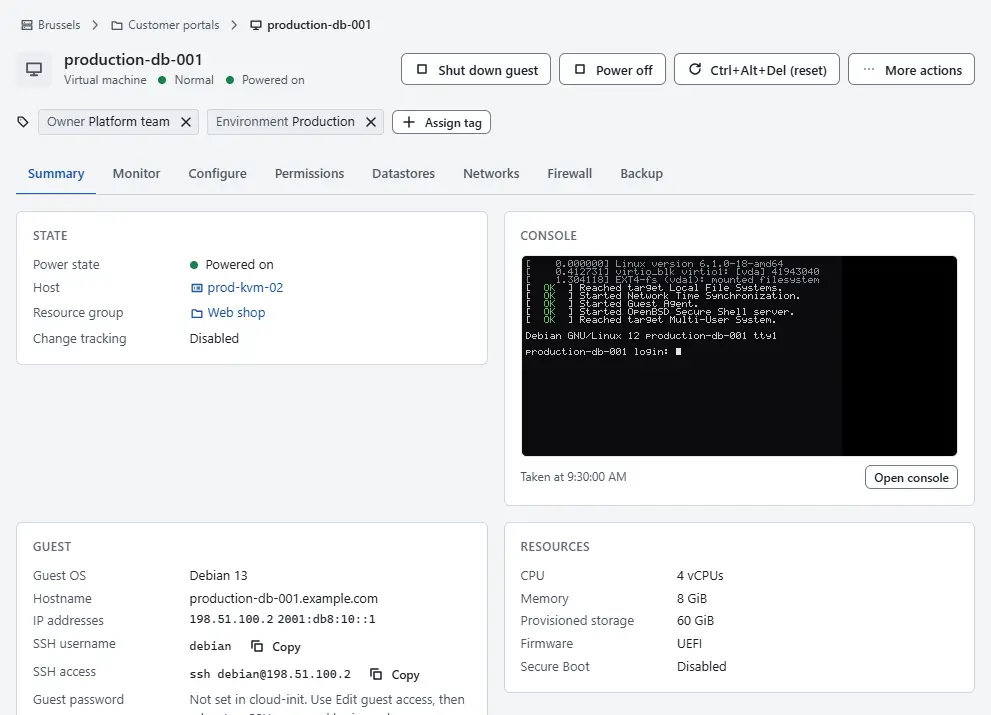
- Start and stop the server with the actions on its page: Power on, Shut down guest, Power off and Ctrl+Alt+Del (reset). Shut down guest asks the operating system to shut down, and Power off stops the server at once. The progress appears in the tasks pane.
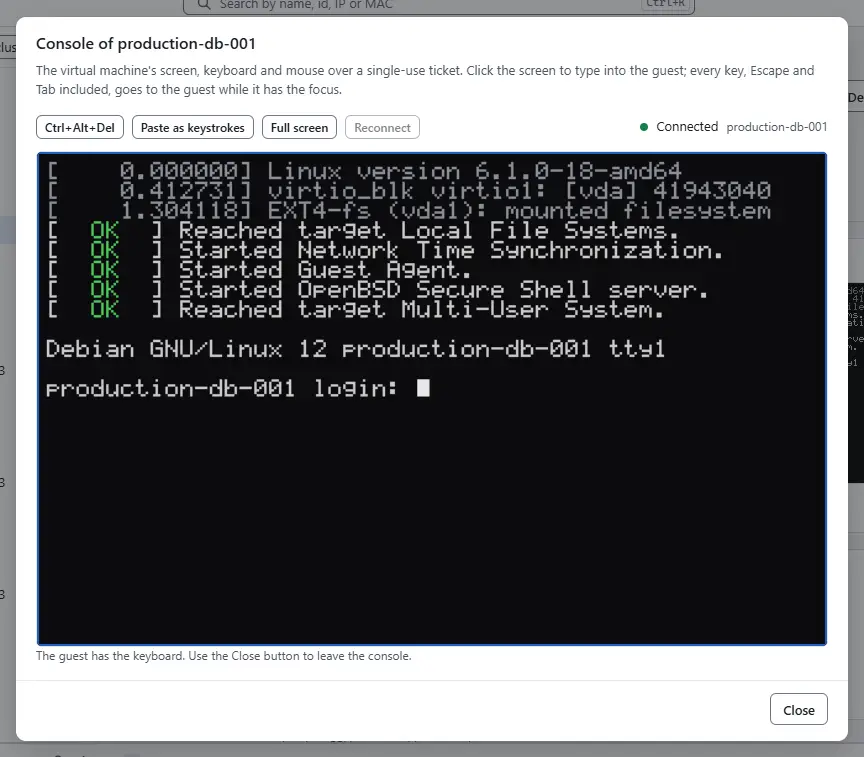
To reach the screen of the server, select More actions, then Open console. A server that is powered off or that the tenant's role does not allow to open the console shows a message instead.
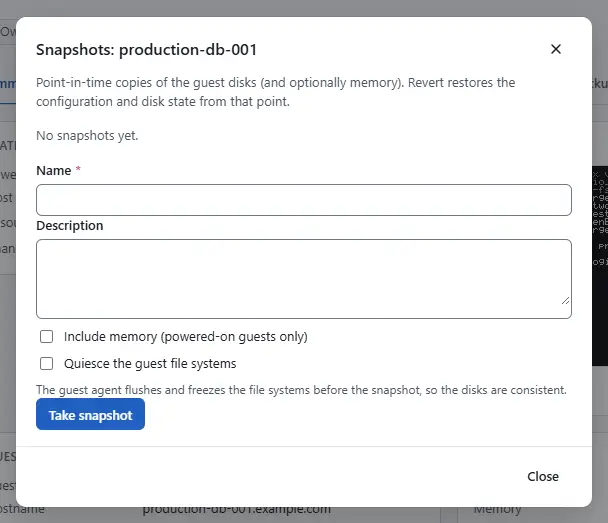
To keep the state of a server before a change, select More actions, then Snapshots, enter a Name and select Take snapshot.


Operate the servers of a tenant as the provider
On the page Tenants, select Servers in the row of the tenant. The dialog lists the servers with their State, Power, Plan, Image and Public addresses.
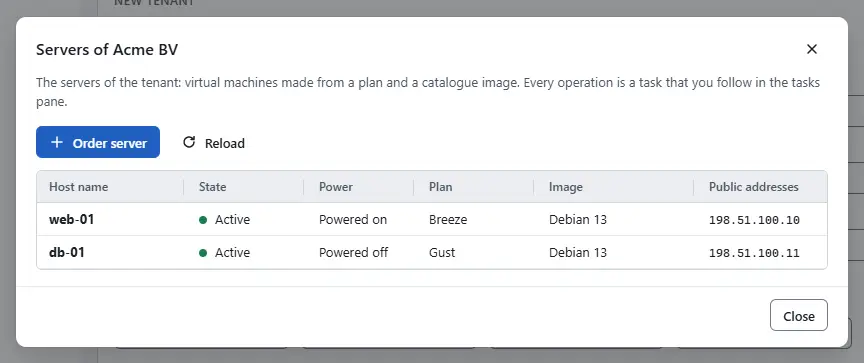
To order a server, select Order server. Enter the Host name, which is also the name of the virtual machine, choose the Plan and the Image (only catalogue images that the plan allows are offered), and give SSH public keys, one per line, or let the console generate a password. Optional Cloud-init user data goes to the guest. An image that takes no credentials hides these fields. Select Order.
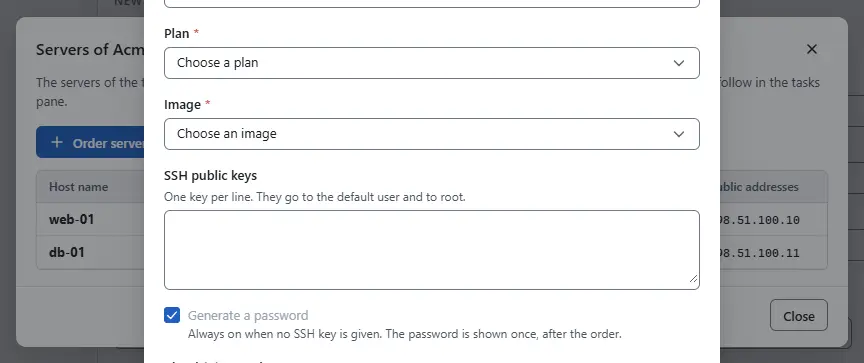
- A generated password is shown once, in a dialog, after the order and after a reset of the password. Copy it before you select I copied it: it is never stored in clear and cannot be shown again.
- Open the menu Actions for ... of a server for the other operations. The power actions are Start, Shut down through the guest, Reboot, Power off and Reset; the last two ask for a confirmation because the guest does not shut down.
- Resize to a larger plan moves a server to a larger plan, one that is not smaller in vCPUs, memory or disk; the server restarts. Reinstall replaces the disk with the chosen image and keeps the addresses; you type the host name to confirm, and everything on the disk is lost. Start rescue mode shuts the server down and boots a rescue image with its disk attached so that you can repair it, and End rescue mode starts it from its own disk again. Reset password generates a new password that applies at the next start. Delete server removes the server and its disks after you type its host name, and returns its addresses to quarantine.


Every operation is a task that you follow in the tasks pane. Ordering needs the privilege VirtualMachine.Inventory.Create on the folder of the tenant and deleting needs VirtualMachine.Inventory.Delete.
Orders that would take the tenant over its quota fail with error.quota.exceeded. While the tenant is suspended, power-on and the console are refused, and a closed tenant cannot sign in. The provider sees the same servers as virtual machines in the inventory, and the state of the tenant on the page Tenants; see Tenants.
Result
The server is in the state you chose, and the task is in the tasks pane and in Tasks. The detail of each action is on the pages for virtual machines: Power operations, Console and Snapshots.
Automation
With the CLI
Every operation is a task. The commands name the tenant first:
kyvernon servers tenant-1 create web-1 --plan vmplan-1 --image vm-42 \
  --ssh-key "$(cat ~/.ssh/id_ed25519.pub)" --password
kyvernon servers tenant-1 power server-3 reboot
kyvernon servers tenant-1 resize server-3 vmplan-2
kyvernon servers tenant-1 rescue server-3
kyvernon servers tenant-1 unrescue server-3
kyvernon tasks wait <task-id>
The power actions are on, off, shutdown, reboot and reset. A resize moves the server to a plan that is larger in vCPUs, memory and disk: the disk grows and never shrinks, and the server reboots. A reinstall with --image keeps the addresses. Rescue mode shuts the server down and boots the rescue image with the disk of the server attached, and unrescue leaves it. reset-password sets a generated password that is printed once and never stored in clear. snapshot, remove-snapshot, revert-snapshot, console and delete complete the set.
With the API
The calls are below /v1/tenants/{tenant}/servers. GET lists the servers and POST creates one; the answer is the task and the generated password, once. GET and DELETE /v1/tenants/{tenant}/servers/{server} read and delete a server. POST on .../power (on, off, shutdown, reboot or reset), .../resize, .../reinstall, .../rescue, .../unrescue, .../reset-password, .../snapshots and .../console act on a server, and DELETE .../snapshots/{key} and POST .../snapshots/{key}/revert handle snapshots. A console ticket is refused while the tenant is suspended, and a caller that is not a user of the tenant also needs the privilege Kyvernon.Tenant.Impersonate.
Related
Version 0.1. Last changed: 2026-11-14