Datastore maintenance mode
Empty a datastore of virtual machines, templates, ISO images and files before maintenance, follow the evacuation, retry failed items and exit.
Maintenance mode empties a datastore before you work on its storage. From the moment you start, nothing new is placed on the datastore. Everything that uses it moves to other datastores that the same hosts mount: virtual machines and templates, ISO images that a drive uses, content libraries and, when you choose, other files. Running machines keep running while their disks move. You need the privilege Datastore.Config on the datastore and Datastore.AllocateSpace on the datastores that receive data. Moving the disks of a running machine needs the licence feature live_migration; a powered-off machine moves without it, see Licence.
In the console
- In the inventory, select the datastore and select Enter maintenance mode… under More actions. The action is dimmed when your role lacks
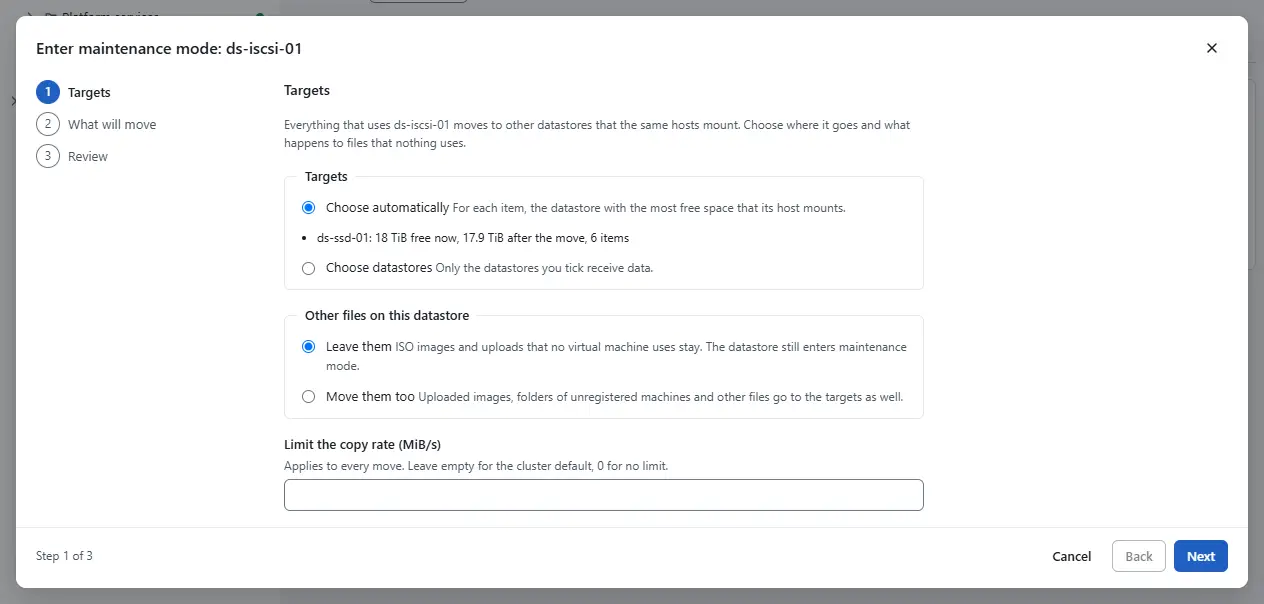
Datastore.Config. The dialog Enter maintenance mode: ... opens with three steps. - In the step Targets, choose where the data goes. Choose automatically picks, for every item, the datastore with the most free space that the host of the item mounts. The dialog lists the datastores it plans to use with their free space now and after the move. With Choose datastores you tick the datastores that may receive data, each shown with its type, free space and number of hosts. A datastore that is not accessible or is in maintenance mode itself is listed but cannot be ticked.
Under Other files on this datastore, choose what happens to files that no virtual machine, template, drive or library uses, such as uploaded images and folders of unregistered machines. Leave them keeps them where they are, and the datastore still enters maintenance mode. Move them too moves them to the targets as well. To protect the storage network, enter a Limit the copy rate (MiB/s); leave it empty for the default of the cluster, or enter 0 for no limit. Select Next.
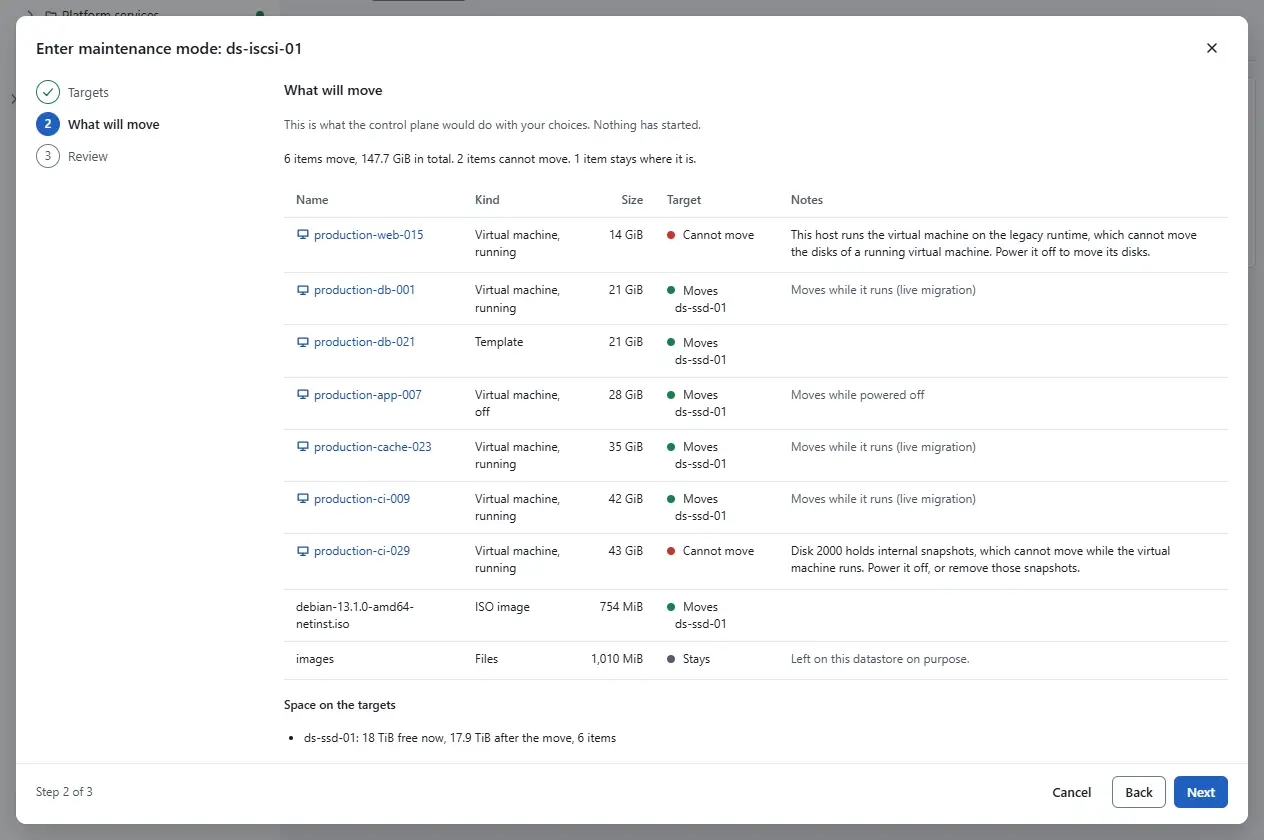
In the step What will move, read what the control plane would do with your choices. Nothing has started. The table lists every item with its kind, size and target: Virtual machine, running, Virtual machine, off, Template, ISO image, Content library and Files. Below the table you see the space left on every target. An item marked Cannot move names its reason and what to do, for example a running machine with internal snapshots, a datastore without room, or a running machine without the licence feature. An item marked Stays stays on purpose. A target that would be more than 85 percent full carries a warning.
Without the licence feature
live_migrationa running machine cannot move its disks, and the step says so. Power it off, or install a licence that includes the feature; a powered-off machine moves without it.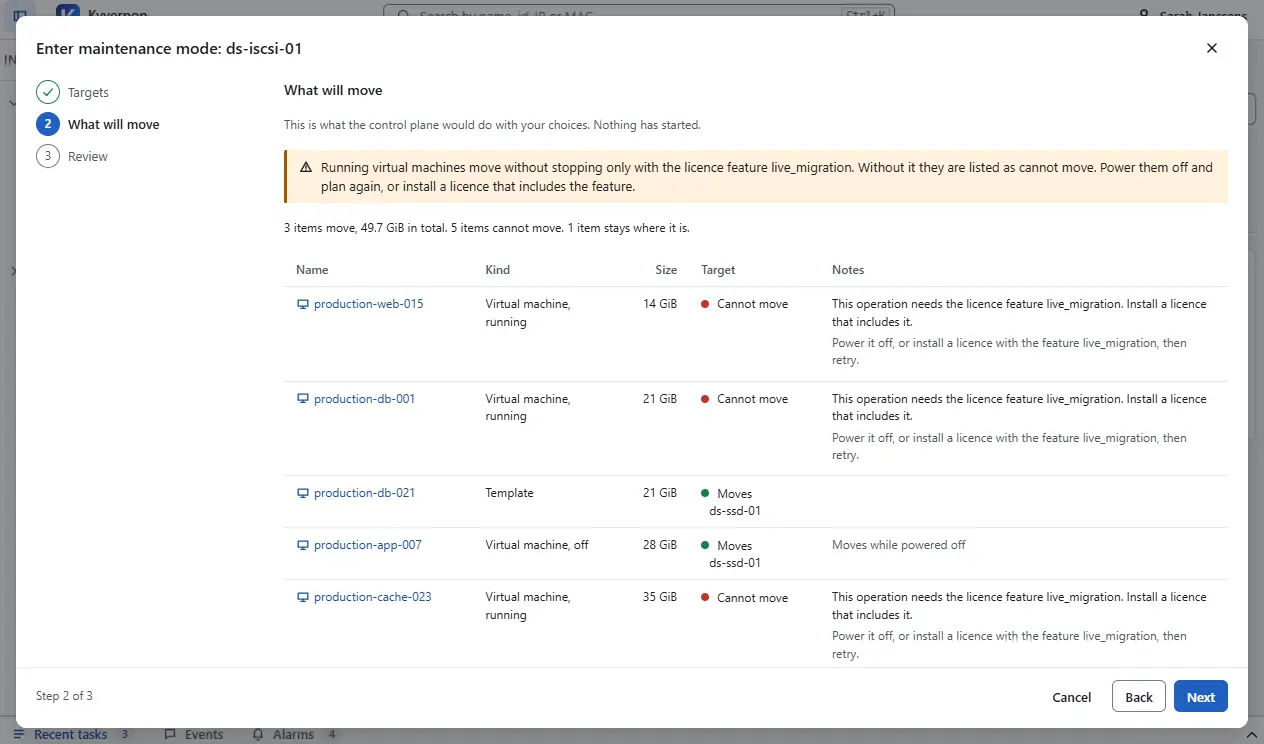
- In the step Review, check the choices and select Enter maintenance mode. You may start with items that cannot move: the datastore then stays in Entering maintenance until you solve them. The dialog closes when the control plane accepts the task.
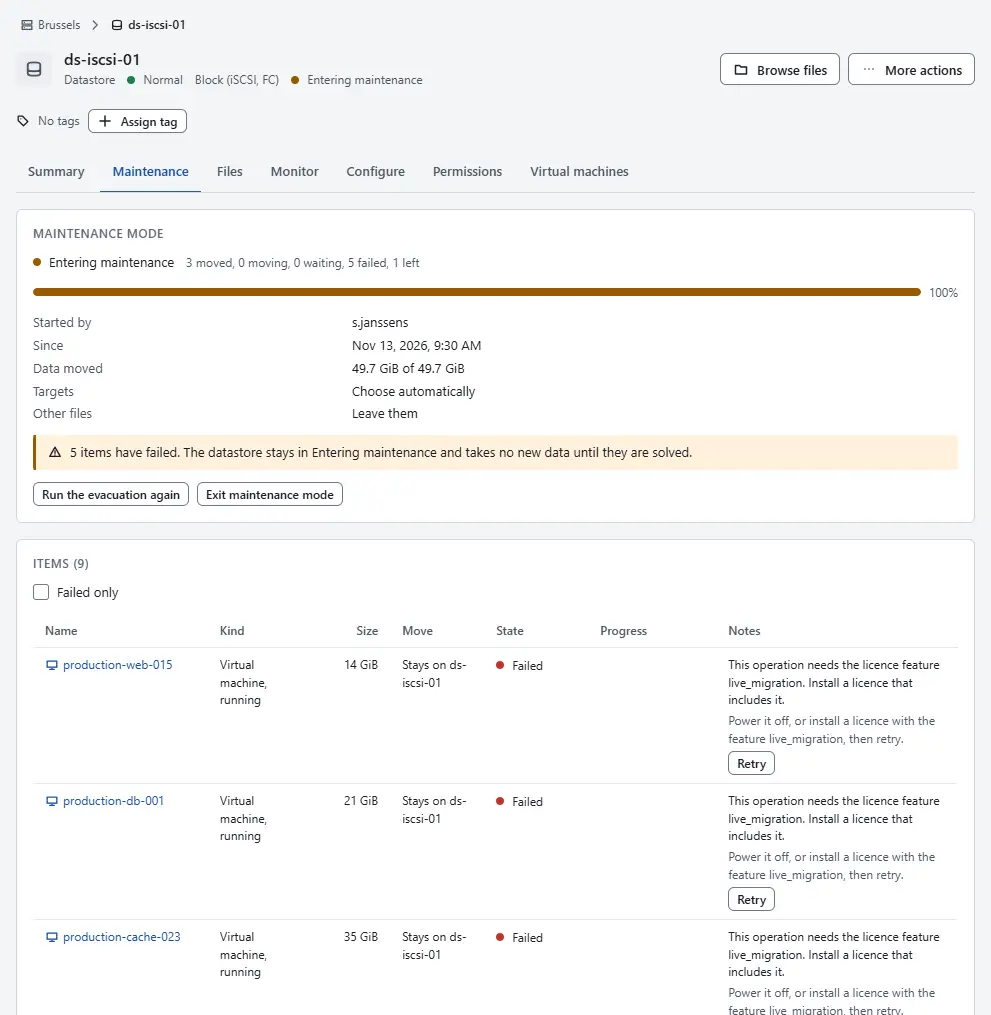
Follow the evacuation. The datastore shows the badge Entering maintenance in its header, in lists and in the inventory tree, and the tab Maintenance appears. It shows who started it and when, a bar over the bytes that moved, the counts, and one row for every item with its state (Waiting, Moving, Moved, Failed or Left in place), its progress and its notes. A running machine says that it moves while it runs. The tab refreshes every 3 seconds while the task runs, and the task in the tasks pane shows how many items have moved.
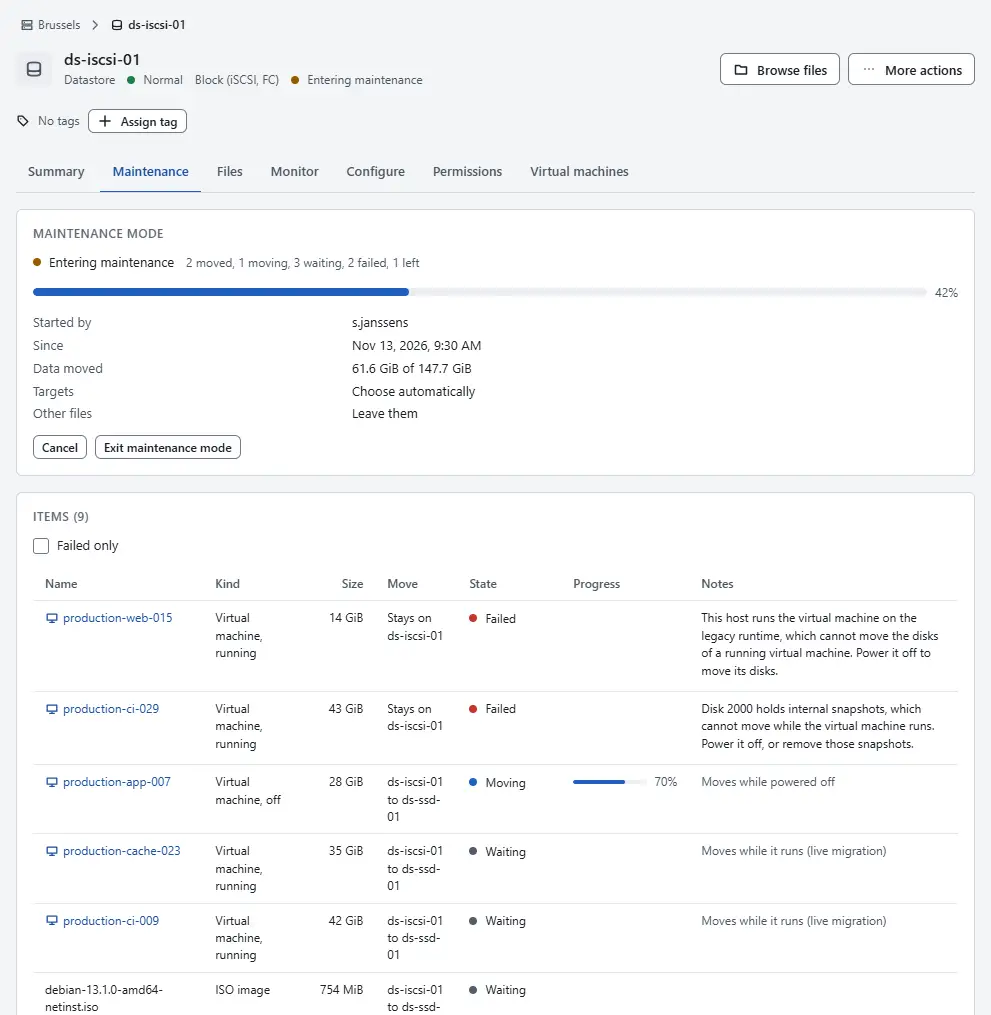
To stop, select Cancel and confirm with Cancel the evacuation. Moves in progress are cancelled where that is still possible, and the datastore stays in Entering maintenance.
When items failed, the datastore stays in Entering maintenance and the tab says how many. Each failed row gives the error and what to do. Select Failed only to see only those. Solve the cause, for example power the machine off, free space on a target or install the licence, then select Retry on the row, or Run the evacuation again for all failed items. Items that moved stay moved.
- When every item has moved or was left on purpose, the badge changes to In maintenance. Work on the storage now. To use the datastore again, select Exit maintenance mode under More actions or in the tab, and confirm. Nothing moves back.


What a datastore in maintenance refuses
From the moment maintenance mode starts, a datastore in Entering maintenance or In maintenance takes no new data. The pickers of the console list it as disabled with the reason: the new virtual machine wizard, new and attached disks, ISO images, restoring a backup, importing, registering, content libraries and the datastore of the migrate wizard. Files cannot be uploaded to it and folders cannot be created in it. You can still browse, download and delete, and mount or unmount it on a host. The control plane answers every refusal with error.datastore.in_maintenance.

Result
The datastore holds no virtual machine, template, used ISO image or library, and its state is In maintenance. The evacuation stays on the tab Maintenance after you exit, until the next one replaces it. Each item is a task of its own, and the whole evacuation is the task Enter datastore maintenance mode.
Automation
With the CLI
kyvernon datastore maintenance-check <id> --other-files move
kyvernon datastore enter-maintenance <id> --target <datastore> --max-bandwidth 100 --wait
kyvernon datastore maintenance <id>
kyvernon datastore maintenance-retry <id> --item <item>
kyvernon datastore exit-maintenance <id> --wait
maintenance-check shows what the evacuation would do and starts nothing. --target is repeated to allow more than one target, and without it the control plane chooses. --other-files is leave (the default) or move, and --max-bandwidth is in MiB/s. maintenance shows the state and the item table. maintenance-retry runs the evacuation again for the failed items, or one item with --item.
With the API
POST /v1/datastores/{id}/maintenance/check takes targets, otherFiles and options (maxBandwidthMibS) and answers the items, the counts, the bytes and the space per target, with refusal when the task itself would be refused. POST /v1/datastores/{id}/enter-maintenance takes the same body and an idempotencyKey, and answers a task. GET /v1/datastores/{id}/maintenance answers the state (normal, entering or inMaintenance), the running task and the evacuation with its items. POST /v1/datastores/{id}/maintenance/items/{item}/retry and POST /v1/datastores/{id}/exit-maintenance answer a task. Cancel the evacuation with POST /v1/tasks/{id}/cancel.
Related
Version 0.1. Last changed: 2026-11-15