Files on a datastore
Browse, upload, download, copy, move and delete files and folders on a datastore in the console, and use the datastore file endpoint.
The files of a datastore, such as cloud images, ISO images and the disks of virtual machines, are available in the console, with the command line and over HTTP. Paths are relative to the root of the datastore: no leading /, no ... Browsing needs the privilege Datastore.Browse, and uploads, copies, moves and deletions need Datastore.FileManagement.
In the console
In the inventory, select the datastore and select Browse files, or open the Files tab. When no host can reach the datastore, the tab shows Datastore not accessible instead.
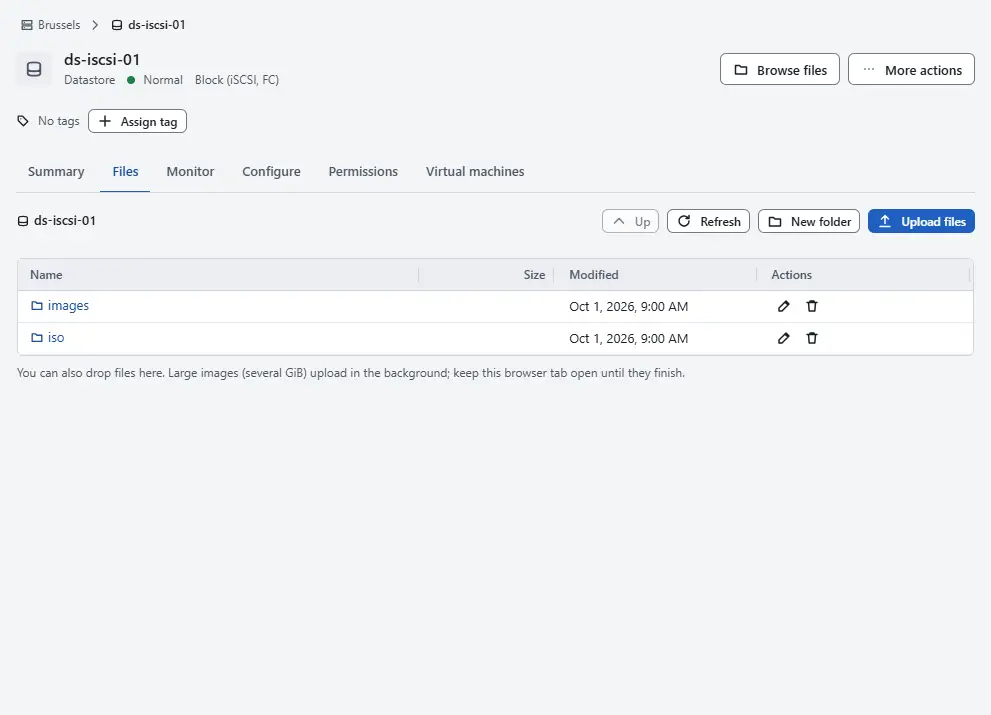
- Move through the folders with the list. Up goes up one level and Refresh reads the folder again. The field Folder shows where you are.
- Select New folder, enter the Folder name and select Create. The name cannot contain
/ \ : * ? " < > |. - Select Upload files and choose the files on your computer, or drop them on the list. The upload shows its progress and speed in the Uploads tab of the pane at the bottom. Large images upload in the background. Keep the browser tab open until they finish. Cancel upload of ... stops one, and Dismiss clears a finished or failed upload from the list. A file larger than the upload limit of the controller is refused, and a file that is the disk of a virtual machine is not replaced.
- Use the actions of a row. Download ... saves a file. Copy ... copies it to a new path below the root of the datastore, and Rename or move ... renames or moves it; the folder it goes into has to exist. Delete ... deletes a file, or a folder and everything in it, after a confirmation that says this cannot be undone. The disks of virtual machines, and the folders that hold them, are refused.

Result
The file is listed in the folder, with its size and the time of the last change. The folders and ISO files that you uploaded can be chosen in the wizard that creates a machine and in the dialog that edits its hardware, see Create a virtual machine.
Automation
With the CLI
kyvernon datastore ls <datastore> images
kyvernon datastore mkdir <datastore> images/debian
kyvernon datastore upload <datastore> ./debian-12.qcow2 --path images/debian/debian-12.qcow2
kyvernon datastore download <datastore> images/debian/debian-12.qcow2 --to ./copy.qcow2
kyvernon datastore cp <datastore> images/debian/debian-12.qcow2 images/debian/base.qcow2
kyvernon datastore mv <datastore> images/debian/base.qcow2 images/base.qcow2 --overwrite
kyvernon datastore rm <datastore> images/debian/debian-12.qcow2uploadstreams the local file. Without--pathit goes to the root under its own name.--overwritereplaces an existing file.cpandmvwork within one datastore, or to another datastore of the same host with--destination-datastore. They are synchronous.mkdircreates the folder and its parents.rmdeletes a file, or a folder with its contents.
With the API
| Operation | Request |
|---|---|
| List a folder | GET /v1/datastores/{id}/files?path=... |
| Create a folder | POST /v1/datastores/{id}/folders |
| Download | GET /v1/datastores/{id}/files/content?path=..., Range: bytes=a-b answers 206 |
| Upload | PUT /v1/datastores/{id}/files/content?path=..., streamed; overwrite=true replaces an existing file |
| Copy, move | POST /v1/datastores/{id}/files/copy, POST /v1/datastores/{id}/files/move |
| Delete | DELETE /v1/datastores/{id}/files?path=... |
An upload is written to a temporary file and renamed into place when it is complete, so a broken upload leaves no partial file under the real name. A file larger than the upload limit is refused with error.datastore_upload_too_large.
The datastore file endpoint of the vSphere API is served as well: GET, PUT and DELETE /folder/<path>?dcPath=<datacenter>&dsName=<datastore>. It takes a bearer token, the session cookie of the vSphere endpoints or a vmware_cgi_ticket; PUT answers 201 for a new file and 200 for a replaced one. Tools written for the vSphere API use it for their datastore uploads and downloads.
Related
Version 0.1. Last changed: 2026-11-14