Plans and catalogue
Create the plans servers are ordered by and offer template virtual machines as catalogue and rescue images, in the console.
A plan is a size class: vCPUs, memory, disk and traffic. A catalogue image is a template virtual machine that tenants can order servers from. A tenant orders a server by choosing a plan and an image. Both are managed on the page Tenants, in the cards VM plans and Image catalogue; the forms to add a plan or an image appear only when you hold Kyvernon.Plan.Manage and Kyvernon.Catalogue.Manage on the root.
In the console
Create a plan
Open the home page (Home), select Tenants under Shortcuts, and scroll to the card VM plans.
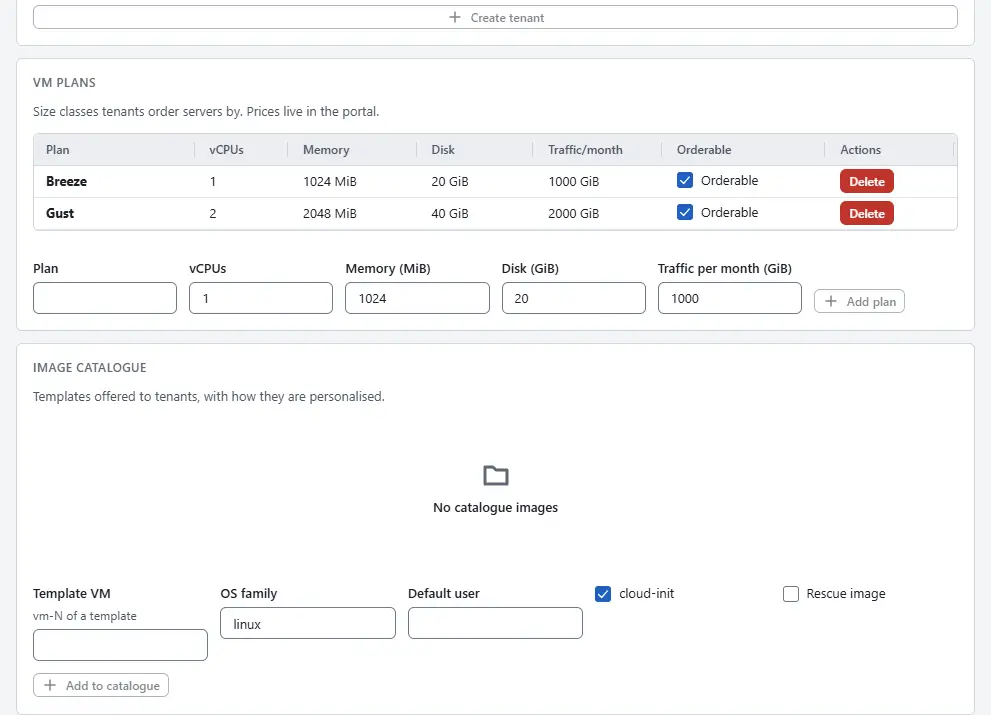
The list shows each plan with vCPUs, Memory, Disk, Traffic/month and whether it is Orderable. Prices are not part of Kyvernon; they live in the portal.
- Below the list, enter the plan name under Plan, the vCPUs, the Memory (MiB), the Disk (GiB) and the Traffic per month (GiB).
- Select Add plan.

A plan must fit on a host: Kyvernon refuses a plan with more vCPUs or memory than the largest host can give one virtual machine, and so it does when a tenant orders a server or resizes one. To stop offering a plan, clear Orderable in its row; servers that already use it keep running. Delete removes a plan that no server uses, and refuses one that is in use with error.plan.in_use. Replacing a plan does not change servers that exist: they keep their size until they are resized.
Offer an image
- Prepare the image as a template virtual machine; see Clone and templates. An image must be a template, otherwise Kyvernon answers
error.catalogue.not_template. - In the card Image catalogue, enter the Template VM, the id of the template in the form
vm-42, the OS family, for examplelinux, and the Default user. - Keep cloud-init ticked when the server is personalised with cloud-init: SSH keys, password and user data. Clear it for an image that takes no credentials at all; the list then marks it No credentials.
- Tick Rescue image when the image is a rescue image. It is then flagged as a rescue image and is not offered for ordering. Rescue mode of a server needs one, otherwise it fails with
error.server.no_rescue_image. - Select Add to catalogue.
In the list, Withdraw hides an image from tenants and Offer shows it again; the flag Offered marks an image that is offered. Remove takes the image out of the catalogue and leaves the template as it is.
Result
Tenant users see the orderable plans and the offered images, and operators see every plan and image. A server is ordered with one plan and one image, through the portal, the CLI or the API; see Servers.
Automation
With the CLI
kyvernon plans create \
  --body '{"name":"Breeze","vcpus":1,"memoryMib":1024,"diskGib":20,"trafficGibMonth":1000}'
kyvernon catalogue set vm-42 \
  --body '{"catalogue":true,"osFamily":"linux","cloudInit":true,"defaultUser":"ubuntu"}'
kyvernon catalogue set vm-43 \
  --body '{"catalogue":false,"rescue":true,"osFamily":"linux","cloudInit":true}'
The API offers more than the console form: osVersion, minDiskGib and, per plan, allowedImages, which limits the images a plan can be ordered with; empty allows every catalogue image. noCredentials says that the image takes no credentials at all.
With the API
GET /v1/plans lists plans, GET /v1/plans/{id} reads one, POST /v1/plans creates one, PUT /v1/plans/{id} replaces it and DELETE /v1/plans/{id} removes it. GET /v1/catalogue/images lists the catalogue, and PUT and DELETE /v1/catalogue/images/{id} set or remove an image.
Related
Version 0.1. Last changed: 2026-11-14