Hosts
Add a host to a cluster, put it into maintenance mode, disconnect and reconnect it, reboot or shut it down and remove it.
A host is a machine that runs the host agent and the Kyvernon VMM and carries virtual machines. The console shows its connection under Connection: Connected, Disconnected or Not responding. Every action below starts a task that the console reports in Tasks.
Install the host packages and write the agent settings as described in Install from an offline depot, step 3. An agent that names a cluster in its settings joins that cluster by itself at first contact; this page describes adding the host from the controller first. Check the licence: the free tier allows one host, and a further host needs a licence that allows more hosts and includes the feature cluster; otherwise the request fails with error.licence.limit_hosts or error.licence.feature_required. See Licence.
In the console
Add a host
Adding a host creates a pending host in a cluster. It stays disconnected until the agent on that machine registers under the same name with the join token.
In the inventory, select the cluster and select Add host.
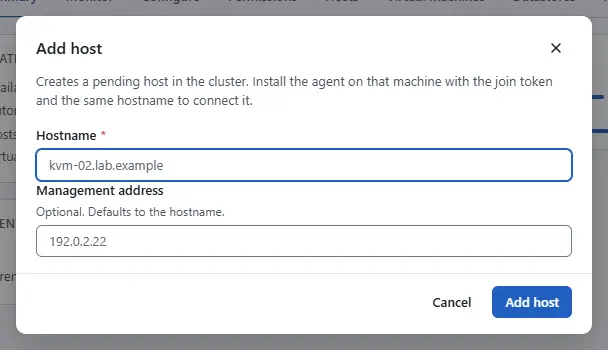
- Enter the name of the host in Hostname. It must equal the host name in the agent settings of that machine, which is the host name of the machine when none is set.
- Enter Management address when the controller must reach the host on another address than its name.
- Select Add host. The dialog Connect the agent of ... lists what the agent needs: the Join token, which Show shows, the Controller certificate that the host trusts and the Agent settings, which Copy the settings copies.
- On the machine, write the token and the settings as the dialog says, then start the agent. The host changes to Connected when it has registered.

A controller that does not show the token shows This controller does not show the join token. Read it from /etc/kyvernon/join-token on the controller.
Put a host in maintenance mode
A host in maintenance mode receives no new virtual machines. Entering it is refused while a virtual machine on the host is powered on or suspended (error.host_has_running_vms): Kyvernon does not move virtual machines away for you. Move them first with Migrate (live migration needs the licence feature live_migration), or power them off.
Select the host and select Enter maintenance mode. The same action is on the tab Configure, area Maintenance.
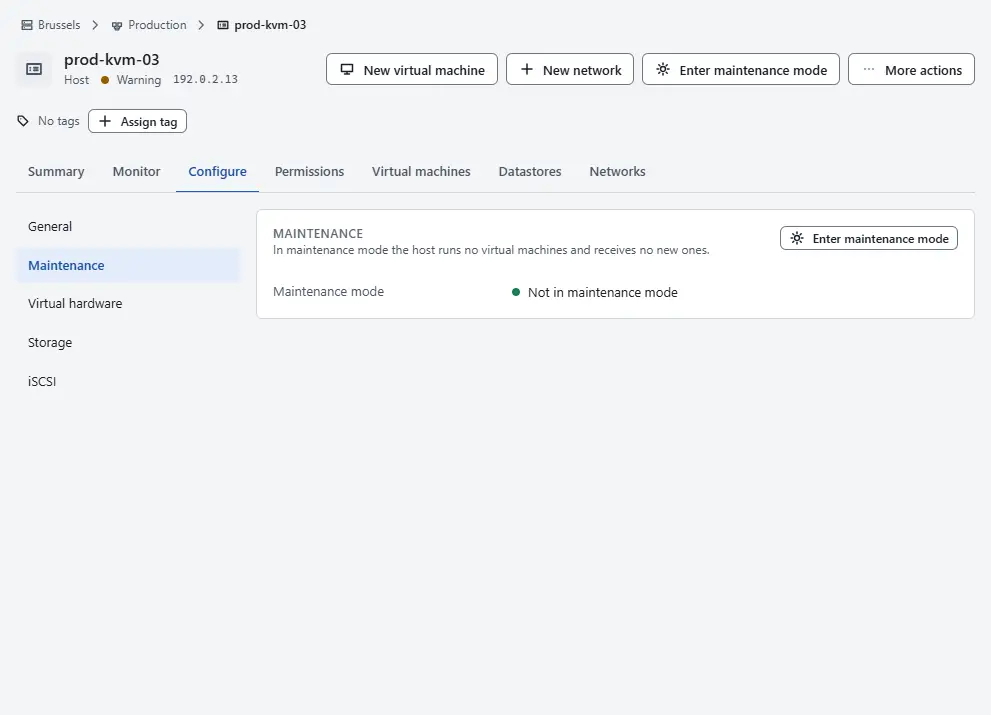
- The state shows as In maintenance mode.
- To end it, select Exit maintenance mode.

Disconnect and reconnect a host
A disconnected host stays disconnected until you reconnect it: heartbeats and a new registration of its agent do not change that. Virtual machines on it keep running. Use it before work on the machine that must not be mistaken for a failure.
Select the host, then More actions.
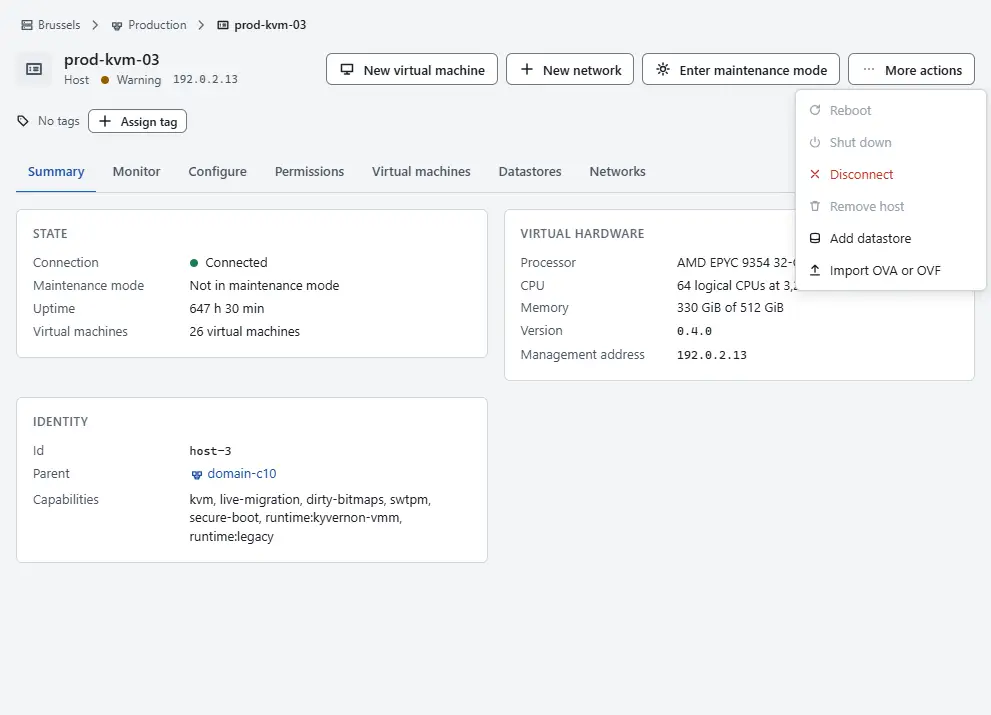
Select Disconnect and confirm.
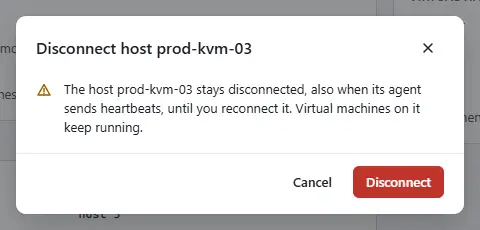
- To end it, select More actions, then Reconnect.


Reboot or shut down a host
Both actions are in More actions and are available only in maintenance mode, so that no virtual machine runs on the host.
- Put the host in maintenance mode as above.
- Select Reboot or Shut down, and type the name of the host to confirm.
- Tick Do not wait for the guests only when the host must not wait for processes to end.
The console calls the native routes of the controller, which refuse the request unless the host is in maintenance mode; the host agent has to declare that it can restart its machine, and otherwise the control plane answers error.host_capability_missing. The action needs the privilege Host.Config.Maintenance on the host, and a refusal says which condition failed. Both actions are tasks that you follow in the tasks pane.
A rebooted host is unavailable until it has started again, and its agent reconnects by itself. A host that was shut down stays off until someone starts it at the machine or through its management controller.
Remove a host
Only a host with no virtual machines placed on it can be removed, including powered-off ones (error.host_has_vms). Relocate or delete them first. The action is unavailable while virtual machines are placed on it, with the note Move or destroy every VM on this host first.
- Select the host, then More actions.
- Select Remove host, type the name of the host and confirm.
The host leaves its cluster and the inventory. Its agent has to join again with the join token to come back.
Result
The host shows the new state in the inventory, on its summary and on the tab Configure.

Automation
With the CLI
Add a host. --force returns an existing host of the same name instead of failing. For a host that is registered already in this cluster, --force resets it: its certificate is revoked and the agent must join again with the join token. Then start the agent on the machine with sudo systemctl enable --now kyvernon-agent.service:
kyvernon cluster add-host domain-c10 --name host-02.example.com \
  --management-address 192.0.2.12 --wait
Disconnect and reconnect, enter and exit maintenance mode, reboot or shut down in maintenance mode, and remove a host. --wait waits for the task:
kyvernon host disconnect host-3 --wait
kyvernon host reconnect host-3 --wait
kyvernon host enter-maintenance host-3 --wait
kyvernon host exit-maintenance host-3 --wait
kyvernon host reboot host-3 --wait
kyvernon host shutdown host-3 --wait
kyvernon host destroy host-3 --wait
To move a virtual machine away before maintenance: kyvernon vm relocate <id> --host <host>. The record that kyvernon inventory host <id> prints also reports the hardware the agent found (hardware) and the current use (runtime).
With the API
| Action | Request |
|---|---|
| Add a host | POST /v1/clusters/{id}/hosts with {"name": "host-02.example.com", "managementAddress": "192.0.2.12"}; "force": true has the effect described above |
| Disconnect, reconnect | POST /v1/hosts/{id}/disconnect, POST /v1/hosts/{id}/reconnect |
| Enter, exit maintenance mode | POST /v1/hosts/{id}/enter-maintenance, POST /v1/hosts/{id}/exit-maintenance |
| Reboot, shut down | POST /v1/hosts/{id}/reboot, POST /v1/hosts/{id}/shutdown, with {"force": true} to skip the maintenance requirement |
| Remove | DELETE /v1/hosts/{id} |
Each call answers with the task. A refused maintenance request answers 412 with the message id of the cause. Reboot and shutdown without force answer 412 with error.host.not_in_maintenance while the host is not in maintenance mode.
Related
- Clusters for the settings of the cluster a host belongs to.
- Host errors for causes and remedies of the error codes above.
- Troubleshooting when a host does not connect.
Version 0.1. Last changed: 2026-11-14