Restore a virtual machine
Restore a backup point into a new or the same virtual machine, and verify the restored machine on a quarantine network, on request or every night.
A restore writes the content of a backup point back to disk, into a new virtual machine or into the same one. Kyvernon restores the backup points that it took itself, and the disks that backup software writes through the session API. It can then start the restored machine on a network without exits and record whether it came up. The concepts are in Backup concepts.
You need the privileges above, plus read access on the virtual machine. A verification needs a quarantine network, which the first section creates.
In the console
Create a quarantine network
A quarantine network is a host-bridge network without uplink, gateway and DNS. Guests on it reach only each other and the DHCP responder of the host agent.
In the inventory, select the datacenter and select New network.
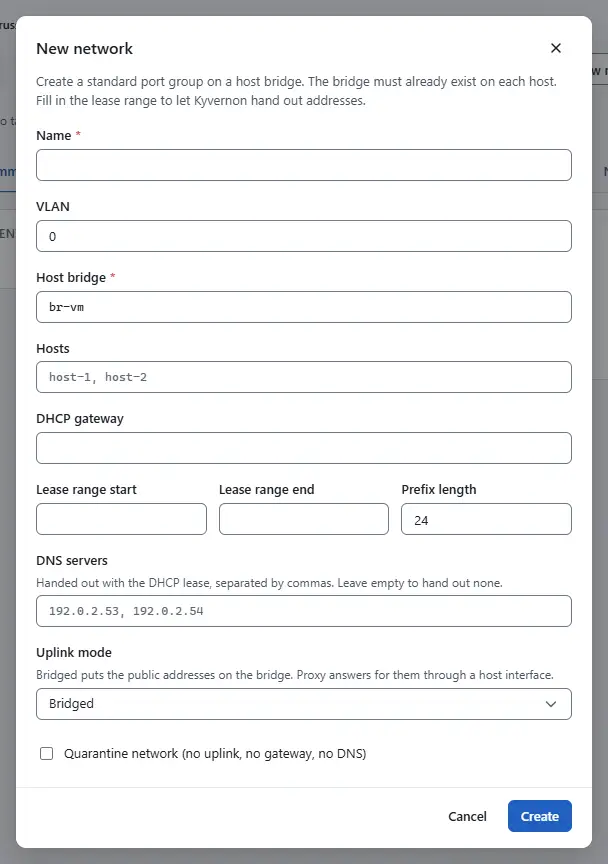
- Fill in the network as for any host-bridge network and select Quarantine network (no uplink, no gateway, no DNS). The gateway field of the dialog is then used as the DHCP server identifier, and no DNS server is sent. Use an address of the subnet that nothing else uses.
- Select Create.

Restore a backup point
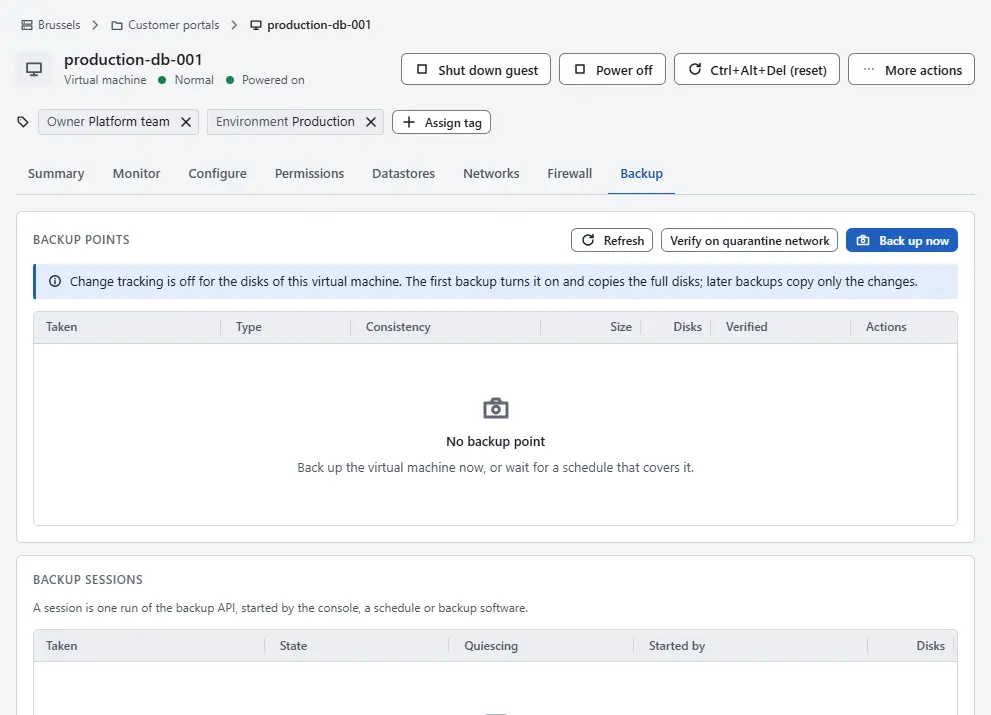
- In the inventory, select the virtual machine and open the tab Backup.
Select Restore on the row of the point.
- Under Restore to, choose A new virtual machine to leave the original untouched, or The same virtual machine, in place to replace its disks.
- For a new machine, enter Name of the new virtual machine and choose Folder and Datastore.
- To verify the new machine in the same step, tick Verify the restored machine on a quarantine network and fill in the fields described under verification below.
- For an in-place restore, the virtual machine must be powered off. The disks are replaced by the content of the point and changes made since then are lost. Type the name of the virtual machine to confirm.
- Select Restore. The task is in Tasks. After a restore to a new machine the console opens it.

An in-place restore replaces the disks of the virtual machine that have the same device keys as the disks of the point. When anything fails, the old disks are put back. After a successful restore the replaced disk images are removed from the host.
The restored disk starts a new tracking period, so the next backup of the virtual machine is full.
Verify a restored virtual machine
A verification powers the virtual machine on in the quarantine network. It passes when all of these hold before the time limit: the virtual machine runs and its serial console shows an operating system marker, the DHCP responder of the host agent sent an acknowledgement to one of its network adapters, and, when you name ports, a TCP connection from the host to each port succeeds. Every network adapter of the virtual machine must be on the quarantine network.
Open the tab Backup of the restored virtual machine and select Verify on quarantine network.
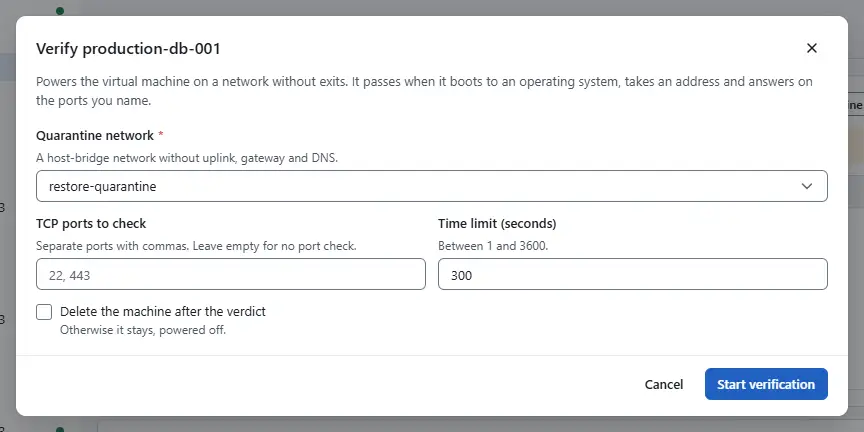
- Choose Quarantine network. Without a quarantine network the dialog shows There is no quarantine network.
- Enter TCP ports to check, separated by commas, or leave it empty for no port check. Enter Time limit (seconds): 300 seconds by default, from 1 to 3,600.
- Tick Delete the machine after the verdict to remove the virtual machine after the verdict; otherwise it stays, powered off.
- Select Start verification. The dialog follows the verification until the verdict. A second request while one runs is refused with
backup.verify.already_running.

The card Last restore verification shows the state (Running, Passed or Failed), the reason of a failure and the evidence: Network, Boot, Operating system, Address, TCP ports and Duration.
| Reason | Meaning |
|---|---|
backup.verify.boot_timeout | The virtual machine did not reach a running state in time. |
backup.verify.no_os_marker | The console showed no sign of an operating system. |
backup.verify.no_lease | The virtual machine took no address. |
backup.verify.no_tcp | A TCP port did not answer. |
backup.verify.transport | The restored disk could not be reached from this host. |
Every verdict is also recorded as an event on the virtual machine, as an audit record and in the custom field backup.verified of the source virtual machine, for example passed;runAt=1793000000. When a restore verifies the point in quarantine, a separate virtual machine is made from the point on the quarantine network and judged as described here; the restored virtual machine itself is not moved. When the verification fails, the restore task fails with error.backup.verify_failed and the restored virtual machine stays.
Verify every night
The controller can run the verification for every virtual machine that carries the custom field backup.verify with the value true. It restores the newest stored backup of each into a new virtual machine on the quarantine network, judges it and records the verdict. The stored backups must be in a directory where the controller finds them: <root>/<instance uuid>/<session id>/manifest.json with one raw image disk-<deviceKey>.raw per disk, each as large as the disk. The points that the controller takes itself are stored in this layout. Backup software that keeps its repository elsewhere assembles the image there first.
On the page Backup, open the tab Settings.
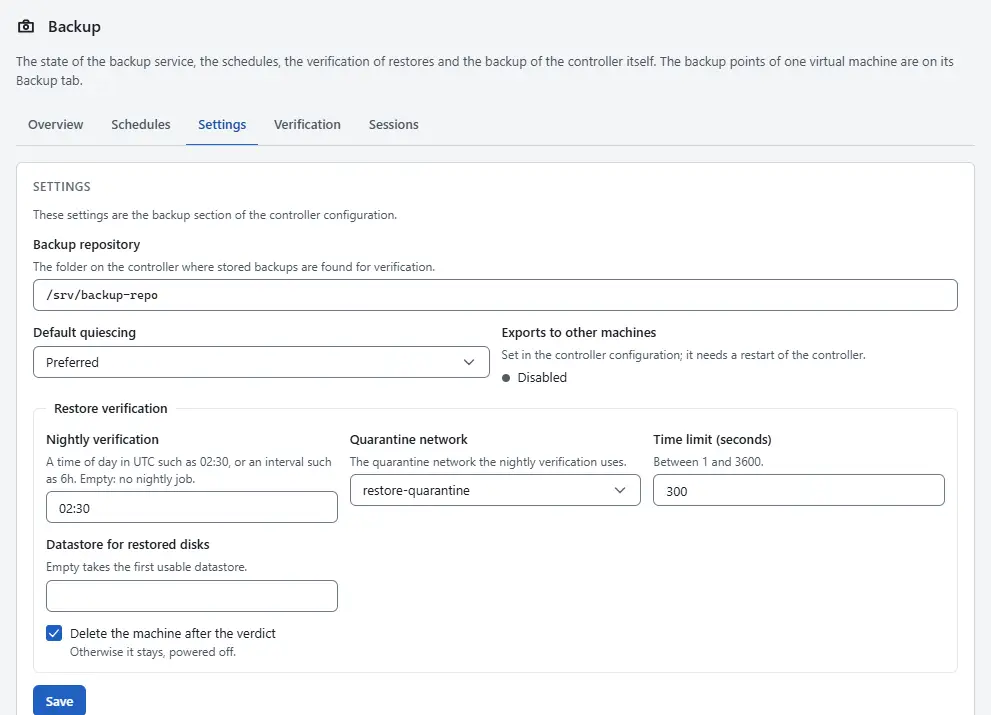
- Enter Backup repository, the folder on the controller where the stored backups are found.
- Under Restore verification, enter Nightly verification: a time of day in UTC such as 02:30, or an interval such as 6h. Empty means no nightly job.
- Choose Quarantine network, enter Time limit (seconds) and optionally Datastore for restored disks. Empty takes the first usable datastore. Tick Delete the machine after the verdict as above.
- Select Save.
To run the job now, open the tab Verification and select Run verification now. It runs in the background.
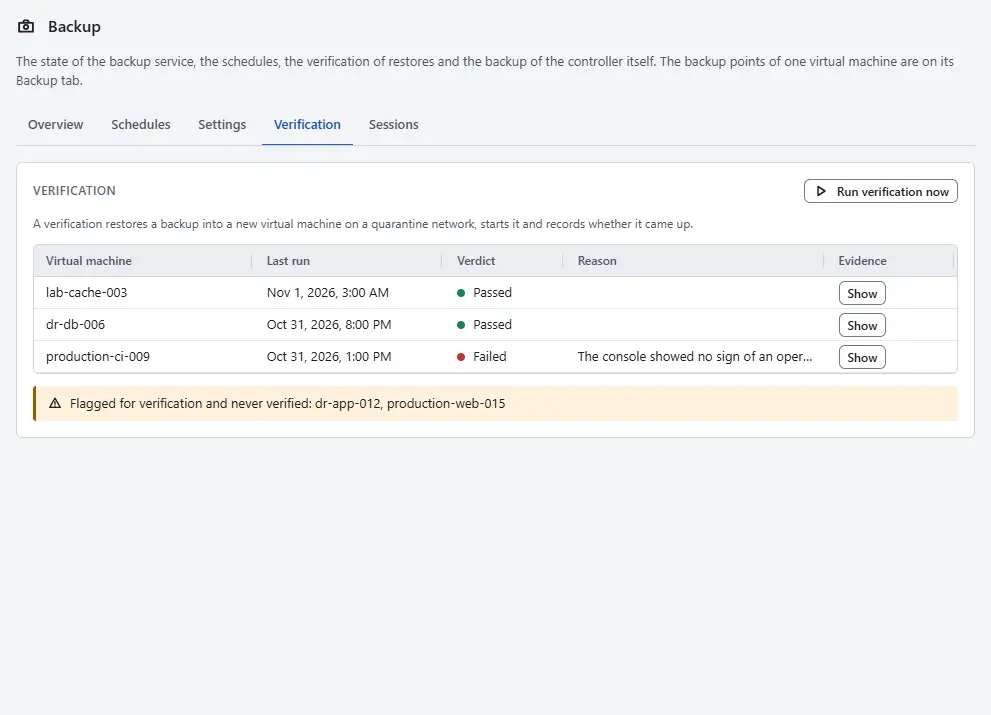


The table lists the last run of each virtual machine with Verdict and Reason; select Show for the evidence. The note Flagged for verification and never verified: under the table names the flagged virtual machines that were never verified. The overview shows the counts Passed, Failed and Never verified.
Limits
- One quarantine segment per host; there is no verification across hosts.
- In this release the controller must run on the host of the restored virtual machine: images are written over a local socket and remote exports are refused with
backup.verify.transport. - A check deeper than a TCP connection, such as a database handshake, needs an agent in the guest and is done by the backup software.
- The nightly job does not check TCP ports; use a verification of one virtual machine when you need TCP evidence.
Automation
Restore a backup point
A backup point that the controller took (see Back up a virtual machine) is restored with one request, as the console does.
With the CLI
kyvernon backup restore-point <id> --name web-01-restored --datastore ds-local-01 --power-on --wait
kyvernon backup restore-point <id> --in-place --wait
kyvernon backup restore-point <id> --verify-network restore-quarantine --wait
--in-place selects the in-place mode; without it the restore makes a new virtual machine. --name, --datastore and --power-on apply to a new virtual machine. --wait waits for the task to end.
With the API
POST /v1/backup/points/{id}/restore takes a mode:
new, the default, creates a new virtual machine from the point. The fields arename,folderId,datastoreId,hostIdandpowerOn. The task isVirtualMachine.restoreBackup.in-placerestores onto the source virtual machine. The task isVirtualMachine.restoreBackupInPlace. The virtual machine must be powered off; otherwise the request fails witherror.backup.vm_powered_on. It needsVirtualMachine.Config.AddNewDiskandVirtualMachine.Config.RemoveDiskon the virtual machine. The disks of the point replace the disks of the virtual machine that have the same device keys. When anything fails, the old disks are put back. After a successful restore the replaced disk images are removed from the host.
The optional verify object has network, timeoutSeconds, destroy, serialMarkers and tcpPorts. It needs Global.Settings. After the restore, the controller verifies the point in quarantine. When the verification fails, the task fails with error.backup.verify_failed and the restored virtual machine stays.
Restore a disk
A restore through the session API writes a full disk image into a new disk of a virtual machine. The backup software reads its own repository and writes the image through a writable export. This is the only way to restore one disk into a virtual machine that exists already; the console restores to a new virtual machine or in place.
Create the target virtual machine, or use a powered-off one; its instance UUID identifies it.
With the CLI
Begin the restore. capacity is the size of the disk in bytes, pool the datastore for the new disk and deviceKey the key the disk gets in the virtual machine:
kyvernon backup restores begin --body '{
  "vmId": "9b2d4a3e-51c8-4f06-8d75-3e1a6c0b7f42",
  "deviceKey": 2000,
  "capacity": 107374182400,
  "pool": "ds-local-01",
  "thin": true
}'
The answer holds a writable export, with the same transport rules as a backup export. Write the image to it, then commit the disk, or discard it when the copy failed:
kyvernon backup restores finish 9b2d4a3e-51c8-4f06-8d75-3e1a6c0b7f42 2000
kyvernon backup restores finish 9b2d4a3e-51c8-4f06-8d75-3e1a6c0b7f42 2000 --discard
Verify the restored virtual machine and read the result. --destroy removes the virtual machine after the verdict; without it the virtual machine stays powered off:
kyvernon backup restores verify 9b2d4a3e-51c8-4f06-8d75-3e1a6c0b7f42 \
  --network restore-quarantine --timeout 300 --destroy
kyvernon backup restores get 9b2d4a3e-51c8-4f06-8d75-3e1a6c0b7f42
restores get shows the state (running, passed or failed), the reason of a failure and the evidence: console output, the leased address and the port results. To verify in the same request as the restore, put verify with the same fields on the begin body of the last disk; the verification starts when that disk is committed.
Run the nightly job now and read the report, which lists the last run per virtual machine and the flagged virtual machines that were never verified. Running needs the privilege Global.Settings:
kyvernon backup verification run
kyvernon backup verification report
With the API
The calls below restore into a disk and verify the result.
| Step | Request |
|---|---|
| Begin a restore | POST /v1/backup/restores with vmId, deviceKey, capacity, pool, thin and, optionally, verify |
| Finish | POST /v1/backup/restores/{vmId}/disks/{deviceKey}/finish with {"commit": true} or false |
| Verify | POST /v1/backup/restores/{vmId}/verify with network, timeoutSeconds, destroy, serialMarkers and tcpPorts |
| Read a verification | GET /v1/backup/restores/{vmId} |
| Run the nightly job | POST /v1/backup/verification/run |
| Last run per virtual machine | GET /v1/backup/verification |
| Create a quarantine network | POST /v1/networks with backing.quarantine: true and backing.ipv4 with a DHCP server identifier, no gateway and no dnsServers |
The controller also publishes kyvernon_backup_verification_ok{vm}, kyvernon_backup_verification_last_run_timestamp_seconds{vm} and kyvernon_backup_verification_duration_milliseconds{vm} on /metrics.
Related
Version 0.1. Last changed: 2026-11-14