Back up a virtual machine
Back up a virtual machine from its Backup tab, on request or on a schedule, set the repository, follow sessions, or use your own software.
A backup takes a consistent point in time of every disk of a virtual machine that has change tracking. The first backup is full and later ones are incremental. Kyvernon can take the backup itself: the controller reads every disk and writes it to a repository, on request or on a schedule. Backup software can also run the steps itself through the session API; that is described at the end of this page. Behind each backup is one session of the backup API; the concepts are in Backup concepts.
When change tracking is off, the tab shows Change tracking is off for the disks of this virtual machine. The first backup turns it on and copies the full disks; later backups copy only the changes. A backup by the controller turns it on first, so the first backup is full. You need the privileges above on the virtual machine, and the privilege Global.Settings to create or delete schedules.
In the console
Set the repository
The controller writes the backup points to a repository, a folder that it can write to. Set it before the first backup.
On the page Home, select Backup, then open the tab Settings.
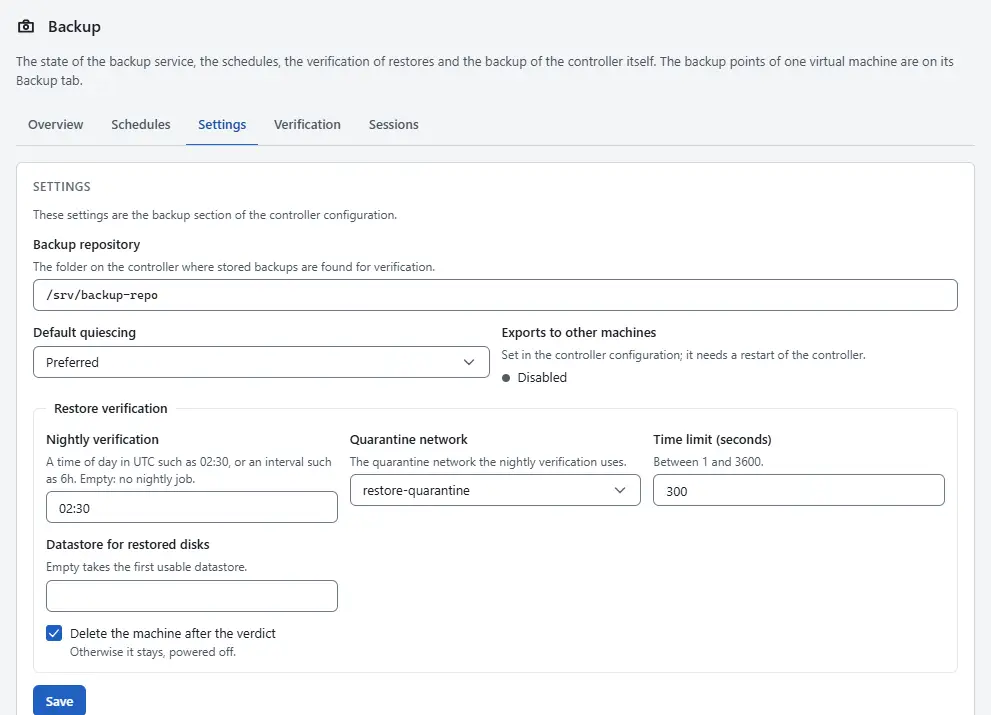
- Enter Backup repository. With several controllers it must be shared storage mounted at the same path.
- Choose Default quiescing, the quiescing that a backup uses when its request does not set one.
- Select Save. Every controller applies the change within about 10 seconds.

Back up one virtual machine
In the inventory, select the virtual machine and open the tab Backup. The table Backup points lists the backup points with Taken, Type, Consistency, Size, Disks and Verified.
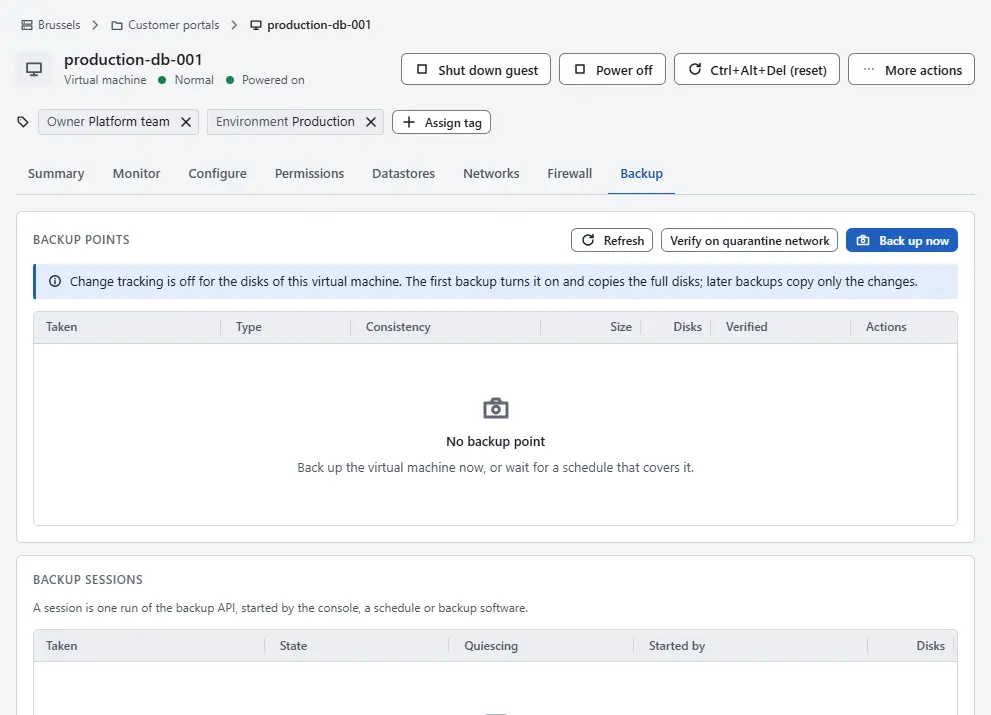
- Select Back up now.
- Choose Quiescing. Preferred asks the guest agent to freeze the file systems when it runs and otherwise takes a crash-consistent point. Required fails when the freeze fails. None (crash consistent) takes a crash-consistent point.
- Select Take a full backup to copy every allocated block again although an incremental backup is possible. A change id becomes stale after a resize of the disk, a revert to a snapshot or a restore onto the disk; the next backup of that disk then has to be full.
- Select Back up now in the dialog. The task is in Tasks. The new point appears in the table, with the type Full or Incremental and the consistency Crash consistent or File system consistent.

A backup is incremental when the newest point of the virtual machine has change ids for the disks. The controller then copies the previous image and writes the changed areas onto the copy. Every point therefore holds whole images and can be restored or deleted on its own.
To remove a point, select Delete on its row and confirm. The point can no longer be restored.
Back up a cluster or a folder on a schedule
A schedule backs up every virtual machine of a cluster or a folder that has change tracking, at a time of day in UTC. The leader controller checks the schedules every 20 seconds.
On the page Home, select Backup, then open the tab Schedules.
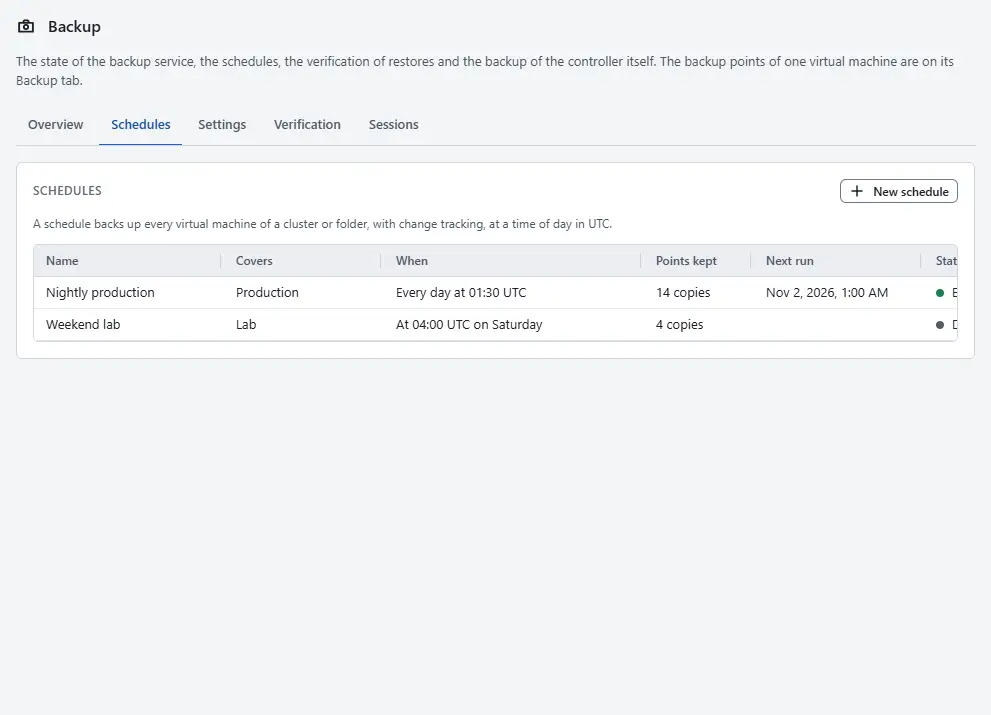
- Select New schedule.
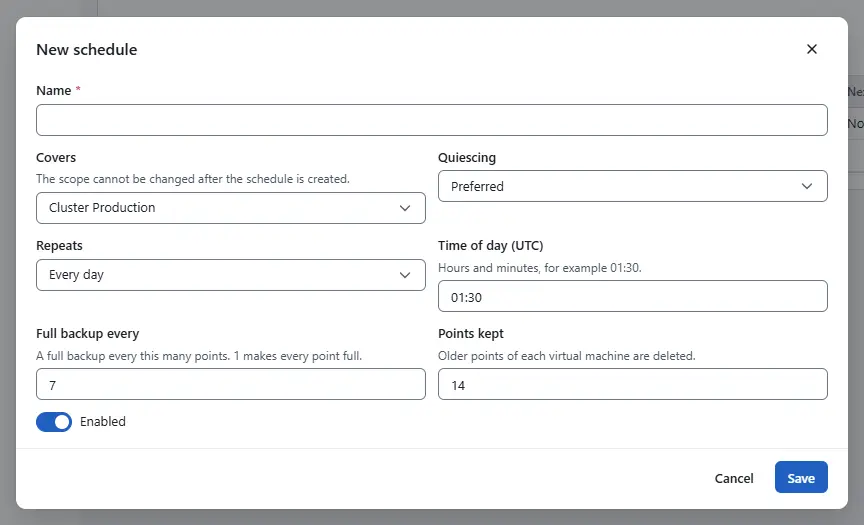
- Enter Name and choose Covers, a cluster or a folder. The scope cannot be changed after the schedule is created.
- Choose Quiescing as above.
- Choose Repeats: Every day or On chosen weekdays. Enter Time of day (UTC) as hours and minutes in UTC, for example 01:30. For a weekly schedule tick the Weekdays.
- Enter Full backup every: a full backup every that many points, where 1 makes every point full. Enter Points kept: older points of each virtual machine are deleted.
Leave Enabled on and select Save.


The table shows When, Next run and the state Enabled or Disabled. Select Edit to change a schedule, or Delete to stop it: the points that exist stay. A schedule that you change counts its next run from the time of the change.
Follow the sessions
On the page Backup, open the tab Sessions.
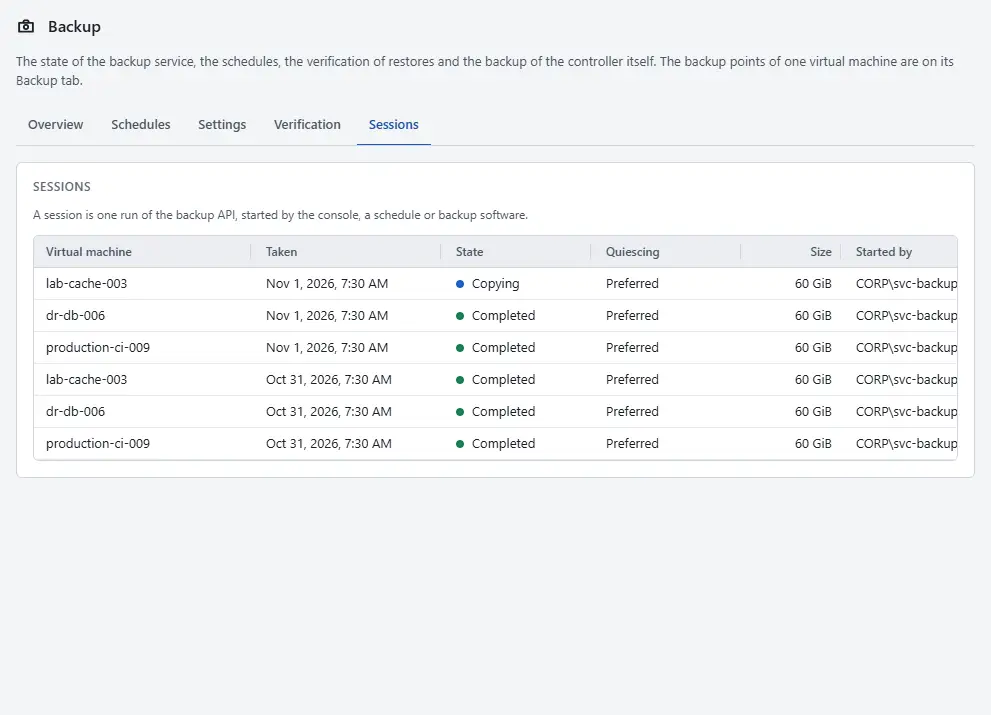
- Read Virtual machine, Taken, State, Quiescing, Size and Started by. A session is one run of the backup API, started by the console, a schedule or backup software.

| State | Meaning |
|---|---|
| Requested | The controller has accepted the request. |
| Snapshot taken | The host has taken the point in time of the disks. |
| Copying | The disks are served for copying. |
| Completed | The backup finished and its change ids are valid. |
| Aborted | The client reported a failure or the host failed. The previous change ids stay valid and the next incremental backup contains the changes of the failed run too. |
| Expired | The session was not kept alive within its lifetime, 6 hours by default and at most 48 hours. |
A virtual machine has at most one active session. The controller keeps the last 1,024 finished sessions readable. The tab Backup of a virtual machine lists the sessions of that machine.
Check the backup service
On the tab Overview, the card Backup service shows the API version, the Features, the Tracking granularity (64 KiB), the Longest session and the state of Exports to other machines. Exports to other machines are off until the operator turns them on in the controller configuration and restarts the controller; see Configuration. A controller on another machine than the host of the virtual machine needs them to take backups itself: it then reads the disks over TCP and TLS 1.3 and pins the certificate by the fingerprint that the host reports. Without them the export is a Unix socket on the host. Backup software that reads disks from another machine needs them too.
When change tracking is off for the virtual machine, a backup taken by the controller turns it on first, as a reconfigure task.
Result
The table Backup points of the virtual machine holds the new point and the session is Completed. The repository holds the point as <repository>/<vm instance uuid>/<point id>/disk-<deviceKey>.raw, one file per disk, with manifest.json beside them. The controller writes manifest.json last, after the session has committed its change ids. When backup software uses the backup API instead, Kyvernon keeps no copy of the data: the software reads the disks through the exports and keeps them in its own repository.
Refusals and failures
| Message id | Meaning and remedy |
|---|---|
backup.vm.no_tracked_disks | The virtual machine has no disk with change tracking. Turn on Change tracking in its hardware settings. |
backup.disk.cbt_disabled | Change tracking is off for the disk. Turn it on in the hardware settings. |
backup.change_id.stale | The change id is no longer valid. Take a full backup. |
backup.session.vm_busy | Another session runs for the virtual machine. Try again later. |
backup.session.limit | Too many sessions are active. Try again later. |
backup.checkpoint.bitmap_missing | The tracking data is missing. End the session as failed and take a full backup. |
backup.agent.timeout | The host did not answer and the session was aborted. Try again. |
Automation
The CLI and the API do what the console does, and the session API lets backup software take the backup itself. Use an account with the privileges above on the virtual machine, preferably an API token of a service account.
Restoring one disk into a virtual machine that exists already, from the repository of backup software, is done only through the API; see Restore a virtual machine.
With the CLI
Take a backup point of a virtual machine, list the points and delete one, as the console does:
kyvernon vm backup vm-42
kyvernon backup points
kyvernon backup delete-point <point-id>
Start a backup and wait for the task to end:
kyvernon vm backup <vm> --wait
kyvernon vm backup <vm> --quiesce REQUIRED --wait
kyvernon vm backup <vm> --full --wait
--quiesce is NONE, PREFERRED or REQUIRED; without it the default quiescing of the backup settings applies. --full forces a full transfer.
List the points of one virtual machine:
kyvernon backup points --vm <vm>With the API
POST /v1/backup/points with {"vmId": "...", "quiesce": "PREFERRED", "full": false} starts the task VirtualMachine.backupToRepository. quiesce and full are optional. The request needs VirtualMachine.Provisioning.DiskRandomRead and VirtualMachine.State.CreateSnapshot on the virtual machine. The controller begins a backup session, reads every disk over its NBD export into the repository and writes manifest.json last. full: true forces a full transfer.
GET /v1/backup/points lists the points. Each has kind (full or incremental), consistency (CRASH_CONSISTENT or FILESYSTEM_CONSISTENT) and verified, the result of the last verification of that point. DELETE /v1/backup/points/{id} deletes one.
Backup schedules
A schedule backs up every virtual machine under an inventory object at fixed times. Deleting a schedule keeps its points.
| Field | Meaning |
|---|---|
name | Name of the schedule. |
enabled | Whether the schedule runs. |
scope | Inventory id of a folder, datacenter, cluster, resource pool, host or virtual machine. Every virtual machine under it is backed up. |
frequency | daily or weekly. |
hour, minute | Time of day in UTC. |
weekdays | Weekly only, at least one: 0 is Sunday. |
quiesce | NONE, PREFERRED or REQUIRED. |
fullEvery | A full transfer every n points. 1 makes every point full. Default 7. |
retention | Points kept per virtual machine. 0 keeps all. Default 14. |
The views add scopeName, lastRunAt, nextRunAt and lastResult (success or failure), which is written when all backups of the run have ended.
With the CLI
kyvernon backup schedules list
kyvernon backup schedules create nightly --scope <id> --hour 1 --minute 30 --retention 14
kyvernon backup schedules create weekend --scope <id> --hour 3 --frequency weekly \
  --weekday 6 --weekday 0 --full-every 2
kyvernon backup schedules update <id> --name nightly-db --hour 2
kyvernon backup schedules run <id>
kyvernon backup schedules delete <id>
create also takes --quiesce Q and --disabled. update takes the same flags as create. get <id> shows one schedule, and run <id> starts it now.
With the API
GET and POST /v1/backup/schedules, GET, PUT and DELETE /v1/backup/schedules/{id}, and POST /v1/backup/schedules/{id}/run. Changing a schedule needs Global.Settings; reading needs System.Read.
Backup settings
The settings say where the points are kept and how they are verified. Every controller applies a change within about 10 seconds.
| Field | Meaning |
|---|---|
repository | Absolute directory that the controller can create. With several controllers it must be shared storage mounted at the same path. |
defaultQuiesce | Quiescing used when a request does not set one. |
remoteExports | Read only. Set remote_exports in controller.toml. |
verifySchedule | Time of day in UTC (02:30) or an interval (6h). Empty: off. |
verifyNetwork | The quarantine network for verification. |
verifyTimeoutSeconds | 30 to 3600. |
verifyDestroy | Destroy the verification virtual machine after its verdict. |
verifyPool | Datastore name for the verification disks. Empty: the first usable one. |
The settings are stored in the replicated store. A field that was never changed in the console shows the value of the [backup] section of controller.toml (verify_repository, verify_schedule, verify_network, verify_timeout, verify_destroy, verify_pool). A controller on another machine than the host of the virtual machine needs remote_exports = true in that section. See Restore a virtual machine for the verification.
With the CLI
kyvernon backup settings get
kyvernon backup settings set --repository /srv/backup-repo --default-quiesce PREFERRED
kyvernon backup settings set --verify-schedule 02:30 --verify-network restore-quarantine \
  --verify-timeout 300 --verify-destroy true --verify-pool ds-local-01
Options that you do not give keep their value.
With the API
GET /v1/backup/settings needs System.Read. PUT /v1/backup/settings needs Global.Settings and is audited.
With your own backup software
Backup software can run the steps of a backup itself through the session API. The session gives a consistent point in time, the list of areas to copy and a read-only export of each disk. The software copies the data to its own repository. The virtual machine is identified by its instance UUID, not by its inventory id.
The virtual machine needs change tracking: change_tracking in its configuration (changeTrackingEnabled for vSphere tools). Without it the request fails with backup.disk.cbt_disabled or backup.vm.no_tracked_disks. Off-host reading needs remote_exports = true in the [backup] section of controller.toml.
With the CLI
Check that the service answers and see its limits:
kyvernon backup infoBegin a backup of one disk. since is * for everything that is allocated, or the change id that the previous completed backup returned for this disk. With "disks": [] every disk with change tracking is backed up in full:
kyvernon backup sessions begin --body '{
  "vmId": "6f1c3a52-8d0e-4b8f-9a35-0f5d2c7e9b11",
  "disks": [{"deviceKey": 2000, "since": "*"}],
  "quiesce": "PREFERRED",
  "fallbackToFull": true,
  "ttlSeconds": 21600
}'
The answer is the session. For each disk it holds export (host, port, TLS fingerprint, export name with the session token), changeId (the value to store when the backup completes) and incremental (false when a full backup was made because the change id was stale).
List the areas to copy, page by page, until the offset reaches the capacity of the disk. Connect to the export with an NBD client that supports TLS 1.3, pin the certificate fingerprint of the session and read the areas. For a long copy, extend the session before its deadline:
kyvernon backup sessions changed-areas <session-id> 2000 --start-offset 0 --max-areas 4096
kyvernon backup sessions keepalive <session-id>
End the session. Report SUCCESS only when every area was copied, and store the change ids of the disks after the session shows COMPLETED:
kyvernon backup sessions end <session-id> --outcome SUCCESS
kyvernon backup sessions get <session-id>
kyvernon backup sessions list --vm 6f1c3a52-8d0e-4b8f-9a35-0f5d2c7e9b11
For the next incremental backup, repeat begin with the stored change id as since. A session that ends as ABORTED or EXPIRED gives no valid change id.
With the API
The backup points of the console are POST /v1/backup/points (take one), GET /v1/backup/points (list) and DELETE /v1/backup/points/{id}. The session API below is the one that backup software uses.
| Step | Request |
|---|---|
| Capabilities | GET /v1/backup/info |
| Begin | POST /v1/backup/sessions with vmId, disks, quiesce, fallbackToFull, ttlSeconds |
| Read a session | GET /v1/backup/sessions/{id}, GET /v1/backup/sessions?vmId= |
| Changed areas | GET /v1/backup/sessions/{id}/disks/{deviceKey}/changed-areas?startOffset=&maxAreas= |
| Keep alive | POST /v1/backup/sessions/{id}/keepalive |
| End | POST /v1/backup/sessions/{id}/end with {"outcome": "SUCCESS"} or FAILURE |
| Restart change tracking of a disk | POST /v1/backup/disks/{diskId}/invalidate with vmId and reason |
startOffset must be a multiple of the granularity of 64 KiB that info reports. Change ids are opaque: store them as strings and pass them back unchanged.
Result
The repository of the backup software holds the disk content at the backup point, and the change id of each disk is stored for the next incremental backup.
Errors to handle
| Message key | Action |
|---|---|
backup.change_id.stale | Take a full backup (*) or set fallbackToFull. |
backup.session.vm_busy | Another session runs for the virtual machine. Retry later. |
backup.session.limit | Too many active sessions. Retry later. |
backup.disk.cbt_disabled | Enable change tracking of the virtual machine. |
backup.checkpoint.bitmap_missing | End the session with FAILURE and take a full backup. |
backup.agent.timeout | The host did not answer and the session was aborted. Retry. |
Related
Version 0.1. Last changed: 2026-11-14