First virtual machine
Upload a cloud image, create a virtual machine from it in the console, use the everyday actions and open its screen.
This lesson uploads a cloud image, creates a virtual machine from it and opens the screen of the machine in the browser. You need to be signed in (First sign-in), a datastore with free space, a cloud image on your computer (for example the Debian "genericcloud" image in qcow2 format) and an SSH public key.
In the console
Upload a cloud image
A cloud image is a ready-made disk that configures itself at its first start with cloud-init.
- In the inventory, switch the view to Storage and select the datastore that holds the image.
- Select Browse files. The Files tab opens.
- Select New folder, enter the Folder name
imagesand select Create. Open the new folder. Select Upload files and choose the image on your computer, or drop the file on the list.
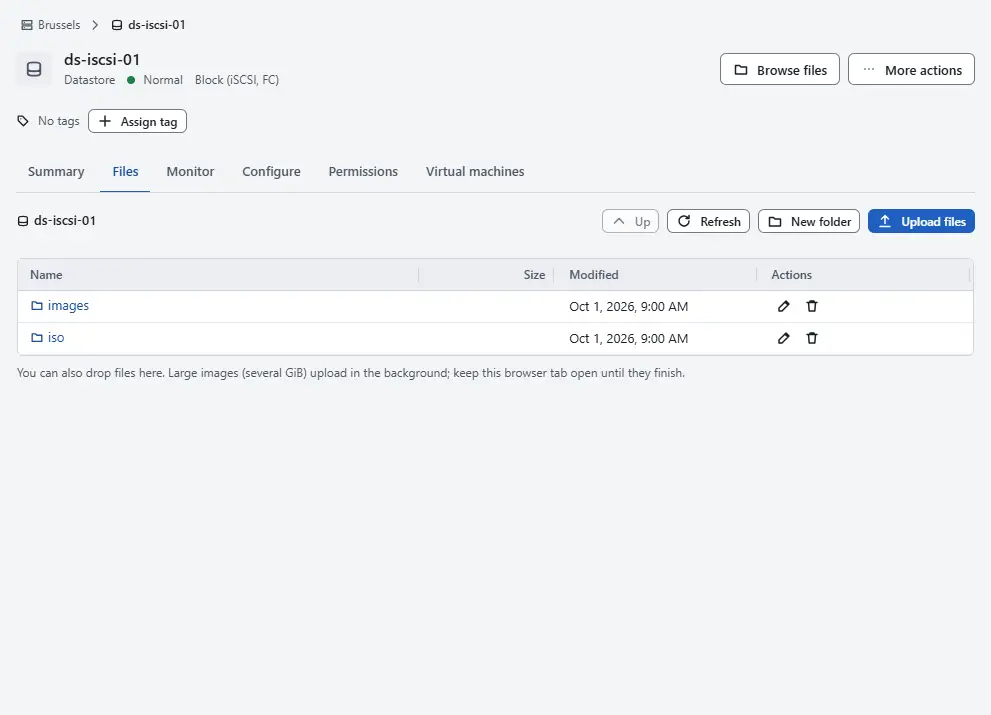

The progress and the speed show in the Files tab and in the Uploads tab of the pane at the bottom. Images of several gigabytes are fine. Keep the browser tab open until the upload finishes. Cancel upload of ... stops it.
Create the virtual machine
- Switch the inventory back to Hosts and clusters, select a cluster, a host or a folder of virtual machines and select New virtual machine. The wizard New virtual machine opens.
Name and folder: enter the Name, for example
web-07, and choose the Folder. The name is also the host name of the guest.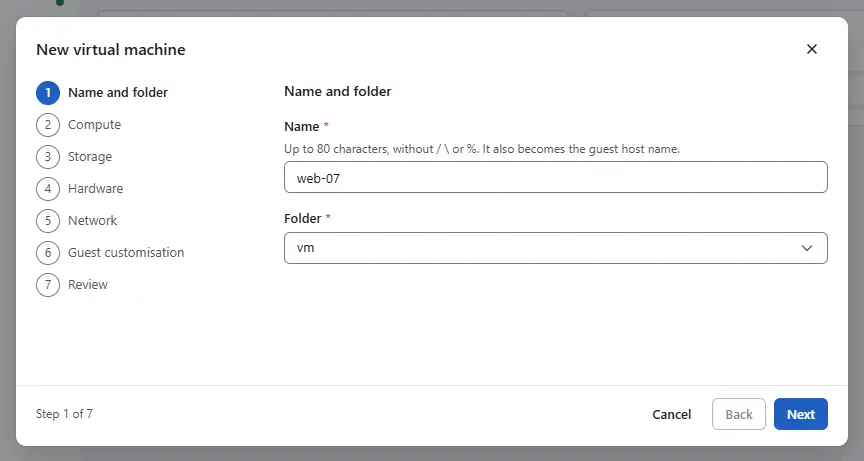
- Compute: choose a cluster to let Kyvernon place the virtual machine, or a host to place it yourself.
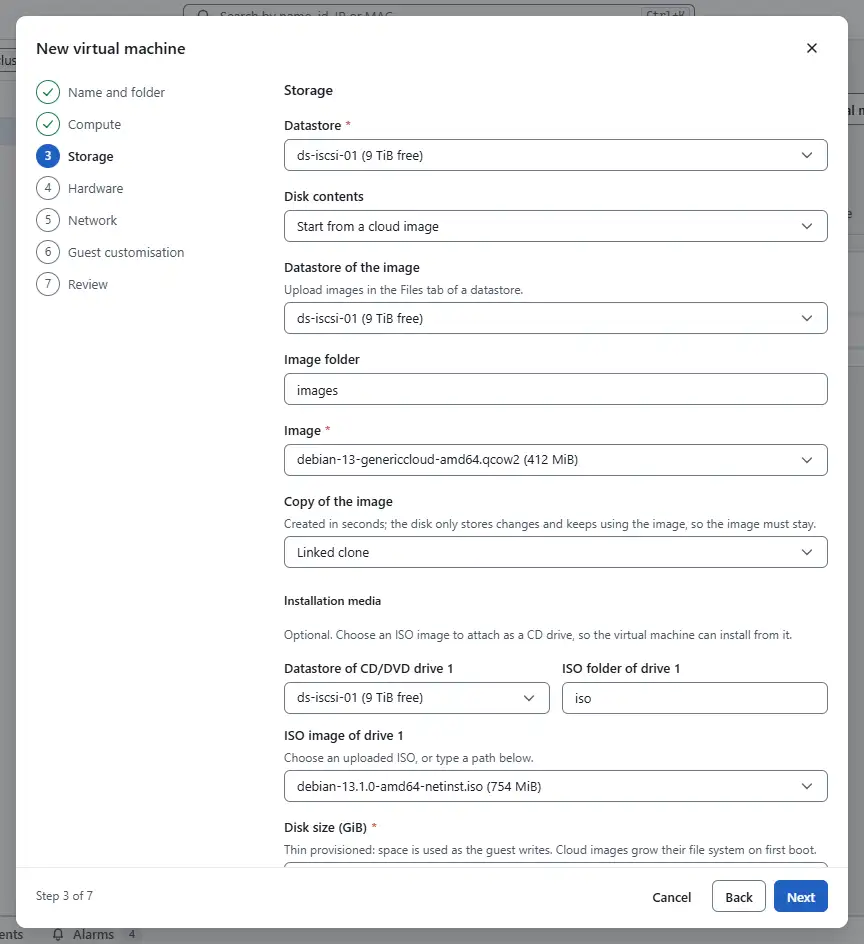
Storage: choose the Datastore for the disk and keep Start from a cloud image under Disk contents. Choose the datastore and the folder of the image, the Image, and the copy under Copy of the image:
- Linked clone is ready in seconds. The disk keeps using the image, so the image must stay as long as such machines exist.
- Full clone is an independent copy. It takes longer and uses more space.
Set the Disk size (GiB). The guest grows its file system to it at the first start.
- Hardware: set the Virtual CPUs, the Memory (GiB) and the Guest operating system. Firmware offers UEFI and BIOS; Secure Boot needs UEFI.
- Network: choose the Network of the network adapter. To give the machine a public address, select Second network card with a public IP address, see Public addresses.
Guest customisation: keep Customise the guest with cloud-init selected. Paste your SSH public keys, the line of your
.pubfile, and enter a Guest password twice (select Generate to get one). The console keeps only a hash of the password, so copy it now.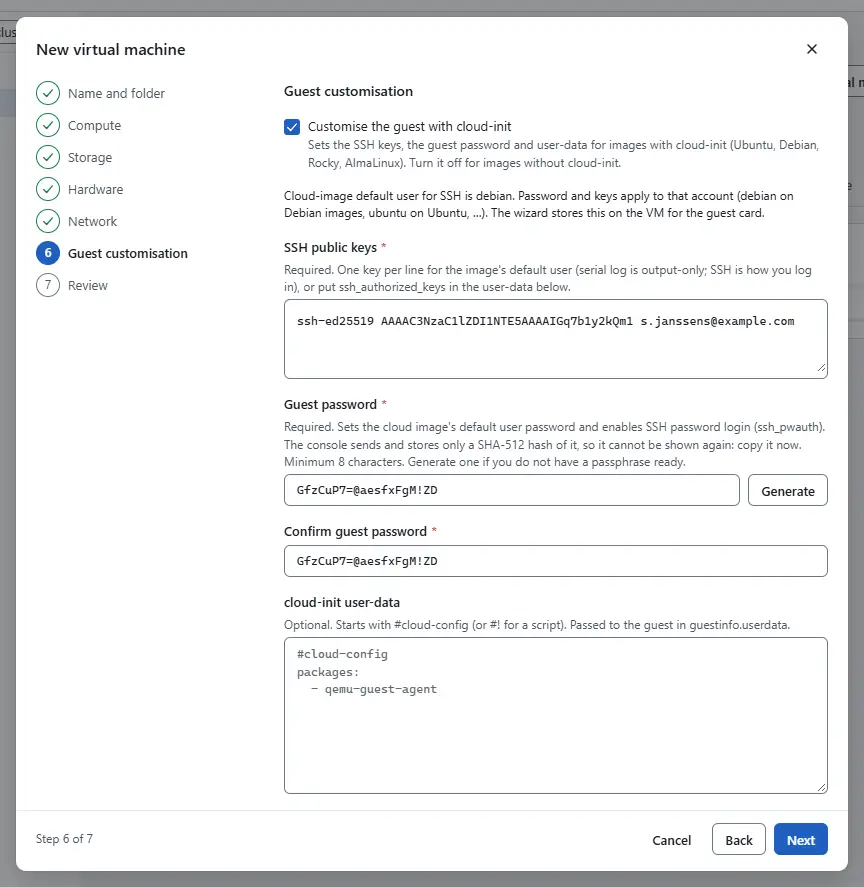
Review: check the summary, keep Power on after creation selected and select Create.
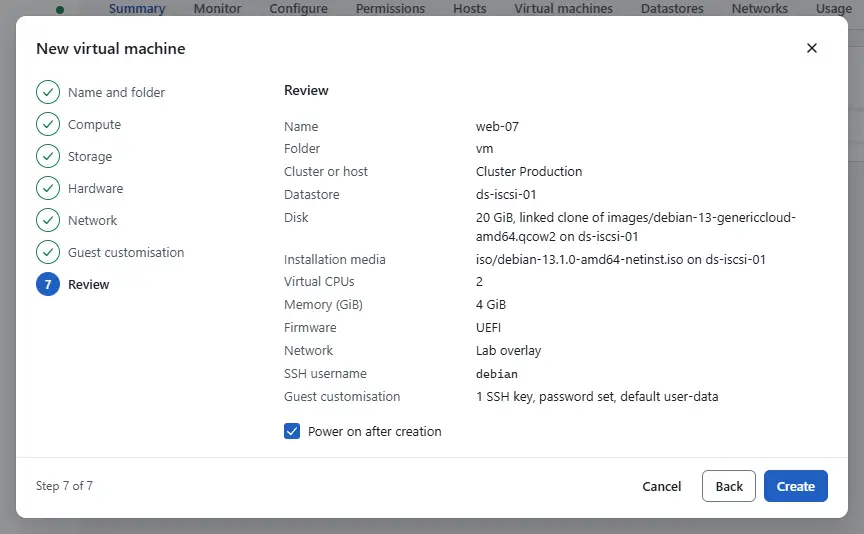


The tasks pane at the bottom shows the creation and the power-on. When the tasks are done the page of the virtual machine opens. After a minute the guest has booted, and the card Guest of the summary shows its addresses and the SSH access.
Everyday actions

- Power on, Shut down guest, Power off and Ctrl+Alt+Del (reset) are at the top of the page. Suspend and Rename are under More actions.
- Edit settings changes the CPUs, the memory and the disks. A running machine can only grow; power it off to reduce CPUs or memory.
- The console checks sizes against the host and the datastore: a machine cannot have more CPUs than its host, a disk must fit on its datastore and cannot shrink, and a machine has room for 23 disks and network adapters together. Power on is refused when the host has too little memory free. Power off another machine, reduce the memory or move the machine to another host.
- When two people change the same machine at once, both changes are kept. If your change cannot be combined with the other one, the console asks you to reload and make it again.
- Delete from disk, under More actions and only for a powered-off machine, asks you to type the name before it deletes the machine and its disks.
The tabs Recent tasks and Events at the bottom show what happened and who did it. The Monitor tab of a host, a virtual machine or a datastore shows its performance charts.
Open the console
The card Console of a powered-on machine shows a picture of its screen, refreshed every ten seconds.
- Select Open console on the card, or under More actions.
- Click the screen to type into the guest. The firmware setup, a boot loader menu, an installer and a login prompt all work here, without anything installed in the guest.
Select Close to leave. While the window is connected the guest has the keyboard, Escape and Tab included.
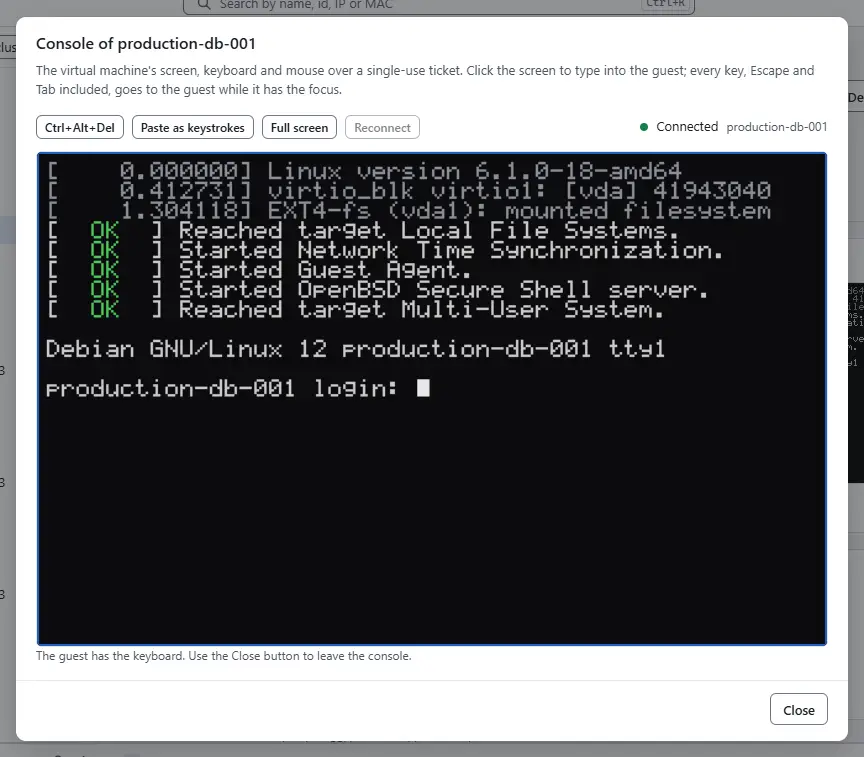

The toolbar sends Ctrl+Alt+Del to the guest, types your clipboard with Paste as keystrokes and offers Full screen. Console describes the toolbar and the serial log.
Result
The virtual machine runs from your image. Connect with ssh and the default user of the image, for example debian or ubuntu, using the key you entered. The card Guest shows the exact command.
Next steps
- Create a virtual machine: the wizard in detail.
- Edit hardware
- Snapshots
- First CLI session: the same tasks from the command line.
Version 0.1. Last changed: 2026-11-14