Users and groups
Create local users and groups in the console, set their groups, disable them, lift a lockout and delete them.
Create the accounts that sign in to the console, collect them in groups and handle an account that is locked, lost or no longer needed. Users from an identity provider appear at their first sign-in; see Single sign-on. Without the privilege Kyvernon.Identity.ManageUsers on the root, the screens of this page are not offered.
In the console
Create a user
Open the User menu at the top right and select Administration. In the list on the left, select Users.
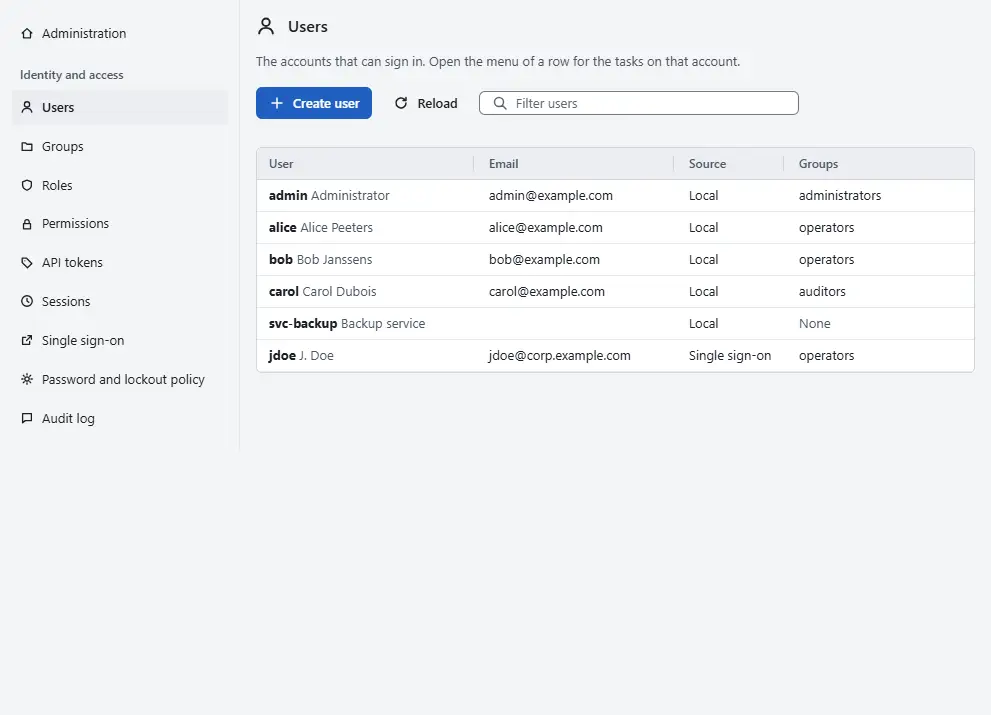
- Select Create user.
- Enter the User name: two to 64 letters, digits, dots, hyphens or underscores. It cannot be changed later. Display name and Email address are optional.
- Enter the Password and repeat it under Repeat the password. The length must be within the password policy, 12 to 256 characters unless an administrator changed it, and common passwords are refused.
Leave Require a new password at the first sign-in ticked so that the user chooses a password of their own before anything else works. Tick Service account for an account that a program uses, not a person. Under Groups, tick the groups the user belongs to.
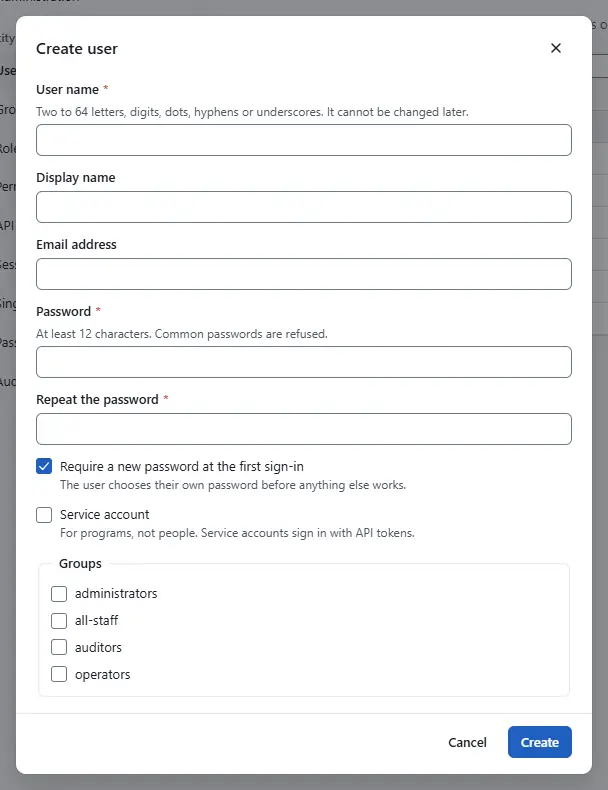
- Select Create.


The new user appears in the table with the columns Source, Groups, State, Two-step verification and Last sign-in. Give the user access afterwards; see Roles and permissions.
Change an account
Select Actions in the row of the user. The menu offers:
- Edit changes the display name, the email address, the service account switch and the groups.
- Reset password sets a new password and ends all sessions of the account. Give the password to the user over a safe channel.
- For a locked account, the menu also offers an action that lifts the lockout, so that the user can try again at once instead of waiting for the lock to end.
- Reset two-step verification appears when the user has two-step verification. The user sets it up again at the next sign-in. Use it when the phone and the recovery codes are lost.
- End all sessions signs the user out everywhere.
- API tokens opens the API tokens of the user; see API tokens.
- Disable stops the user from signing in and ends the sessions. The account and its permissions stay, and Enable brings it back.
- Delete removes the account, its sessions and its API tokens. The dialog asks you to type the user name. Permissions granted to the name stay until you remove them.
You cannot disable or delete your own account. To keep an account that is no longer needed but may come back, disable it.
Create a group and add members
A group gives the same access to many people: grant a role to the group and everyone in it has it. A group can contain users and other groups, and members of a nested group inherit what the outer group has.
In the list on the left of the Administration area, select Groups.
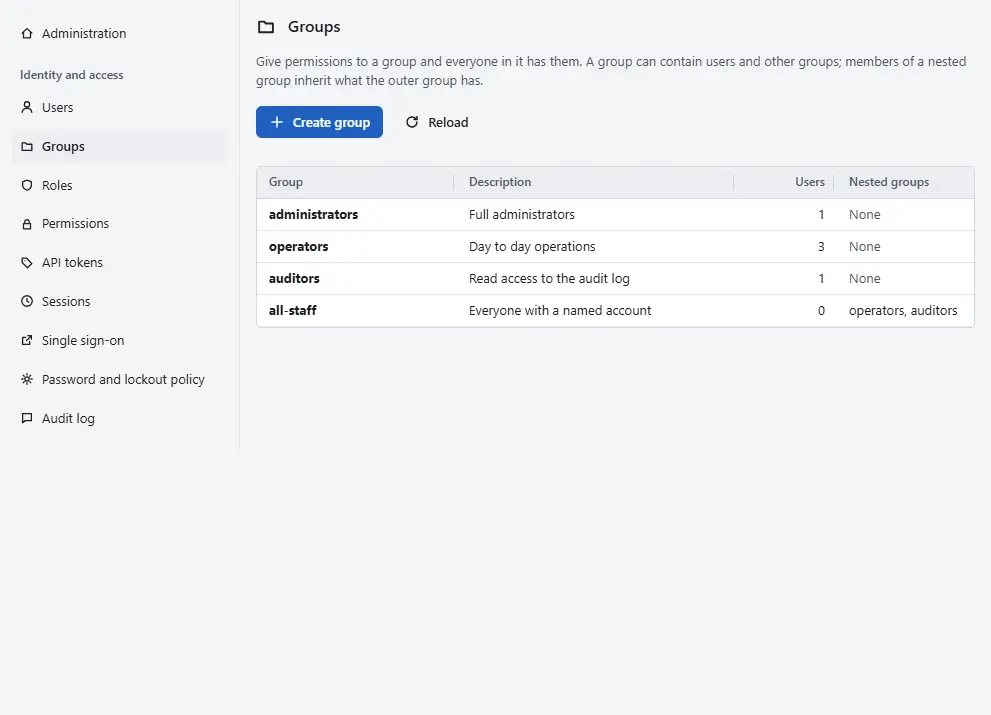
Select Create group. Enter the Group name, with letters, digits, spaces, dots, hyphens and underscores up to 64 characters, and a Description.
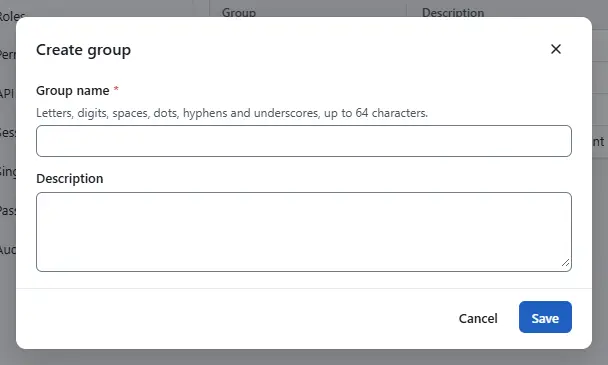
- Select Save.
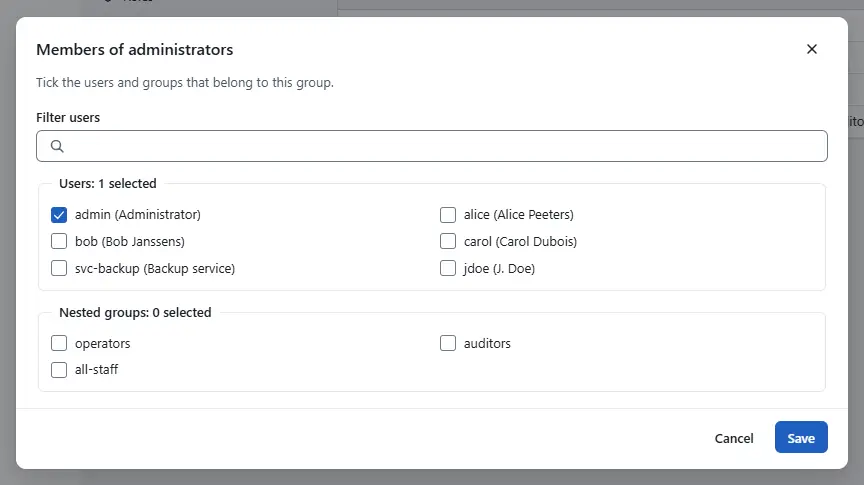
In the row of the group, select Members. Tick the users and the nested groups that belong to it, and select Save. A group that contains the current one is not offered, because it would form a loop.


Edit in the row renames the group, and the members and permissions stay. Delete removes the group: its members lose what they had through it, and the users stay.
Result
The users and groups are listed on their screens, and every change is recorded in the audit log. A user that you disable cannot sign in from that moment.
Automation
With the CLI
The password of a new user comes from the environment variable KYVERNON_PASSWORD or from standard input, never from the command line:
read -r -s KYVERNON_PASSWORD
export KYVERNON_PASSWORD
kyvernon users create j.smith --display-name "J Smith" --email j.smith@example.com \
  --group operations --rotation-required
kyvernon users update j.smith --group operations --group auditors
kyvernon users unlock j.smith
kyvernon users groups create operations --description "Daily operations"
kyvernon users groups add operations --user j.smith
--group can be repeated. users update replaces the display name, the email address and the groups of a user, and users groups lists, creates, renames, fills and deletes groups; users list and users groups list show the result.
With the API
GET /v1/identity/users lists users and POST /v1/identity/users creates one. PUT /v1/identity/users/{username} changes the display name, the email address and the groups. Groups are GET and POST /v1/identity/groups, PUT and DELETE /v1/identity/groups/{name}, and .../members below a group. The other user tasks are calls below /v1/identity/users/{username}: PUT .../enabled, POST .../password, POST .../unlock, DELETE .../mfa, DELETE .../sessions, PUT .../service-account and DELETE on the user itself. All of them need Kyvernon.Identity.ManageUsers, except ending sessions, which needs Sessions.TerminateSession.
Related
- Roles and permissions gives users and groups access.
- Sign-in security covers passwords, lockout and two-step verification.
- Identity concepts explains how groups and roles combine.
Version 0.1. Last changed: 2026-11-14