Sign-in security
Change your password, set up two-step verification with recovery codes, set the password and lockout policy and lift a lockout.
Kyvernon protects the sign-in with a password policy, limits on failed attempts and two-step verification for administrators. Every person can change their own password and set up two-step verification; changing the policy needs the privilege Kyvernon.Identity.ManagePolicy, and lifting a lockout needs Kyvernon.Identity.ManageUsers. The policies are kept in the replicated store and apply on every controller.
In the console
Change your password
Open the User menu at the top right.
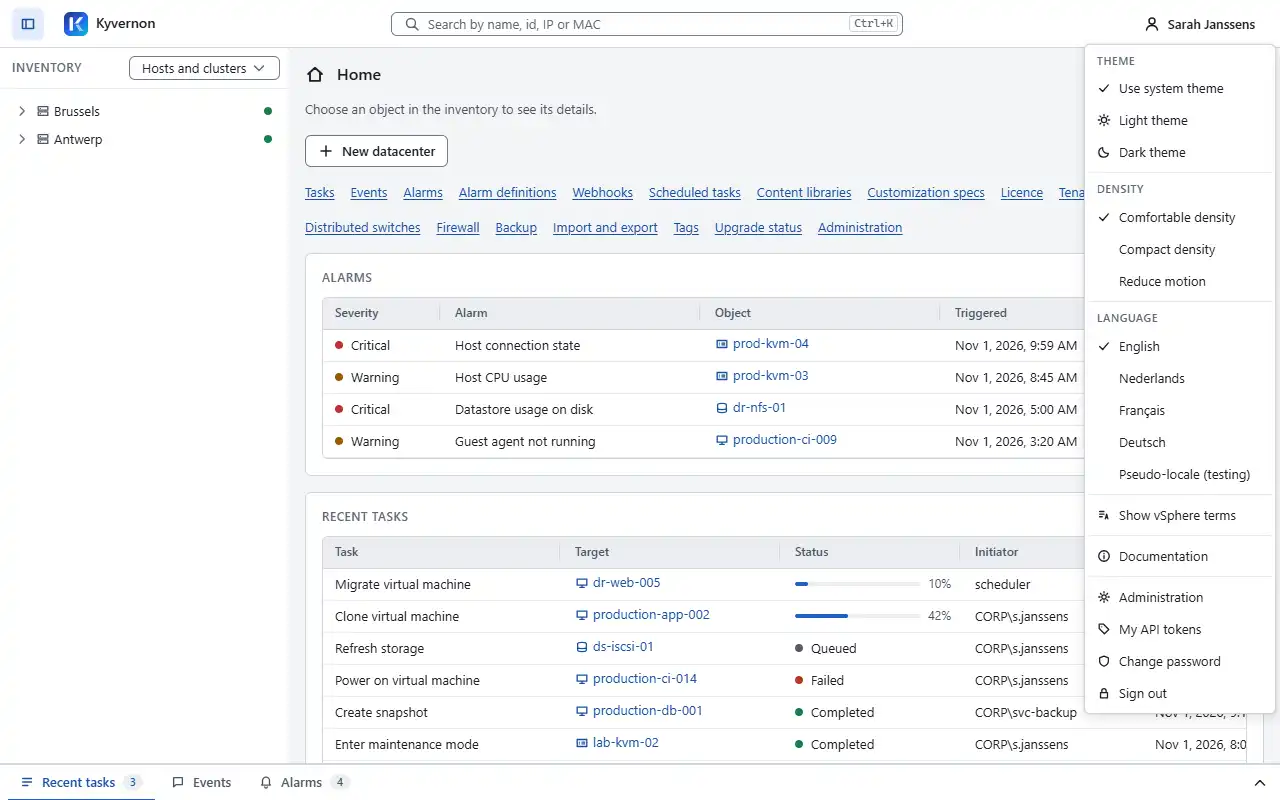
Select Change password. The dialog Change your password asks for the current password and the new one twice.
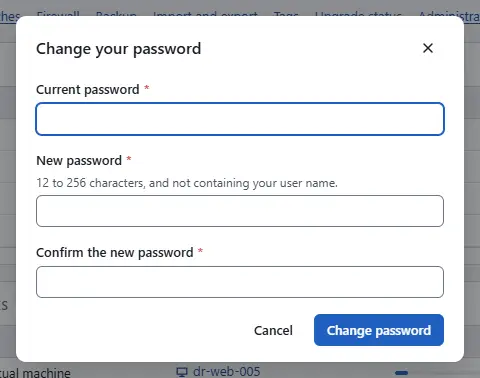
- Select Change password.


Changing the password ends every session of the account, and the console gives you a new one. An account that an administrator marked for rotation must choose a new password at the next sign-in on the page Choose a new password, before anything else works.
A password has 12 to 256 characters, with no rules about letters, digits or symbols. Kyvernon refuses a password that is on the list of common passwords, or a common word with digits, symbols or letter substitutions around it; that repeats one character or group, or follows a keyboard or alphabet sequence; that contains the user name; or that equals the current password. A passphrase of several words is easier to remember than a short password with symbols.
Set up two-step verification
Administrators sign in with a password and a code. Until an administrator has set it up, the session reaches only the set-up.
- Sign in with the user name and password. After the password change, the page Set up two-step verification appears.
- Scan the QR code with an authenticator app on your phone, or type the key under the code into the app.
- Enter the Code from the app and select Turn on two-step verification.
- On the page Save your recovery codes, select Copy the codes and store the codes in a password manager, or print them. Select I have stored these codes in a safe place, then Continue. The codes are shown once, and each one works once.
At every later sign-in, the page Two-step verification asks for the six-digit code after the password.

When the phone is lost, enter a recovery code instead of the code from the app. When the phone and the recovery codes are lost, an administrator selects Reset two-step verification for the user on the Users screen, and the user sets up verification again at the next sign-in; see Users and groups.
Codes are time-based one-time passwords with six digits and a step of 30 seconds, as every authenticator app produces them. Kyvernon accepts one step of clock difference, and a code works once. By default every user who holds Authorization.ModifyPermissions, Global.Settings or Kyvernon.Identity.ManageUsers on the root must verify with a code. Users who sign in through an identity provider are verified by the provider, and service accounts and API tokens have no second step.
Set the password and lockout policy
Open the User menu, select Administration, and in the list on the left select Password and lockout policy.
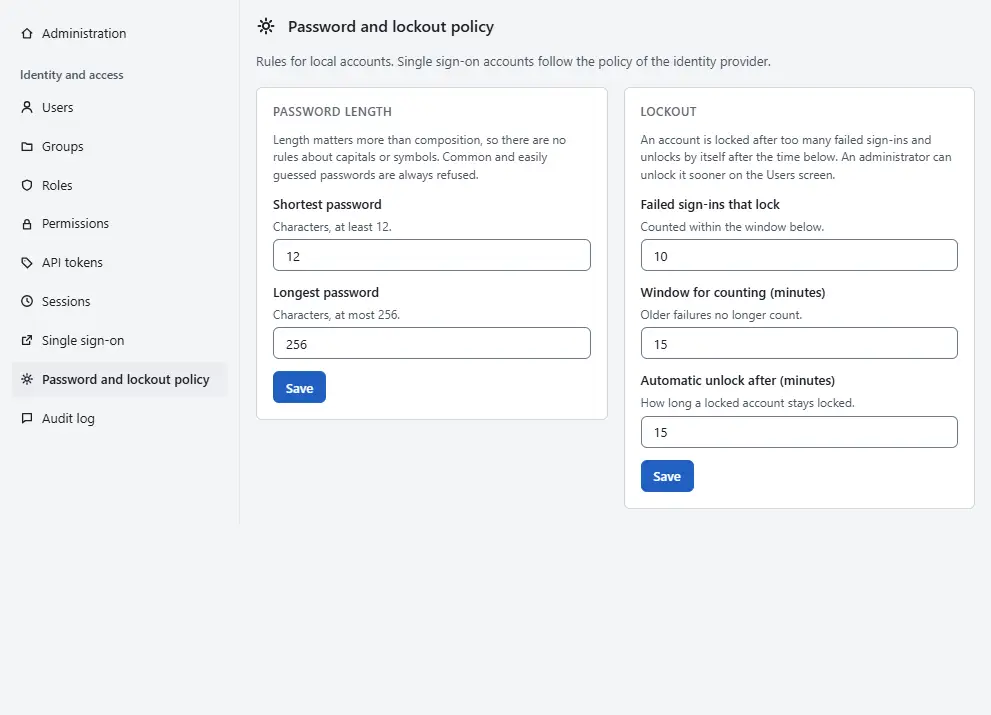
- Under Password length, set the Shortest password and the Longest password. The shortest password is at least 12 characters, and the longest at most 256, so the policy can raise the minimum but not lower it. Select Save.
- Under Lockout, set Failed sign-ins that lock and the Window for counting (minutes), and the number of minutes after which a locked account is released by itself. Select Save.

By default ten failed attempts, with a password or a code, within 15 minutes lock an account for 15 minutes. The window and the lock time are whole minutes, up to seven days. An address from which the user completed a sign-in during the last 90 days does not lock the account, but is still subject to the delays below. The policy applies to local accounts; accounts that sign in through single sign-on follow the policy of the identity provider.
Lift a lockout
A locked account shows Locked in the table of the Users screen. Select Actions in its row, choose the action that lifts the lockout, and confirm. The user can try again at once instead of waiting for the lock to end.
Result
The new policy applies to the next password change and the next failed sign-in. Kyvernon also slows attackers down without revealing which accounts exist. After 20 failures from one address within 15 minutes (an IPv6 address counts as its /64 prefix), further attempts from it wait for a delay that starts at one second and doubles up to 15 minutes. After 3 failures for one user name from one address, the same delay applies to that pair. The answer is error.auth.rate_limited. Every other refusal is one answer, error.auth.invalid_credentials, whatever the reason.
Automation
With the CLI
The CLI reads passwords from the environment variable KYVERNON_PASSWORD or from standard input, never from the command line. When the account has two-step verification, give the code with the sign-in:
kyvernon login j.smith --code <code> --save
kyvernon auth password
kyvernon auth totp enrol
kyvernon auth totp confirm <code>
kyvernon users set-password-policy --min-length 14
kyvernon users set-lockout-policy --max-failed-attempts 8
auth password reads the current and the new password as two lines. totp enrol prints the secret and the address for the authenticator app, and totp confirm prints the ten recovery codes once. kyvernon auth totp recovery-codes <code> creates new codes, and the old ones stop working. kyvernon users unlock j.smith lifts a lockout. kyvernon users password-policy and kyvernon users lockout-policy show the policies.
With the API
POST /v1/auth/login starts a browser sign-in and POST /v1/auth/mfa completes it with pendingToken and code or recoveryCode; the first step is valid for 5 minutes. POST /v1/auth/password changes the password, and POST /v1/auth/totp/enrol and POST /v1/auth/totp/confirm set up verification. Programmatic clients use POST /v1/identity/login and POST /v1/identity/mfa/complete. The policies are GET and PUT /v1/identity/password-policy and GET and PUT /v1/identity/lockout-policy, and need Kyvernon.Identity.ManagePolicy.
Session lifetimes and other settings
These settings are in the section [identity.policy] of the controller configuration, and the controller is restarted after a change.
| Setting | Default | Meaning |
|---|---|---|
session_idle | 15 minutes | A session ends after this time without activity. |
session_absolute | 12 hours | Longest lifetime of an interactive session. |
api_session_absolute | 24 hours | Longest lifetime of a programmatic session. |
mfa | required_for_admins | required_for_admins or optional. |
facade_login | role_assigned | Who may sign in with a password on the programmatic endpoints: role_assigned, service_accounts or api_token. |
The break-glass account for use when the identity provider is down has its own sub-section: its sessions last one hour, its password must be changed after every use, and it needs a code unless that is turned off for it.
Related
- API tokens for automation that cannot answer a code.
- Single sign-on lets people sign in with an identity provider.
- Identity troubleshooting for refused sign-ins.
Version 0.1. Last changed: 2026-11-14