Alarms
Define an alarm on an event type, send it to a webhook, acknowledge triggered alarms and reset them to green in the console.
An alarm watches an object and everything below it. When an event of the chosen type occurs on an object in the scope, the alarm sets a status on that object: Warning (yellow) or Critical (red), or green when it is reset. Every change of status is recorded as the event AlarmStatusChangedEvent, and an alarm can also send it to webhook subscribers. Defining alarms needs Alarm.Create on the scope.
In the console
Define an alarm
Open the home page (Home) and select Alarm definitions under Shortcuts. From the list of triggered alarms the link Manage alarm definitions leads to the same page.
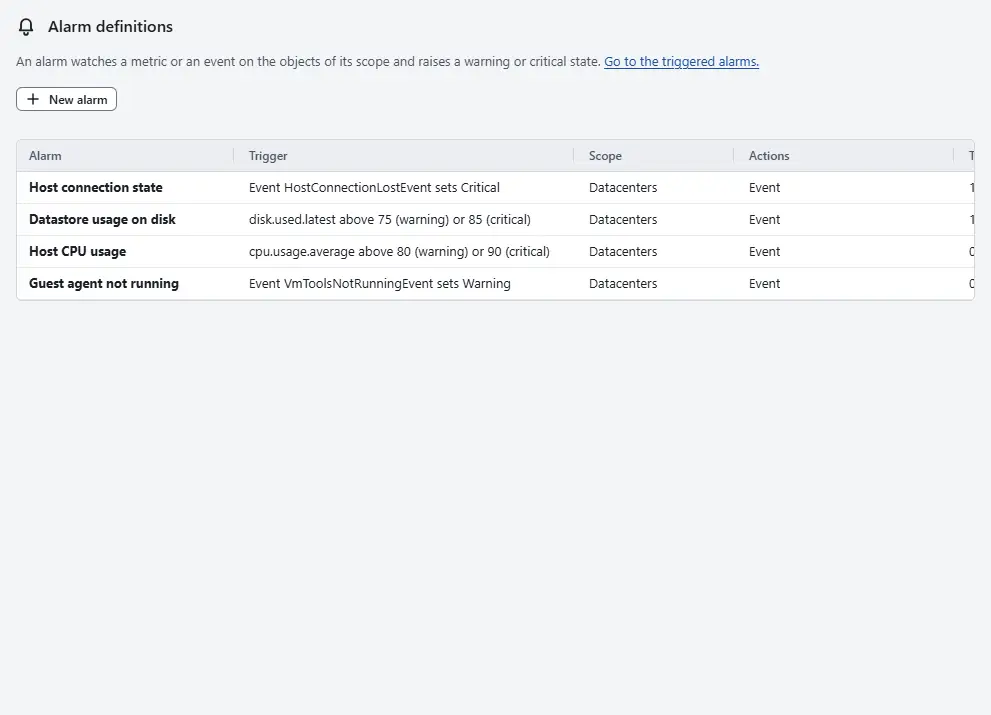
The table shows each alarm with its Trigger, Scope, Actions, how many objects are triggered and whether it is enabled.
- Select New alarm. Enter the Name, at most 80 characters, and optionally a Description.
- Choose the Scope: Everything, or one datacenter, cluster, host, datastore or folder. The alarm watches this object and everything inside it.
- Choose the Trigger type.
- For An event happens, enter the Event type as the event list shows it, for example
HostConnectionLostEvent, and choose the Status to set. - For Metric crosses a threshold, choose the Metric, then whether the alarm is raised when the value is above the threshold or below the threshold, and enter the Warning threshold and the Critical threshold. The critical threshold must not be lower than the warning threshold for an alarm above, and not higher for an alarm below.
- For An event happens, enter the Event type as the event list shows it, for example
- Under Actions when the alarm triggers, keep Record an event ticked to write the change to the event log, and tick a webhook label to send the change to the webhooks that carry it. Choose at least one action. A label is added to a webhook when you create it; see Webhooks.
Leave Alarm is enabled ticked.
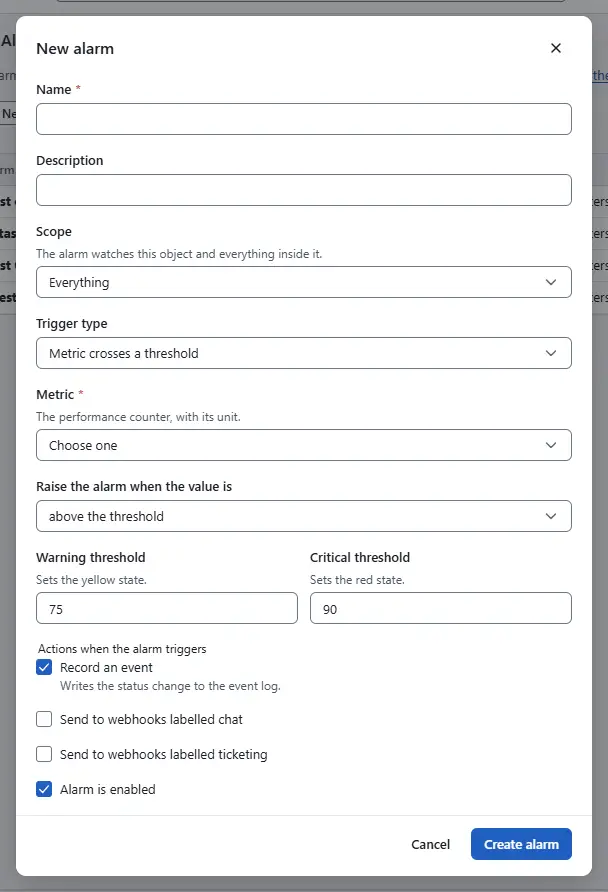
- Select Create alarm.


Edit and Delete in a row change and remove an alarm; deleting also removes its triggered states, and nobody is notified about them any more. Editing replaces the definition; the states stay unless the trigger or the scope changes.
A metric trigger is stored with its thresholds, but the controller does not evaluate it on performance samples yet. Planned Use an event trigger for an alarm that works today.
Acknowledge and reset triggered alarms
Select Alarms on the home page, or open the tab Alarms in the pane at the bottom of the page. The home page shows the alarms that nobody has acknowledged yet.
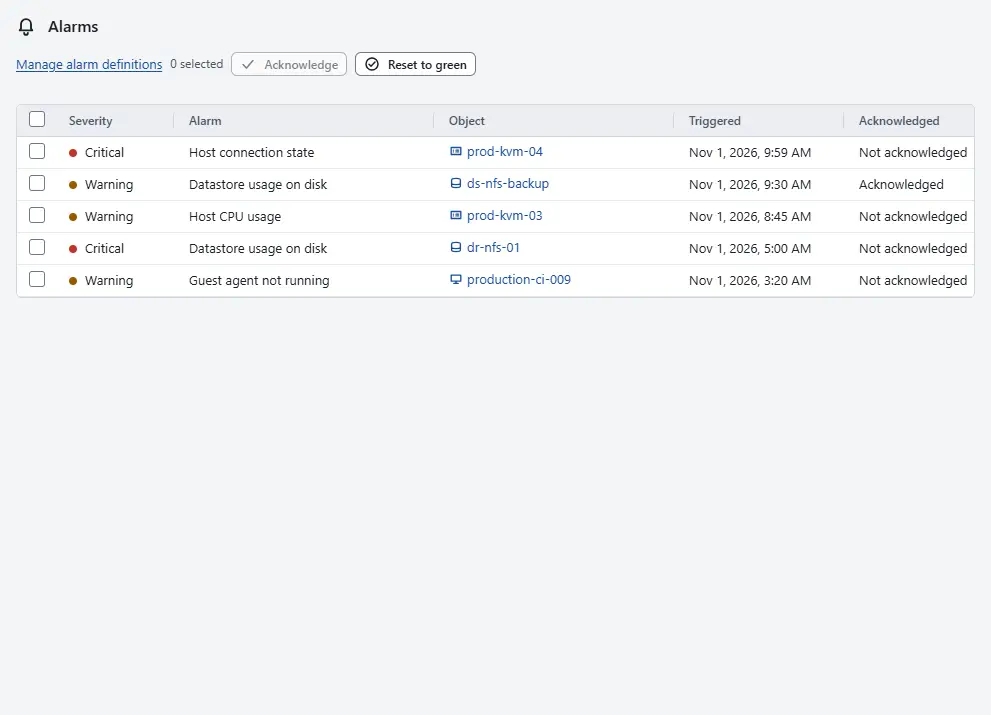
The table Triggered alarms lists Severity, Alarm, Object, Triggered and Acknowledged.
- Tick one or more rows and select Acknowledge to say that someone looks at them. The alarm stays triggered.
- Select Reset to green to set every triggered alarm back to green. It also clears the acknowledgement.

An alarm does not return to green by itself. Reset it when the cause is gone.
Result
The alarm is in the list of definitions. When an event of its type occurs on an object in the scope, the object is listed under Alarms with the chosen status, and the actions run. Kyvernon does not evaluate the events that its own alarms produce again, so alarms cannot trigger each other.
Automation
With the CLI
Write the definition in a JSON file, alarm.json. This alarm turns an object red when a host disconnects and sends the change to the webhooks that carry the label ops-pager:
{
  "name": "Host disconnected",
  "scopeId": "group-d1",
  "enabled": true,
  "trigger": { "type": "event", "event_type": "HostDisconnectedEvent", "status": "red" },
  "actions": [ { "type": "event" }, { "type": "webhook", "label": "ops-pager" } ]
}kyvernon alarms create --body-file alarm.json
kyvernon alarms update <alarm-id> --disable
kyvernon alarms list
kyvernon alarms acknowledge <alarm-id> host-3
kyvernon alarms clear-triggered --status redscopeId is the object that the alarm watches, with everything below it; group-d1 is the root folder. clear-triggered sets every non-green state back to green, or only the states with the given statuses.
With the API
POST /v1/alarms defines an alarm, GET /v1/alarms and GET /v1/alarms/{id} read them, PUT /v1/alarms/{id} replaces a definition with the create body, and DELETE /v1/alarms/{id} removes one with Alarm.Delete on the scope. POST /v1/alarms/{id}/acknowledge with targetId needs Alarm.Acknowledge on the object, and POST /v1/alarms/clear-triggered with statuses needs Alarm.SetStatus. The gRPC service AlarmService lists and acknowledges alarms.
Related
- Events lists the event types.
- Webhooks delivers alarm changes to other systems.
- Identity troubleshooting explains the error messages for missing privileges.
Version 0.1. Last changed: 2026-11-14